
Want a cleaner, quieter internet? Searching for a "no ads browser" usually means you are tired of pop-ups, autoplay videos, and tracking-heavy web clutter. But you do not necessarily need a brand-new browser to get a pristine web experience.
Do I need a new browser to get an ad-free experience?
Not always. You have three fast paths:
- Switch to a browser with built-in blocking (like Brave).
- Keep your current browser and add an extension (like a compatible blocker for Chrome/Edge or uBlock Origin for Firefox).
- Add a DNS layer for whole-device coverage.
Your best choice depends on whether you prefer Chromium, browse mostly on mobile, or need multi-device protection.
- Ad blocker adoption: Globally, 29.5% of internet users—roughly 1.77 billion people—use ad blockers, according to ad blocker usage stats.
- Security recommendation: The FBI officially recommends using ad-blocking extensions to avoid malicious search ads in the FBI cyber alert on malicious search ads.
- Performance gains: AdGuard's test across 119 U.S. news websites showed that blocking ads reduces page load times by 45%, according to AdGuard's web performance report.
Jump to your setup: Chrome, Edge, Firefox, Android, iPhone, or built-in browsers.
Start Here: Keep Your Browser or Switch?
- Easiest switch: Brave.
- Maximum control: Firefox + extension.
- Keep Chrome/Edge: Extension path.
- TV/App coverage: DNS + browser blocker.
If you want the easiest out-of-box option
Brave represents the fastest transition. Its native Shields feature blocks third-party ads and trackers immediately upon installation, requiring zero configuration.
If you want maximum control
Pairing Firefox with a robust extension provides the highest level of user control. As Mozilla's approach to Manifest V3 explains, Firefox supports Manifest V2 alongside V3, maintaining a mature, flexible add-on ecosystem.
If you want to keep Chrome or Edge
You do not have to switch. An extension-first setup works best here. Adding a supported Manifest V3 extension cleans up Chromium browsers without disrupting your current workflow, bookmarks, or saved passwords.
If you need protection beyond the browser
DNS filtering provides network-level coverage for smart TVs, mobile apps, consoles, and IoT devices that standard browser extensions cannot reach.
What a "No Ads Browser" Actually Means
A "no ads browser" describes a spectrum of filtering, not an absolute binary. Basic setups handle the easiest elements: third-party banners, pop-ups, trackers, and redirects. They efficiently clean up visual clutter.
Harder elements bypass standard filters. These include first-party promotions, sponsored native widgets, and sophisticated anti-adblock walls. The hardest category involves server-side ad insertion (SSAI), where platforms stitch advertisements directly into the primary content stream, making them nearly indistinguishable from the video itself.
The 3 Ways to Get a Quieter Browser Setup
- Built-in blockers live inside the browser itself.
- Extensions add blocking to a browser you already use.
- DNS blocking works at the network level across all apps and devices.
1. Built-in browser blocking
Some browsers integrate filtering technology directly into the application. This path avoids third-party installations and operates efficiently at the core level. It requires you to learn a new interface, making it ideal for users fully open to switching browsers.
2. Extension-based blocking
Extensions integrate into your current environment. They deliver excellent cosmetic page cleanup without forcing you to migrate data. This approach is best for users who want to keep their current browser intact.
3. DNS or system-wide blocking
DNS filtering intercepts network requests before they reach the browser. While highly effective for IoT hardware and smart TVs, it struggles with cosmetic layout cleanup and same-site video advertisements. It fits advanced users seeking multi-device protection.
Best Built-In Browsers for Fewer Ads
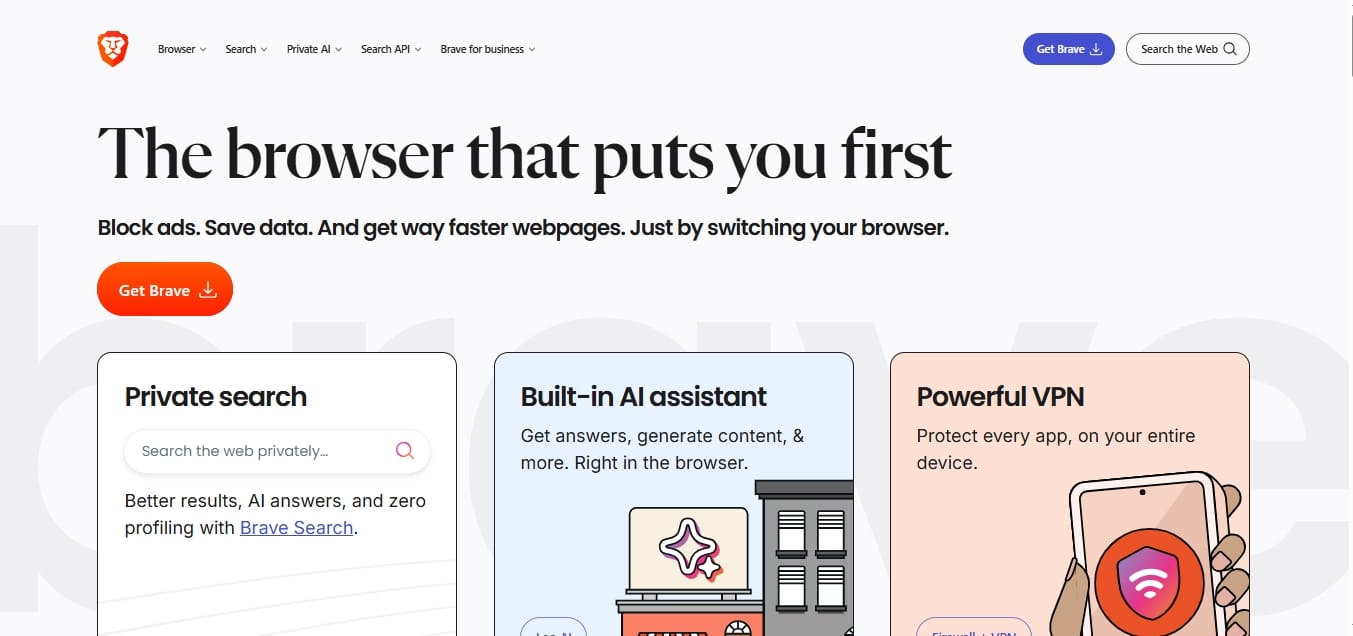
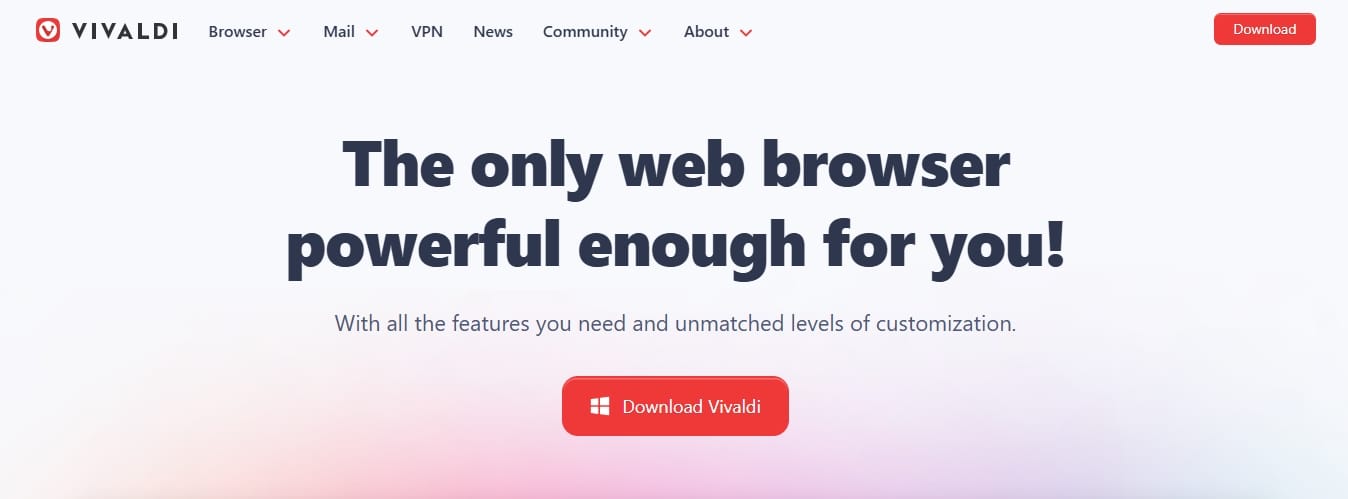
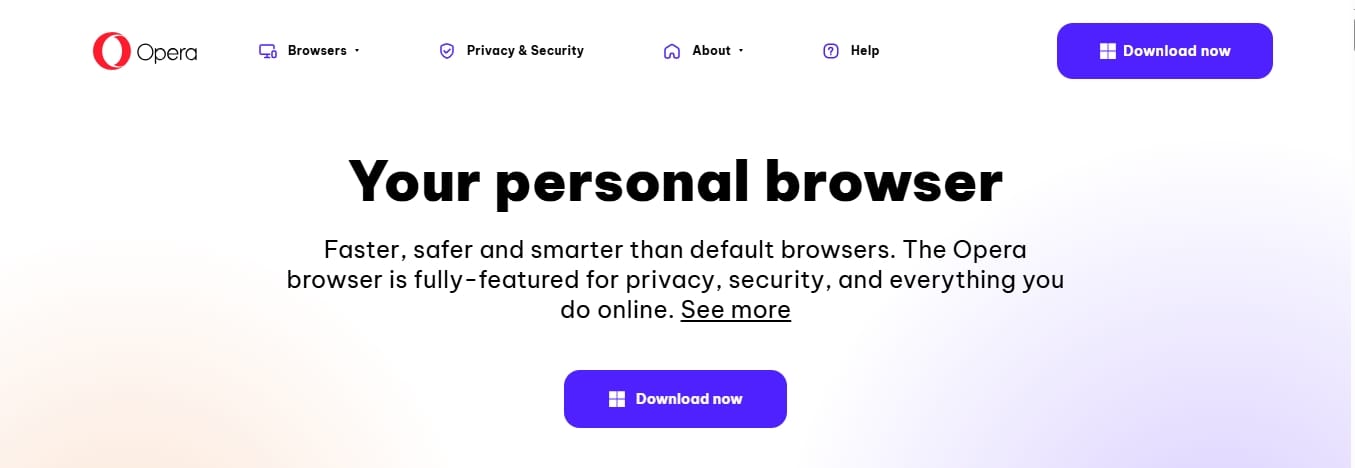
Brave is the easiest choice because its Shields block third-party ads and trackers by default. Vivaldi offers deeper control over lists but requires manual setup. Opera provides basic built-in tools but disables its ad blocker by default.
Brave
- Best for: Users who want the easiest switch and strong default blocking.
- Why it works: Brave Shields intercepts third-party tracking scripts automatically. A January 2026 engine update, Brave overhauls adblock engine, slashed Brave's adblock memory consumption by 75% (saving roughly 45 MB by default), making it highly efficient. This creates a reliable "brave browser no ads" experience.
- Caveat: Brave Rewards and Brave Ads function independently from Shields. This opt-in ecosystem, along with sponsored new-tab images, means Brave allows its own approved promotions unless manually disabled.
Vivaldi
- Best for: Users who want built-in blocking plus granular technical control.
- Why it works: Vivaldi integrates a robust tracking and ad blocker relying on EasyList and EasyPrivacy. You can easily append custom blocklists directly within the browser settings.
- Caveat: The blocker is inactive upon installation. Vivaldi also permits certain partner search advertisements by default.
Opera
- Best for: Users who want native filtering integrated with existing productivity features.
- Why it works: Opera includes a native tool that speeds up page rendering and declutters standard web environments without requiring third-party extensions.
- Caveat: The feature is disabled by default. You must navigate to the privacy settings and manually toggle the ad blocker on.
Can I make Chrome or Edge feel ad-free without switching?
Yes, on desktop. Both browsers support extensions, allowing you to add browser-level filtering. Since Chrome's shift to Manifest V3, you must use updated, compatible extensions for stable performance.
Chrome
Best if: You want to stay in the Google ecosystem.
The setup: Desktop Chrome fully supports customized filtering. However, its shift to Manifest V3 governs exactly what these tools can accomplish. Install a Manifest V3-compatible blocker from the Chrome Web Store, pin it, and test it on a cluttered site. You can also test your ad blocker with a synthetic benchmark.
If you want a browser-specific walkthrough, see How to Block Ads on Chrome.
Edge
Best if: You prefer the Microsoft Chromium path.
The setup: Edge shares an underlying architecture with Chrome. Install your filtering tool from the official Edge Add-ons store and pin it to the taskbar. Most Manifest V3 Chrome extensions translate perfectly to Edge.
Firefox
Best if: You want the strongest extension path and maximum control.
The setup: Mozilla continues to support older, more powerful Manifest V2 extensions. Pairing Firefox with uBlock Origin delivers the cleanest, most authoritative path for power users.
Note: If you already use Brave, Opera, or Vivaldi, tune their built-in blockers before stacking multiple third-party tools. Native settings resolve visual clutter faster and consume fewer system resources.
Best No Ads Browser Android and iOS Setups
Mobile browsing strictly limits external add-ons. On Android, use a browser with built-in blocking or Firefox with add-ons. On iPhone/iPad, use Safari with an official content blocker.
Best No Ads Browser Android Options
Standard mobile Chrome does not permit external add-ons. You must rely on three practical paths:
- Adopt a browser with a built-in blocker (Brave).
- Utilize Firefox for Android alongside its official add-ons.
- Leverage a specialized, extension-friendly Chromium browser (like Kiwi Browser).
Keep your mobile strategy simple. Built-in blockers usually deliver the most stable Android experience.
No Ads Browser iOS Options
Apple maintains tight control over iOS web environments. The most effective approach utilizes Safari content blockers and official Safari extensions. Apple documents the setup through Safari extensions on iPhone. However, they cannot intercept advertisements embedded natively inside standalone applications (like the YouTube app).
Why Chrome Ad Blocking Changed: Manifest V3 Explained
Chrome moved its extension platform to Manifest V3, changing how blockers filter requests. While basic blocking remains highly effective, the update restricts advanced cosmetic cleanup and dynamic filtering rules.
Google officially frames Manifest V3 as its modern, secure standard for extensions. Despite initial panic, the transition did not eliminate filtering capabilities. A 2026 PoPETs paper on MV3 ad blocker effectiveness confirmed no statistically significant reduction in anti-tracking or ad-blocking effectiveness across typical web environments.
The practical reality is more nuanced. Foundational blocking remains solid, but the changes heavily impact dynamic cosmetic cleanup (removing the empty spaces left by blocked ads). For Chrome users, MV3-compatible alternatives now prioritize lightweight content blocking over exhaustive customization. For a deeper browser-specific breakdown, see Does Chrome Manifest V3 Kill Ad Blockers?
Why You Might Still See Ads After Installing a Blocker
Ads still slip through due to default "acceptable ads" programs, server-side video insertion, and sponsored native content. Check your extension settings to ensure strict blocking is enabled.
Default "Acceptable Ads" Settings
Many popular extensions utilize an Acceptable Ads program. This system deliberately permits verified, non-intrusive advertisements by default. You must manually navigate into the extension settings to opt out entirely.
Video Platforms and Server-Side Ad Insertion (SSAI)
Streaming environments operate differently than static sites. Many providers deploy Server-Side Ad Insertion (SSAI). This technique stitches the promotional segment directly into the primary video stream at the server level, making it exceptionally difficult for client-side blockers to intercept without breaking playback. Perfect blocking on fast-changing video platforms remains unreliable over time.
Native Ads and Anti-Adblock Walls
Sponsored native content rarely uses standard ad slots, easily slipping past generic blocklists. Additionally, many publishers utilize detection scripts that restrict site access until you disable your filtering tools.
Beyond the Web Browser: When DNS Blocking Makes Sense
Not usually. If your main problem is clutter inside one browser, a browser-level extension is the fastest fix. Add DNS filtering only if you want coverage on smart TVs, mobile apps, or consoles that a browser extension cannot reach.
DNS filtering functions at the network layer. It excels at halting known tracking domains and telemetry requests across entire networks simultaneously.
However, DNS solutions suffer strict limitations. They cannot execute cosmetic page cleanups or reliably intercept same-site video distributions. Combining a dedicated browser extension with a DNS filter creates a highly effective, full-coverage defense structure. For a deeper setup walkthrough, review How AdGuard DNS Blocks Ads.
Troubleshooting Broken Sites
Sometimes, blocking tracking content speeds up pages but makes crucial site functions fail to load.
Troubleshooting Checklist
- Use the one-blocker rule: Running multiple filtering tools simultaneously guarantees conflict. Maintain one primary extension.
- Pause or allowlist the site: Utilize the extension's toggle feature to quickly disable blocking on broken pages.
- Update and hard refresh: Keep your filter lists updated and force-reload the page.
- Use a clean profile: Keep an unmodified browser profile exclusively for processing billing, banking, or SSO authentications.
Is Ad Blocking Safe and Legal?
Direct Answer: Is ad blocking safe?
Yes. For ordinary users, ad blocking is a standard, legal browsing tool. The FBI explicitly recommends using ad-blocking extensions to protect against malicious search ads. Apple, Mozilla, and Chrome all natively support content-blocking models.
Safety Best Practices
Always source your software exclusively from official browser marketplaces (Chrome Web Store, Edge Add-ons, Mozilla AMO). Filtering tools inherently require permission to read and alter page data. Avoid unverified third-party repositories.
Supporting Creators
Publishers rely on revenue to operate. You can actively support valuable resources by allowlisting trusted domains, purchasing subscriptions, or contributing direct donations, allowing you to support creators without universally compromising security.
Quick Picks by Use Case
Choose the lightest setup that solves your actual problem:
- Easiest switch without setup: Brave.
- Most control for power users: Firefox + uBlock Origin.
- Keep Chrome/Edge intact: Use a Manifest V3-compatible extension.
- Best iPhone web path: Safari + an official iOS content blocker.
- Whole-home protection: Browser blocker + DNS filtering.
If you are looking for the best no ads browser experience, select the path that perfectly aligns with your daily hardware and habits.
FAQs
Does Brave block ads by default?
Yes, Brave Shields intercepts third-party visual clutter and trackers automatically upon installation. It provides Standard and Aggressive tuning parameters to match your preferences.
Does Firefox block ads without an extension?
Firefox natively limits invasive trackers and malicious scripts through Enhanced Tracking Protection. To achieve full cosmetic page cleanup, you must pair it with a dedicated third-party extension.
Can I use more than one ad blocker at once?
No. Running concurrent tools triggers processing conflicts and breaks site functionality. Adhere to the one-blocker rule for optimal stability.
Do ad blockers still work on YouTube?
Results fluctuate frequently. While some setups successfully handle third-party interruptions, server-side ad insertion (SSAI) allows platforms to stitch promotions directly into the content feed, rendering perfect interception highly unreliable.
What does Acceptable Ads mean?
This standard default setting in certain tools automatically permits specific, verified, non-intrusive advertisements to render. You must manually alter the configuration to stop them entirely.
Can Safari on iPhone block ads?
Yes. Apple supports dedicated Safari content blockers and official extensions, which integrate seamlessly into the native iOS browsing environment.
Will DNS blocking remove YouTube ads?
Usually, no. DNS filtering operates at the network layer, which fails to reliably distinguish between the primary video stream and a same-site promotional segment.
Can I support websites while still blocking ads?
Yes. You can manage a custom allowlist for specific trusted domains, pay for premium subscriptions, or provide direct donations to the creators you value.




