

Looking for how to block ads on Chrome? Your best method depends entirely on the device you use and the type of ads you want to remove. For basic pop-ups and intrusive redirects, Chrome's built-in site settings offer a quick first defense. But if you want a clean web free of banner ads, video interruptions, and hidden trackers, you need a dedicated content blocker. Mobile users face a different challenge, as Chrome's Android and iOS apps do not support standard desktop extensions. Let's fix your ad problem across every device.
To block most ads on desktop Chrome, install a trusted ad-blocking extension from the Chrome Web Store to filter banners and trackers, and enable Chrome's built-in pop-up blocker in Site Settings. For mobile devices, you must use system-level DNS blocking or Safari/Firefox add-ons, because Chrome's mobile apps do not support extensions.
Choose the Right Fix for Your Device and Ad Problem
Chrome settings handle a small fraction of web clutter. Extensions handle much more. Mobile browsers require entirely different rules. Before installing anything, match your device and specific problem to the correct solution.
Many users get frustrated expecting a desktop extension to work on mobile, or expecting Chrome's built-in settings to behave like a full tracker blocker.
Pick your fix based on your device. Chrome settings act as a speed bump, while a dedicated extension acts as a gate.
What Chrome Can Block by Itself
Chrome includes basic tools to improve your browsing experience, but it is not a full ad blocker. Google targets specific violations, leaving standard advertising completely intact.
Does Chrome have a built-in ad blocker?
Yes, but it is highly limited. Chrome blocks intrusive or misleading ads on sites with documented poor ad experiences, and it natively blocks basic pop-ups. It does not behave like a full-page ad blocker, meaning standard banners, trackers, and video ads will still appear.
Chrome's Built-In Intrusive Ad Setting
This setting targets misleading ad formats on sites penalized under the Better Ads Standards.
- What it does: Removes formats like flashing banners or countdown screens on specific violating sites.
- What it doesn't do: Block ads on standard, compliant websites.
Pop-Ups and Redirects
Blocking pop-ups is a separate control. Chrome natively stops unauthorized new tabs and floating windows from launching.
Relying solely on Chrome means you will still see standard banner ads, background trackers, autoplay media, and ad-heavy experiences on compliant sites.
Chrome's settings are a first layer. They stop the worst violators and unprompted tabs, but they won't clean up most ads.
How to Block Intrusive Ads and Pop-Ups on Desktop Chrome
To maximize Chrome's native protections, turn on both settings manually. One handles intrusive formats, and the other handles unwanted redirects.
Turn on Chrome's Intrusive Ads Setting
Navigate to Settings > Privacy and security > Site settings > Additional content settings > Intrusive ads. Set this toggle to block. This enforces the Better Ads Standards, cleaning up sites known for actively hostile ad experiences.
Turn on Pop-Ups and Redirects
Navigate to Settings > Privacy and security > Site settings > Pop-ups and redirects. Select Don't allow sites to send pop-ups or use redirects.
How do I block pop-up ads on Chrome?
In desktop Chrome, go to Settings, select Privacy and security, open Site settings, find Pop-ups and redirects, and set it to block. If pop-ups persist, revoke notification permissions for unfamiliar websites or run a malware scan to remove browser hijackers.
Fix Abusive Site Notifications
If a specific site keeps sending alerts to your desktop, those are notifications, not traditional pop-ups. Go to Site settings > Notifications and revoke access for the offending website.
Turn on Chrome's intrusive ad blocker and pop-up blocker in Site Settings, and revoke notification access for spammy sites.
How to Block Most Ads on Chrome With an Extension
If you want a truly clean web experience, you must step beyond Chrome's default settings.
Use Chrome's built-in pop-up and intrusive-ad settings as a baseline, then install a dedicated Chrome pop-up blocker for comprehensive ad and tracker blocking. This removes banners, autoplay clutter, and redirects without requiring you to switch browsers or manually configure complex software.
Why You Need a Dedicated Ad Blocker
A dedicated extension provides broad blocking for banners, trackers, page clutter, autoplay content, and redirect ads. Content blockers read and modify webpage data locally to remove ad elements before they render. This requires standard browser permissions to access site data.
How to Install Blockify
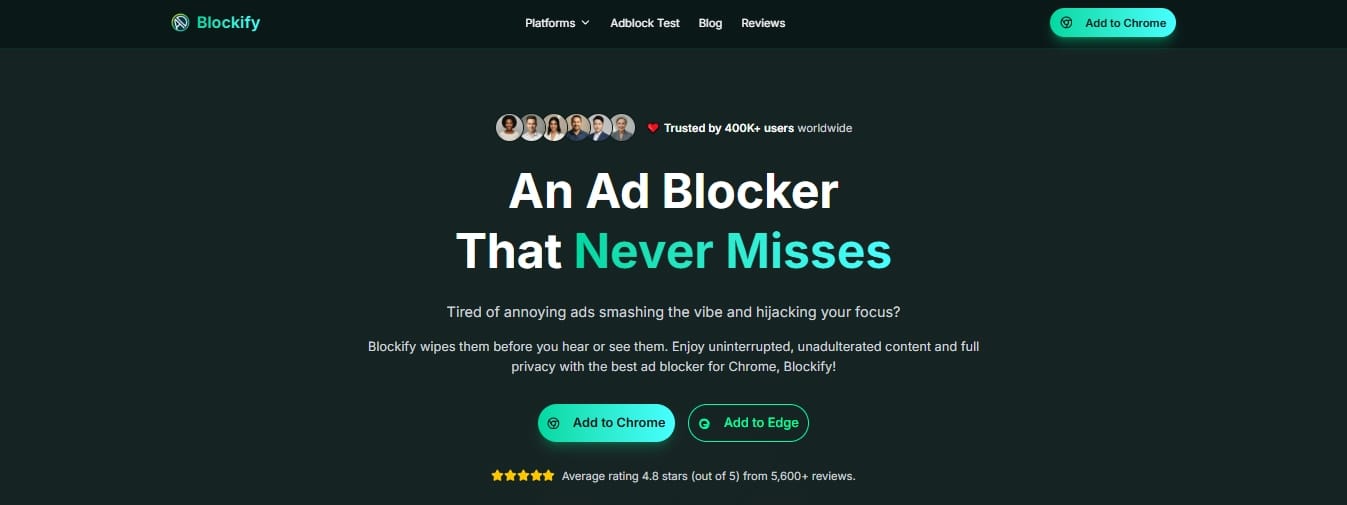
Blockify is built as a lightweight, privacy-first ad blocker for users who want zero friction.
- Open the Blockify for Chrome page and click Add to Chrome.
- Approve the extension permissions prompt.
- Click the puzzle icon in Chrome and pin the extension to your toolbar.
- Browse normally. Blockify requires zero configuration out of the box.
Post-Install Best Practices
- Keep auto-updates on so filtering rules stay current.
- Use the extension's allowlist for sites you want to financially support.
- Do not stack multiple ad-blocking extensions. Running two blockers simultaneously creates conflicts, triggers anti-adblock scripts, and slows down your browser.
For the fastest and most comprehensive desktop fix, add a lightweight extension like Blockify and leave Chrome's native pop-up blocker turned on.
How to Test Whether Your Ad Blocker Is Working
Use an independent testing tool to compare your browser's performance before and after making setup changes. Blockify's Adblock Test checks over 85 real ad networks and trackers locally in your browser to spot leaks, extension conflicts, or outdated settings.
Run a Benchmark Test
- Run the test once with your current, unoptimized setup.
- Install your new extension.
- Retest immediately.
- Compare the before-and-after results.
A successful setup yields cleaner page layouts, fewer trackers loading, and less autoplay media. If your score remains low, your extension might be paused, another extension is interfering, or you are testing on mobile Chrome where standard extensions do not apply.
Always test your setup, change one variable at a time, and retest to confirm your blocker functions correctly.
How to Block Ads on Chrome for Android
In Chrome for Android, navigate to Site Settings and turn off pop-ups and redirects. Because Chrome's mobile app does not support Web Store extensions, you must add a system-level Private DNS or switch to a mobile browser like Firefox for Android that supports add-ons for comprehensive blocking.
Turn Off Pop-Ups in Chrome Android
Open the Chrome app, tap More (the three dots), go to Settings > Site settings > Pop-ups and redirects, and turn the toggle off. Chrome will natively block intrusive ad formats penalized under the Better Ads Standards, but standard banners will still appear.
Add a Stronger Second Layer
Normal Chrome Web Store extensions strictly require a desktop environment.
- System-level blocking: Android devices support Private DNS, which filters ad and tracker requests at the OS level before they reach the browser. Navigate to your device's Network & Internet settings and route your traffic through an ad-blocking DNS provider.
- Alternative mobile browsers: If you specifically want to run browser extensions on a mobile device, Firefox for Android fully supports add-ons. Some niche Chromium-based browsers like Kiwi Browser also support Chrome extensions, though performance varies heavily by device.
Android Chrome can reduce basic annoyances, but true ad blocking requires routing your connection through a Private DNS or changing your mobile browser.
How to Block Ads on Chrome on iPhone and iPad
Only partially. Chrome on iOS can block basic pop-ups, but Apple's ecosystem restrictions and Google's policies mean Chrome Web Store extensions are not supported on iPhones. For comprehensive content blocking on iOS, you must use Safari, which natively supports third-party ad-blocking extensions.
Turn on Pop-Up Blocking in iOS Chrome
Open Chrome, tap More (the three dots), select Settings > Content Settings > Block Pop-ups, and toggle it on.
Switch to Safari for Full Protection
Chrome on iPhone cannot provide full ad blocking. Google's documentation explicitly limits Web Store extensions to desktop environments. Apple allows Safari extensions and content blockers natively on iOS. Install a dedicated ad blocker from the App Store and activate it via your iPhone's Settings > Apps > Safari > Extensions.
On an iPhone, Chrome only gives you basic pop-up control. Safari provides real extension support for full ad blocking.
How to Block YouTube Ads on Chrome
Install an updated, MV3-compliant ad blocker on desktop Chrome. YouTube constantly updates its ad-delivery scripts, so results vary. If ads bypass the blocker, update your extension, disable any conflicting blockers, clear your browser cache, and reload the page.
Set Expectations
YouTube differs drastically from a standard news site. The platform actively updates its anti-adblock detection scripts and ad-delivery mechanisms, meaning blocking effectiveness fluctuates.
Troubleshooting the YouTube Web Player
- Update everything. Ensure your Chrome browser and extension are running the latest versions.
- Disable conflicting extensions. Running multiple ad blockers creates immediate detection flags. Pick one.
- Clear your cache. Purge your browser cache and reload the web player.
- Reinstall. Remove and reinstall the extension if the problem persists.
If you require guaranteed, zero-friction ad removal across all devices—including smart TVs and mobile apps—YouTube Premium remains the only platform-native solution.
YouTube aggressively fights ad blockers. Keep your extension updated, use only one blocker at a time, and clear your cache when detection scripts change.
Does Manifest V3 Kill Ad Blockers on Chrome?
No. Chrome replaced its older extension architecture with a more restricted, declarative model. While this removed some advanced networking flexibility for developers, modern Manifest V3-compliant extensions still successfully block ads.
A 2026 peer-reviewed PoPETs study found no statistically significant drop in ad-blocking or anti-tracking effectiveness for everyday users.
What Changed Under the Hood
Manifest V3 (MV3) fundamentally altered extension architecture. It replaced persistent background pages with temporary service workers, banned remotely hosted code, and shifted network request filtering away from the flexible webRequest API toward the declarativeNetRequest model. Extensions must now declare blocking rules directly to the browser rather than intercepting traffic manually.
The Impact on Everyday Browsing
Broader blocking still works perfectly well. Academic testing confirms that adapted MV3 extensions perform effectively against standard ads and trackers. Highly technical users lost deep customization and dynamic rule processing, but casual browsing remains clean and protected.
MV3 changed how extensions operate under the hood, but up-to-date ad blockers still clean up the web effectively for the vast majority of users.
What Happened to uBlock Origin on Chrome?
Classic uBlock Origin depended on legacy Chromium extension architecture. Following Chrome's deprecation of Manifest V2, classic uBO is no longer supported on modern Chrome versions.
Current Chrome users must use MV3-compliant alternatives, such as uBlock Origin Lite or Blockify.
Classic uBO vs. uBO Lite
Classic uBlock Origin (uBO) required deep network interception APIs that Google removed. It is no longer a viable path for modern Chrome installations. In response, the developer created uBO Lite, a distinctly separate, MV3-based content blocker designed specifically to comply with current Chromium restrictions.
What to Do Now
If you want to stay on Chrome, install an MV3-compliant tool like uBO Lite or Blockify. If you absolutely require the uncompromised, deep network control of classic uBO, you must switch to Firefox. The developer explicitly states that classic uBO works best on Firefox.
Classic uBO is obsolete on current versions of Chrome. Switch to an MV3-ready extension or change your browser to Firefox.
What's the best free ad blocker for Chrome?
There is no single winner. The best option depends on your needs. Blockify excels at zero-configuration web cleanup, uBO Lite serves open-source purists, and Ghostery focuses heavily on tracker visualization. Evaluate modern, MV3-compliant tools based on your specific browsing habits.
Comparison Table
| Tool | Free / Paid | MV3-Ready | Best For | Blocks Trackers | Known Limitation | Desktop Chrome | Mobile Note |
|---|---|---|---|---|---|---|---|
| Blockify | Free | Yes | Zero-friction web cleanup | Yes | Creator-read sponsors remain | Yes | Requires DNS/alternative |
| uBlock Origin Lite | Free | Yes | Open-source minimalists | Yes | Less dynamic than classic uBO | Yes | Requires DNS/alternative |
| AdBlock | Free / Premium | Yes | Acceptable Ads support | Yes | Allows some ads by default | Yes | Requires DNS/alternative |
| Adblock Plus | Free / Premium | Yes | Acceptable Ads support | Yes | Allows some ads by default | Yes | Requires DNS/alternative |
| Ghostery | Free / Premium | Yes | Tracker visualization | Yes | Advanced UI requires learning | Yes | Requires DNS/alternative |
Choose your extension based on your technical comfort level. For simple, install-and-forget protection, use Blockify.
Why You May Still See Ads After Following All Steps
Persistent ads usually mean you only enabled Chrome's native settings instead of installing an extension. Other common causes include site notification permissions, conflicting extensions, a stale browser cache, or embedded sponsor segments that blockers cannot detect.
Fast Troubleshooting Fixes
- Upgrade your layer: Ensure you actually installed a dedicated extension, rather than just toggling Chrome's basic Site Settings.
- Remove duplicates: Disable competing ad blockers to prevent software conflicts.
- Clear your cache: Purge the cache and reload the page.
- Revoke permissions: Remove notification access from spammy sites in Chrome settings.
- Scan for adware: Run a malware scan if you see aggressive redirects or fake-virus alerts.
What Blockers Cannot Remove
Content blockers identify network requests and specific code elements. They cannot cleanly remove creator-read sponsor segments embedded directly into a video file, nor can they perfectly hide legally mandated cookie consent banners across all global regions.
If ads persist, check your extension status, disable conflicting software, and clear your cache.
Does Blocking Ads Make Chrome Faster?
Yes. Blocking ads and trackers reduces overall network requests, saving bandwidth and lowering page load times. A December 2025 AdGuard report found that ad blocking saves an average of 2.2 MB per website load, significantly improving speed and resource consumption.
The Performance Benefits
- Fewer overall network requests sent to third-party servers.
- Less data bandwidth wasted on background downloads.
- Faster page render times.
- Less visual clutter competing for browser RAM and CPU resources.
Who Benefits Most
Performance gains heavily benefit students on shared campus Wi-Fi, remote workers juggling multiple active tabs, mobile users on metered connections, and anyone using an older computer with limited memory.
Ad blockers do more than hide visuals. They prevent your browser from downloading heavy, unnecessary tracking scripts, saving you bandwidth and processing power.
Frequently Asked Questions
Are ad blockers safe to install?
Yes, if installed from official browser stores like the Chrome Web Store. Content blockers require permission to read and alter webpage data to remove ad elements effectively. Stick to highly reviewed, widely used extensions.
Do I need an extension if Chrome already blocks ads?
Yes. Chrome's native settings only target a fraction of intrusive ad formats. A dedicated extension is required to remove standard banners, autoplay videos, and tracking scripts.
How do I block pop-ups on Chrome?
Navigate to Settings > Privacy and security > Site settings > Pop-ups and redirects, and toggle the setting to block.
How do I block ads on Chrome Android?
Turn off pop-ups in Chrome's Site Settings, then implement a system-level Private DNS or switch to a mobile browser like Firefox that supports add-ons.
Can I block ads on Chrome on iPhone?
You can block basic pop-ups in Chrome's iOS settings, but iPhone users must use Safari with a dedicated content-blocker app from the App Store to achieve full ad blocking.
Does blocking ads make Chrome faster?
Yes. Removing ad and tracker requests saves roughly 2.2 MB of bandwidth per page, accelerating load speeds and reducing CPU strain.
For more specifics, review the Blockify FAQ.
Final Next Step
Getting rid of ad clutter on Chrome depends entirely on your device and the specific ads bothering you.
- If you only want pop-ups and redirects reduced, toggle Chrome's built-in settings.
- If you want broad, zero-friction cleanup on desktop Chrome, install Blockify.
- If you are on Android or iPhone, use system-level DNS or a mobile browser that supports add-ons.
Add Blockify for Chrome for the fastest desktop fix.
Run the free Adblock Test to verify your setup.
Still comparing options? Read Does Chrome Manifest V3 Kill Ad Blockers?.
Or continue with the Why uBlock Origin Was Removed from Chrome? guide next.