Malware rarely infects a system by accident. Cyberattacks usually reach your device when you click a deceptive search ad, approve a rogue browser extension, or run a fake verification script. Waiting for antivirus software to scan an executable file leaves your system exposed to web-based threats. To effectively how to block malware workflows in everyday browsing, you need a proactive defense that intercepts dangerous connections, flags suspicious downloads, and stops unauthorized code before it executes.
To block malware, set up a multi-layered defense that stops threats before they execute:
- Enable browser protections: Keep Google Safe Browsing, Microsoft SmartScreen, or Safari Fraudulent Site Warnings active.
- Maintain system security: Keep real-time protection and automatic OS updates turned on across Windows, macOS, Android, or iOS.
- Use protective DNS: Configure DNS resolvers like Cloudflare (
1.1.1.2) or Quad9 (9.9.9.9) to block malicious domains at the network level. - Filter malicious content: Install a trusted content blocker to reduce exposure to malvertising, pop-ups, and script-based traps.
- Practice download hygiene: Get software directly from official vendor sites and avoid sponsored search links or pirate repositories.
5 Ways to Prevent Malware on Any Device
Focusing on high-impact browser and operating system settings stops the majority of consumer threats [CISA Secure Our World]. Applying these five primary controls takes less than ten minutes.
Core Prevention Checklist
- Enable browser threat protection: Intercept phishing sites, malicious scripts, and unsafe file downloads before rendering.
- Keep real-time OS security active: Ensure built-in tools like Windows Security or macOS XProtect run continuous background checks.
- Clean up browser extensions: Remove unused add-ons and revoke site notification permissions to close persistent access points.
- Verify software sources: Download files only from official developer domains or platform app stores.
- Implement protective DNS filtering: Block malicious domain lookup requests across your entire Wi-Fi or cellular connection.
What Is Malware in Computer Security and How Is It Installed?
Malware (malicious software) refers to any code created to exploit, compromise, or damage a device without the user's consent. It includes viruses, trojans, spyware, adware, ransomware, worms, and infostealers.
The 4 Primary Types of Malware
| Malware Type | Primary Function | Primary Delivery Route | Key Defense Mechanism |
|---|---|---|---|
| Trojan / Fake App | Disguises itself as legitimate software | Malicious downloads, game cracks, rogue extensions | Code signature verification, reputation checks |
| Spyware / Infostealer | Steals stored browser passwords, session cookies, and crypto keys | Malicious attachments, untrusted add-ons | Real-time OS monitoring, session management |
| Ransomware | Encrypts local files and demands payment for decryption keys | Phishing attachments, unpatched vulnerabilities | Automated offline backups, system updates |
| Adware / Hijacker | Injects intrusive ads, alters search settings, and forces redirects | Software bundling, aggressive web notifications | Extension audits, ad blockers, popup settings |
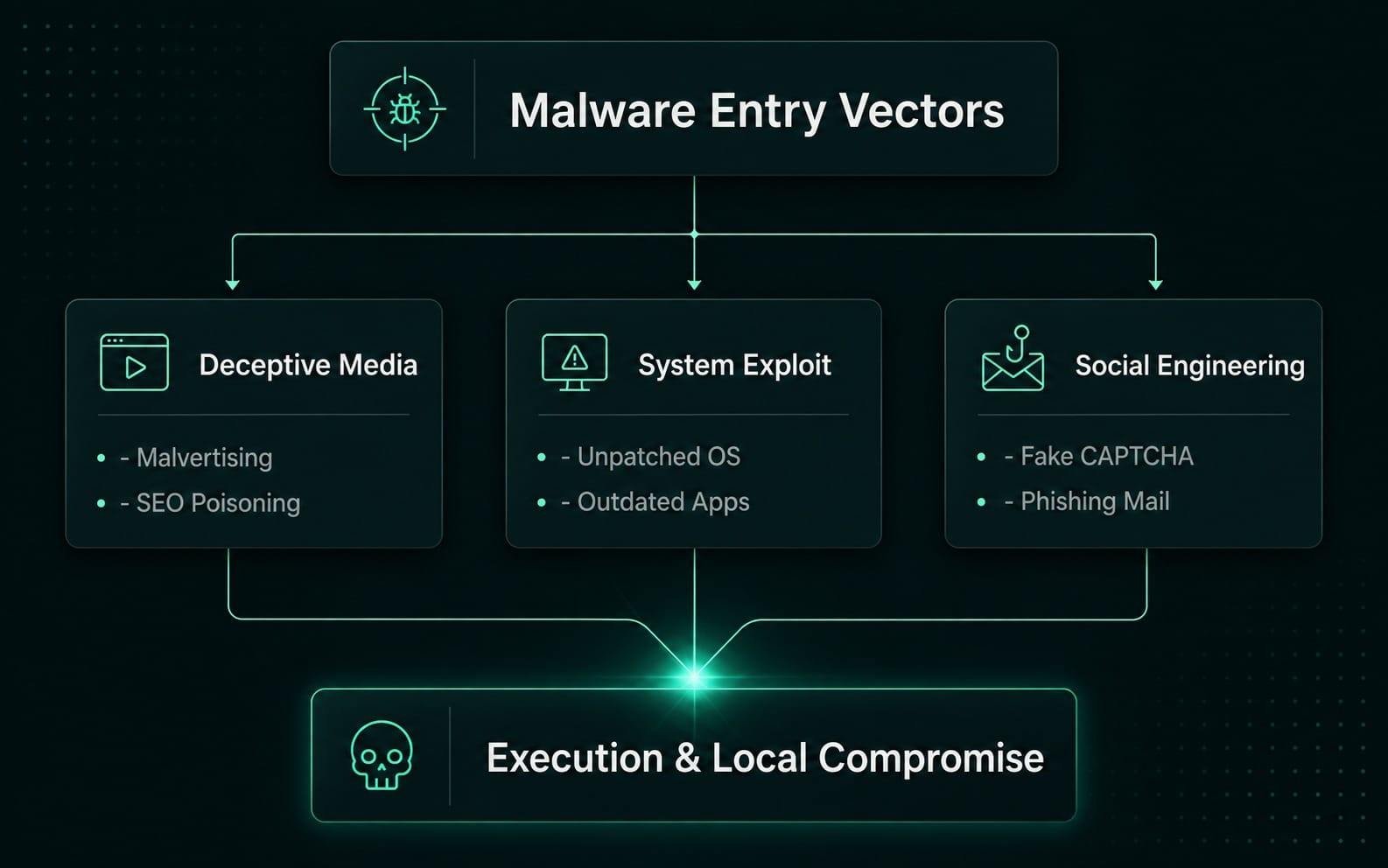
Malware installs when users are tricked into opening malicious attachments, running terminal commands, installing unauthorized extensions, or downloading bundled installers. It also spreads through malvertising campaigns, compromised software updates, and drive-by downloads on vulnerable web pages.
Modern Delivery Tactics
- Malvertising & Search Poisoning: Threat actors buy top-sponsored search ad slots to direct users to fake download pages for popular software.
- ClickFix / Fake CAPTCHA Scams: Compromised websites display fake browser error screens or human verification prompts instructing users to copy and run harmful scripts in system utilities like PowerShell or Terminal.
- Rogue Extensions: Malware authors buy popular browser extensions and push updates containing malicious telemetry or script injection code.
Microsoft Threat Intelligence documented a "CrashFix" campaign where a fake ad blocker Chrome extension (posing as uBlock Origin Lite) deliberately crashed browsers. The extension displayed a fake recovery prompt that tricked users into running a manual fix command, installing a remote access trojan called ModeloRAT.
How to Block Malware on Chrome, Edge, Firefox, and Safari
Browser-level protections stop web threats before malicious files reach your hard drive.
Web browsers provide strong protection against dangerous URLs, unsafe downloads, and phishing traps. Keep these built-in security features enabled and layer them with content filtering to reduce attack exposure.
How to Block Malware Sites in Chrome
Open Chrome Settings → Privacy and security → Security. Select Standard protection or Enhanced protection to block dangerous sites, phishing attempts, and unsafe downloads.
- Open Chrome, click the three-dot menu, and select Settings.
- Click Privacy and security, then select Security.
- Choose Enhanced protection for real-time URL analysis against brand-new threats, or Standard protection for standard database blocking.
- Toggle Always use secure connections to force HTTPS across all websites.
Enable SmartScreen in Microsoft Edge
- Open Edge Settings → Privacy, search, and services.
- Scroll to the Security section.
- Toggle Microsoft Defender SmartScreen to On.
- Enable Block potentially unwanted apps to stop bundled installer software.
Configure Firefox Dangerous Content Warnings
- Open Firefox Settings → Privacy & Security.
- Scroll down to Deceptive Content and Dangerous Software Protection.
- Check all three protective boxes: Block dangerous and deceptive content, Block dangerous downloads, and Warn you about unwanted software.
Configure Safari Fraudulent Site Warnings on Mac and iOS
- Open Safari Settings → Security.
- Verify Warn when visiting a fraudulent website is checked.
- Go to the Websites tab, select Pop-up Windows, and set the default to Block and Notify.
Reduce Malvertising and Ad-Driven Threats
An ad blocker reduces exposure to malvertising, deceptive pop-ups, and fake download buttons by stopping untrusted ad network scripts from running in your browser. While it helps prevent web-based traps, it cannot scan downloaded files, remove active infections, or replace system antivirus software.
Tooling like Blockify's browser ad blocker filters intrusive ads, malicious pop-ups, and deceptive redirects on supported Chromium browsers. Combining content blockers with browser protection settings creates a solid defense against web-based attack vectors.
Add Protective DNS: Block Malware Domains Network-Wide
Protective DNS checks every domain request your device makes against threat intelligence databases. If a site is known for hosting malware or phishing, the resolver blocks the connection before your browser opens the page.
Comparison of Free Protective DNS Options
| DNS Provider | Primary IPv4 | Secondary IPv4 | Core Focus | Trade-offs |
|---|---|---|---|---|
| Cloudflare Security | 1.1.1.2 |
1.0.0.2 |
Automatic malware & phishing blocking | Cannot inspect local scripts or payload contents |
| Quad9 Threat Block | 9.9.9.9 |
149.112.112.112 |
Threat-intelligence filtering | Occasional false positives on newly flagged domains |
| AdGuard DNS | 94.140.14.14 |
94.140.15.15 |
Malware and ad-domain filtering | Free tier capped at 300,000 DNS queries per month |
Device Configuration Steps
How to Block Malware on Windows 11
- Go to Settings → Network & internet → Wi-Fi (or Ethernet).
- Select Hardware properties, then click Edit next to DNS server assignment.
- Choose Manual, turn on IPv4, and enter
1.1.1.2as Preferred DNS and1.0.0.2as Alternate DNS. - Set DNS over HTTPS to On (automatic template) to encrypt DNS requests.
How to Block Malware on Mac (macOS)
- Go to System Settings → Network.
- Select your active network connection, then click Details → DNS.
- Click the + button under DNS Servers and add
9.9.9.9and149.112.112.112. - Click OK and Apply.
How to Block Malware on Android
- Open Settings → Network & internet → Private DNS.
- Choose Private DNS provider hostname.
- Enter
one.one.one.one(Cloudflare) ordns.quad9.net(Quad9) and tap Save.
How to Block Malware on iPhone & iPad (iOS)
- Open Settings → Wi-Fi and tap the i icon next to your network.
- Tap Configure DNS → Manual.
- Clear existing entries, tap Add Server, enter
9.9.9.9, and tap Save.
Turn On Built-In Device Protection
Modern operating systems include built-in security features that protect your system when configured properly.
Built-in Operating System Controls
- Windows: Verify Windows Security real-time protection and reputation-based app controls are active.
- macOS: Keep Gatekeeper enabled and let background XProtect updates run automatically.
- Android: Turn on Google Play Protect scanning for app installations.
- iOS: Keep system updates current to maintain sandbox protections.
Windows Security Configuration
- Open Windows Security from the Start Menu.
- Select Virus & threat protection → Manage settings.
- Confirm Real-time protection, Cloud-delivered protection, and Automatic sample submission are toggled On.
- Navigate to App & browser control → Reputation-based protection settings.
- Enable Check apps and files, SmartScreen for Edge, and Potentially unwanted app blocking.
macOS Native Protections (Gatekeeper and XProtect)
macOS uses a background protection system:
- Gatekeeper & Notarization: Verifies software developer signatures before allowing apps to launch.
- XProtect: Scans system memory and files against known malware signatures.
- XProtect Remediator: Runs background tasks to fix active infections.
Never bypass Gatekeeper warnings to run software from unverified developers. Keep your system updated via System Settings → General → Software Update.
How to Detect Malware on Android and Enable Play Protect
- Open the Google Play Store app.
- Tap your profile icon in the top-right corner and select Play Protect.
- Tap the Settings icon (gear) in the top-right corner.
- Turn on Scan apps with Play Protect and Improve harmful app detection.
- Return to the main screen and tap Scan to run a manual check.
How to Protect Your Computer from Malware Attacks When Downloading
Infected files often hide in software downloads. Follow these principles to keep your downloads safe:
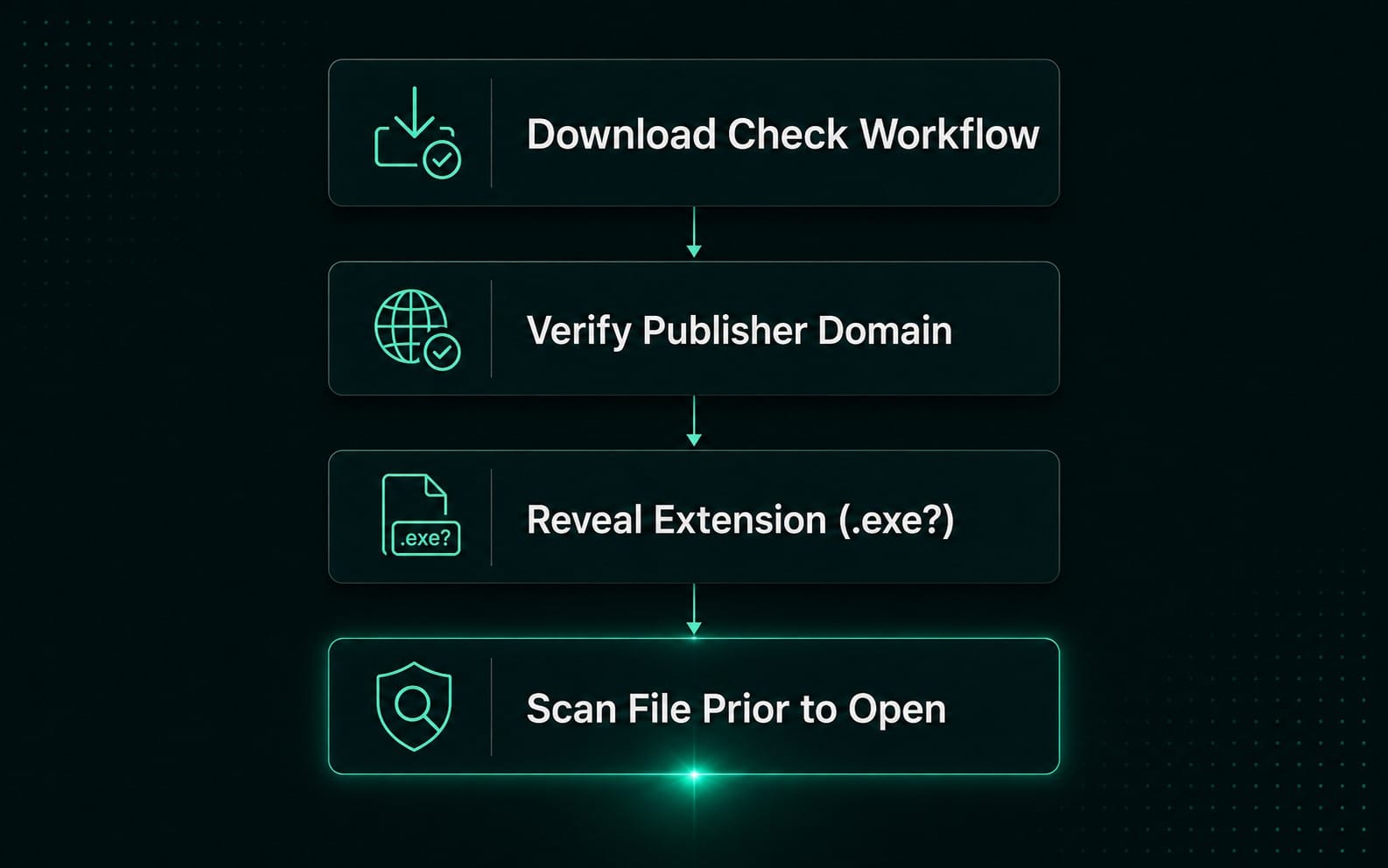
- Bypass search engine ads: Avoid sponsored links at the top of search results. Type developer web addresses directly into your address bar.
- Inspect domain spelling: Check the URL bar for hyphens, missing letters, or unusual domains (e.g.,
download-software-free.biz). - Show file name extensions: On Windows Explorer, click View → Show → File name extensions. Watch out for double extensions like
invoice.pdf.exe. - Scan before opening: Right-click downloaded setup files and select Scan with Windows Security (or your antivirus tool).
- Avoid cracked software: Pirated software, key generators, and game mods account for a high percentage of infostealer infections [Flare's analysis of 10,000 infostealer logs].
Public file scanners like VirusTotal share submitted files with security research networks. Do not upload files containing personal data, tax records, financial documents, or passwords.
How to Block Malware Pop-Ups and Fake CAPTCHA Scams
Block intrusive pop-ups by revoking site notification permissions, installing a content blocker, keeping browser protections on, and closing suspicious browser tabs immediately.
Spotting Fake CAPTCHAs (ClickFix / CrashFix)
A legitimate website verification check will never ask you to open system utilities or run commands on your device.
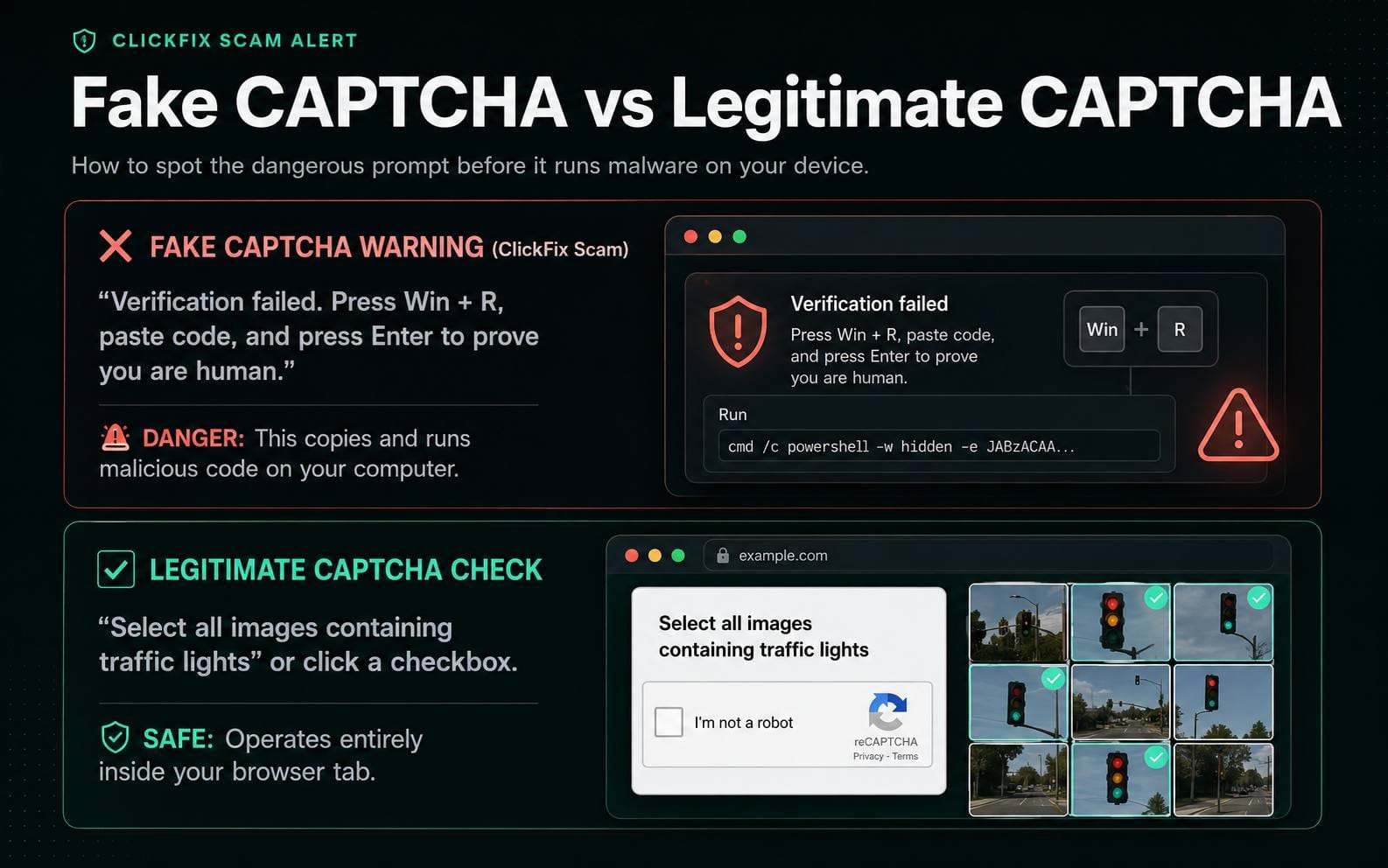
If a site instructs you to open PowerShell, Windows Run, or Terminal, close the tab immediately. Learn more about stopping ad-based threats in our deep dive on malvertising tactics and prevention.
Audit Browser Extensions, Pop-Ups, and Notifications
Unused browser extensions and permissions can create unnecessary security risks.
Browser Extension Audit Checklist
- Access extension settings (
chrome://extensions,edge://extensions, orabout:addons). - Uninstall any extension you have not used in the past 30 days.
- Review permissions: Be cautious of extensions that request permission to "Read and change all your data on all websites."
- Remove unknown add-ons: Delete extensions installed alongside software packages.
Revoking Unwanted Site Notifications
Websites often trick users into allowing notifications to send fake virus alerts that look like operating system warnings.
- Chrome:
Settings→Privacy and security→Site settings→Notifications. - Edge:
Settings→Cookies and site permissions→Notifications. - Firefox:
Settings→Privacy & Security→Permissions→Notifications→Settings. - Delete unfamiliar sites listed under Allow. Select Don't allow sites to send notifications as your default setting.
How to Check for Malware and What to Do If You Are Infected
Check your device by running a full scan with built-in security tools like Windows Security or Google Play Protect. Watch for warning signs like browser redirects, unexplained pop-ups, new extensions, high CPU usage, or locked system settings.
Immediate Containment Steps
- Disconnect from the network: Turn off Wi-Fi or unplug Ethernet cables immediately to stop remote access and data transfer.
- Run an offline system scan: On Windows, open Windows Security → Virus & threat protection → Scan options → Microsoft Defender Offline scan → Scan now.
- Change sensitive account passwords: Use a clean, separate device to change passwords for bank accounts, primary email, and critical services.
- Enable Multi-Factor Authentication (MFA): Add app-based MFA or passkeys to all updated accounts.
- Revoke existing browser sessions: Sign out of active web sessions remotely through your account security dashboards (Google, Microsoft, Apple).
10 Ways to Protect Your Computer from Viruses
Combining safe browsing habits with built-in operating system security provides effective protection against modern cyber threats.
- Keep operating systems updated: Turn on automatic updates across Windows, macOS, Android, and iOS to patch security flaws.
- Use strong, unique passwords: Protect accounts using a secure password manager paired with multi-factor authentication.
- Verify web links before clicking: Hover over links to confirm destination URLs match the real site domain.
- Avoid sponsored download ads: Go directly to official vendor sites instead of clicking top-ranked search ads.
- Maintain protective DNS filtering: Route network connections through secure resolvers like Cloudflare (
1.1.1.2) or Quad9. - Restrict administrative accounts: Use a standard, non-admin user account for everyday web browsing and work.
- Audit browser extensions monthly: Delete unnecessary add-ons and restrict extension permissions.
- Disable push notification permissions: Block websites from sending desktop notifications to prevent fake malware pop-ups.
- Back up files offline: Store important documents on encrypted, disconnected external drives or secure cloud services.
- Install content blockers: Use trusted ad blockers to filter malvertising, redirect traps, and dangerous scripts.
Frequently Asked Questions
Can you get malware just by visiting a website?
Yes. Visiting a malicious website can expose you to drive-by downloads, browser exploits, malvertising redirects, and phishing traps [1.1.14]. Keeping browser protection active and updating your software lowers these risks.
Does incognito mode prevent viruses?
No. Incognito (private browsing) mode stops your browser from saving local browsing history, cookies, and form data. It does not scan file downloads, block malicious websites, or stop malware infections.
Does a VPN protect against malware?
No. A VPN encrypts network traffic between your device and the VPN server to improve privacy on public networks. It does not reliably scan files, block phishing scripts, or prevent local malware installations.
Is Windows Defender enough to block malware?
Yes, for most users. Windows Security provides effective real-time threat protection, firewall controls, and software reputation checks. Keeping Windows updated and practicing safe browsing habits provides a strong defense.
Do Macs need antivirus software?
macOS includes native security features like Gatekeeper, Notarization, and XProtect. For most users, keeping macOS updated and downloading software exclusively from verified sources provides solid protection without extra antivirus tools.
Conclusion
Knowing how to block malware comes down to stopping threats before they execute. Relying solely on antivirus software to catch dangerous files after download leaves systems open to web exploits, malvertising, and social engineering traps. By turning on built-in browser warnings, using protective DNS filtering, auditing browser extensions, and managing content risks with tools like Blockify, you create a multi-layered system that keeps your devices clean.
Product Disclosure
Blockify is a privacy tool and ad blocker for supported Chromium browsers. It filters intrusive ads, malvertising scripts, and pop-up redirects. Blockify is not antivirus software, does not conduct file scans, and does not remove malware infections from local storage.