

For most users, the ideal setup is a lean, five-tool stack: an ad blocker like uBlock Origin Lite or Blockify, a password manager like Bitwarden, a tab organizer like Session Buddy, and a tracker blocker like Privacy Badger. Keeping your active count under eight prevents severe browser slowdowns.
Hoarding Chrome extensions kills browser speed. Instead of installing dozens of tools that drain memory and compromise privacy, the smartest setup today relies on strict curation. Every installation must justify its impact on your system resources.
Google fundamentally changed browser architecture with Manifest V3, and native features now replace dozens of legacy add-ons. This guide skips generic directories to help you build a minimal, updated stack of Chrome extensions that actually earn their keep.
The 5-Extension Quick-Start Stack
Stop hoarding add-ons. Start with a five-slot foundation covering ads, passwords, tabs, privacy, and focus, then add specialty tools only if you encounter a genuine workflow gap.
What are the best Chrome extensions for most people?
The fastest useful stack consists of one ad blocker, one password manager, one tab organizer, one privacy tracker, and one focus tool. This covers interruptions, logins, visual clutter, and tracking without turning your browser into a slow, overlapping mess of background processes.
If you only install five, install these:
- Ad blocking / streaming: Blockify for Chrome or uBlock Origin Lite
- Passwords: Bitwarden
- Tabs / sessions: Session Buddy or OneTab
- Privacy: Privacy Badger
- Writing / focus: Grammarly or StayFocusd
How I Chose These Chrome Extensions
Treat your browser extensions like a strict hardware budget. Every tool costs memory, speed, or privacy, so it must pass the "Slot Test" to stay active.
How many Chrome extensions is too many?
There is no universal limit, but keeping your active extensions between five and eight is ideal. A 2024 DebugBear performance study found that heavy extensions add 500 milliseconds or more of processing time per page. Treat your extension count like a strict budget to avoid severe page latency.
The Slot Test
Each pick on this list had to pass four strict filters:
- Real gap: Chrome does not handle the job adequately using native features.
- Post-MV3 viability: The extension functions flawlessly under Chrome's current Manifest V3 architecture.
- Cost justification: The workflow benefit outweighs the RAM, CPU, and battery hit.
- Trust justification: The permissions requested match the functionality, backed by a transparent business model.
Before You Install Anything, Clean Up What You Have
Do not stack new extensions over a broken foundation. Audit your current list in two minutes and remove abandoned, redundant, or over-permissioned tools.
What should I remove first?
Start by removing four types of clutter: unsupported extensions flagged by Google, duplicate ad blockers, legacy tools that Chrome now replicates natively, and anything you have not used in 30 days. Chrome makes it easy to disable or delete these directly from the management dashboard.
What is chrome://extensions and where do I find it?
The chrome://extensions URL is the direct path to Chrome's extension management page. You can also reach it by clicking the three-dot menu, selecting Extensions, then Manage Extensions. Use this page to toggle tools, restrict site access, or uninstall unused add-ons.
What Changed in Chrome Extensions After Manifest V3
Chrome altered how extensions intercept web traffic. Outdated advice is broken advice, and legacy blockers no longer function the way they used to.
What is Manifest V3 and why did my ad blocker stop working?
Manifest V3 (MV3) is Chrome's current extension architecture. It shifted background logic to service workers and replaced the old network request interception model. Because MV3 limits how many filtering rules an extension can apply dynamically, older ad blockers require complete redesigns to function properly.
Does uBlock Origin still work on Chrome?
The classic MV2 version of uBlock Origin was disabled entirely across all standard Chrome channels by July 2025. However, developer gorhill ported uBlock Origin to Manifest V3 in late 2025, and the MV3-compliant full version returned to the Chrome Web Store. A lighter alternative, uBlock Origin Lite, is also available and built natively for MV3. Following outdated listicles recommending the legacy MV2 version will leave your browser unprotected.
Chrome Features That Already Replace Some Extensions
Verify whether Chrome natively handles a task before installing a third-party tool. Relying on built-in features saves memory and reduces your security attack surface.
Which Chrome features make some extensions unnecessary?
Chrome now includes native tools for vertical tabs, Split view, Reading mode, Memory Saver, and basic password syncing. You no longer need third-party extensions for these basic tasks. Save your extension slots for complex gaps like streaming ad prevention, tracker blocking, and cross-browser credential management.
Best Chrome Extensions by Problem to Solve
Stop browsing giant extension directories. Identify your biggest daily friction point—like annoying ads, lost tabs, or privacy fears—and install exactly one tool to fix it.
The best modern setup splits the job by use case. Use uBlock Origin Lite for incredibly lightweight page filtering, AdGuard for a broader manual privacy ecosystem, or Blockify if interrupting streaming video and audio ads are your primary frustration.
Yes, but general page blockers often struggle with streaming platforms under Manifest V3. Because Chrome restricted real-time request modifications, users heavily consuming YouTube, Twitch, or Spotify need specialized streaming blockers that handle media player interruptions differently than static webpage banners.
Blockify
- Best for: Streamers and heavy media consumers targeting video/audio interruptions on YouTube, Twitch, and Spotify.
- Why it earns a slot: It specifically filters hard-to-block ad formats and media interruptions that basic page filters frequently miss.
- Cost: Very low CPU overhead due to browser-level filtering.
- Trust justification: Filtering occurs locally. The privacy policy dictates zero personal browsing content sales.
- Spotify Ad Blocker - Blockify - Chrome Web Store
uBlock Origin Lite
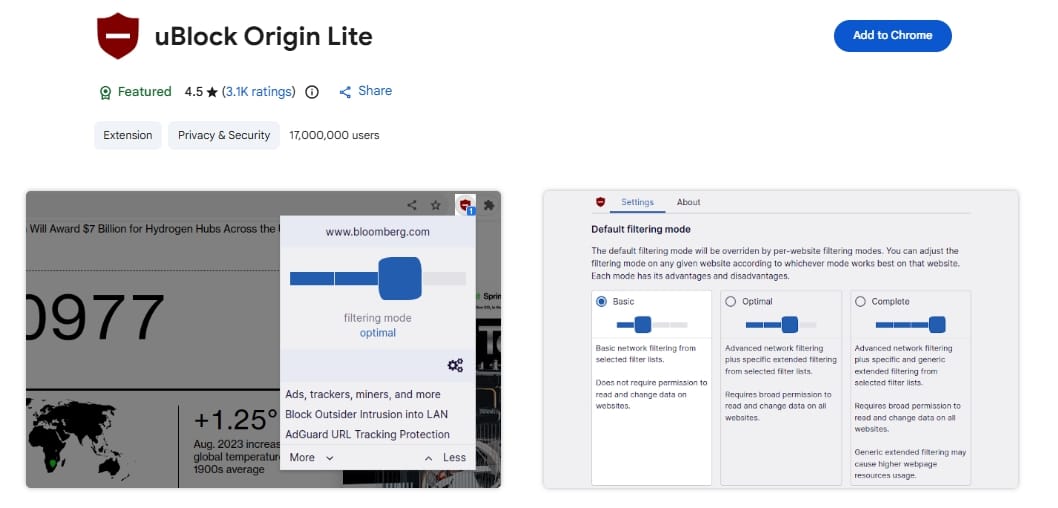
- Best for: Lightweight, general page-level ad filtering.
- Why it earns a slot: It fully complies with MV3 while remaining exceptionally fast. DebugBear data proves ad-heavy pages drop from 57 seconds of CPU load down to just 4 seconds with uBO installed.
- Cost: Near-zero memory footprint.
- Trust justification: Open-source and requires minimal baseline permissions.
- uBlock Origin Lite - Chrome Web Store
AdGuard
- Best for: Power users wanting visible manual controls and robust filtering logs.
- Why it earns a slot: Provides a customizable interface that integrates seamlessly into the broader AdGuard desktop ecosystem.
- Cost: Slightly higher memory usage than uBO Lite.
- Trust justification: Transparent, established security company.
- AdGuard AdBlocker - Chrome Web Store
Privacy and Passwords
The strongest everyday security setup is a dedicated, zero-knowledge password manager paired with an automated tracker blocker. Bitwarden serves as the definitive open-source credential vault, while the EFF's Privacy Badger operates silently to block invisible background tracking scripts.
Is Chrome's built-in password manager enough?
Google Password Manager covers basic saving, syncing, and autofill effectively. However, a dedicated extension like Bitwarden earns its slot by offering cross-browser flexibility, secure credential sharing, and a strictly audited zero-knowledge encryption model that keeps your vault fully private.
Bitwarden
- Best for: The default secure password manager.
- Why it earns a slot: Completely open-source, third-party audited, and utilizes zero-knowledge encryption so even Bitwarden cannot see your passwords.
- Cost: Negligible performance impact.
- Trust justification: Impeccable audit history offsets the deep text-reading permissions required for autofill functionality.
- Bitwarden Password Manager - Chrome Web Store
Privacy Badger
- Best for: Effortless background tracker blocking.
- Why it earns a slot: Developed by the non-profit Electronic Frontier Foundation (EFF), it learns to block invisible trackers heuristically without breaking website functionality.
- Cost: Extremely low background processing.
- Trust justification: Backed by the leading digital privacy rights organization.
- Privacy Badger - Chrome Web Store
Tabs and Browser Clutter
One tab management tool is enough. Choose Session Buddy if you require crash recovery and archived workspaces, or OneTab if your primary pain point is visual clutter and RAM consumption. With Chrome natively offering Memory Saver and vertical tabs, only install these for complex session handling.
Session Buddy
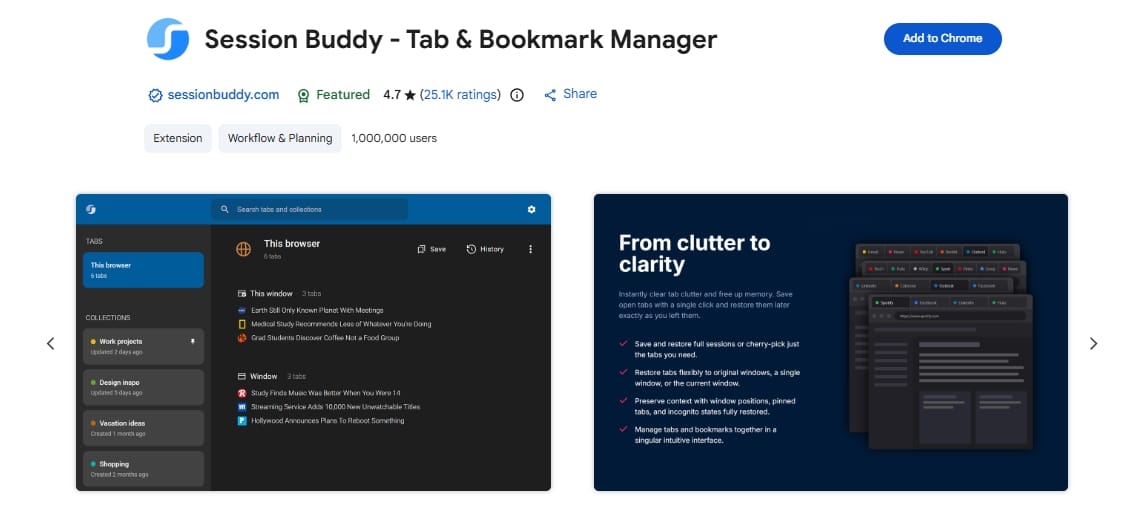
- Best for: Crash recovery and managing distinct workspace sessions.
- Why it earns a slot: Flawlessly archives heavy research windows so you can close them safely without losing context.
- Cost: Modest local storage footprint.
- Trust justification: Operates entirely locally without cloud syncing risks.
- Session Buddy - Tab & Bookmark Manager - Chrome Web Store
OneTab
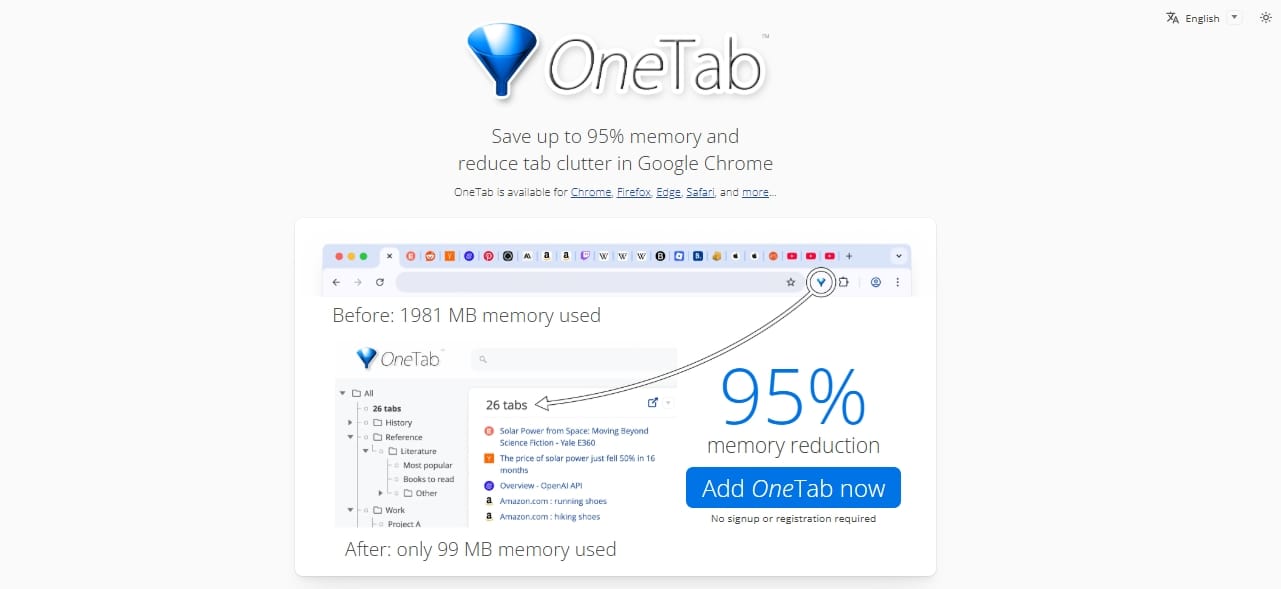
- Best for: Instantly turning visual browser chaos into a clean text list.
- Why it earns a slot: A single click collapses memory-hogging tabs, immediately freeing up system RAM.
- Cost: Near zero overhead when inactive.
- Trust justification: Safe, local-only data storage.
- OneTab - Chrome Web Store
Writing and Everyday Productivity
Keep this category restricted to one always-on writing assistant and one fast-capture task tool. AI-powered writing extensions save massive amounts of time but demand broad permissions to read everything you type. Evaluate that privacy tradeoff before leaving them permanently active.
Grammarly
- Best for: Heavy daily writers requiring constant tone, clarity, and grammatical corrections.
- Why it earns a slot: Catches errors seamlessly across emails, documents, and web apps.
- Cost: Noticeable page-load drag on text-heavy applications.
- Trust justification: Mainstream, transparent policy, though it reads extensive input data.
- Grammarly: AI Writing Assistant and Grammar Checker App - Chrome Web Store
LanguageTool
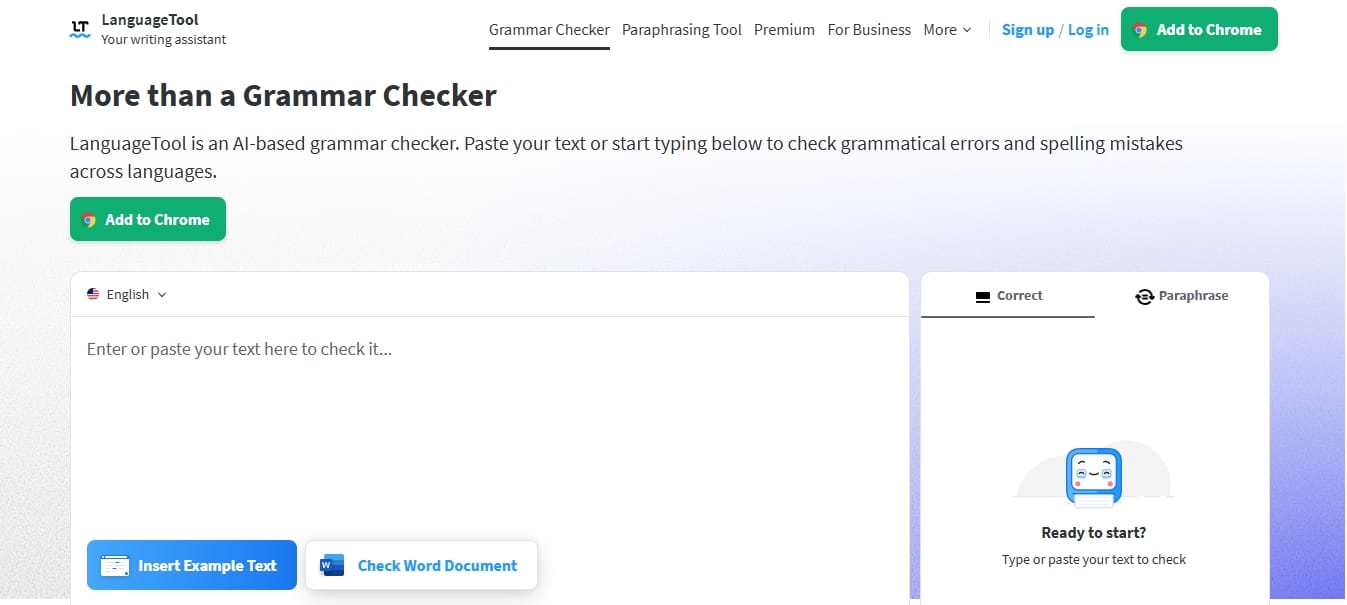
- Best for: A privacy-friendly, lighter alternative to Grammarly.
- Why it earns a slot: Delivers excellent multilingual grammar checking with options to process text locally or without data retention.
- Cost: Significantly lower overhead than heavy AI competitors.
- Trust justification: Strong privacy defaults prioritizing data minimization.
- AI Grammar Checker & Paraphraser – LanguageTool - Chrome Web Store
Todoist
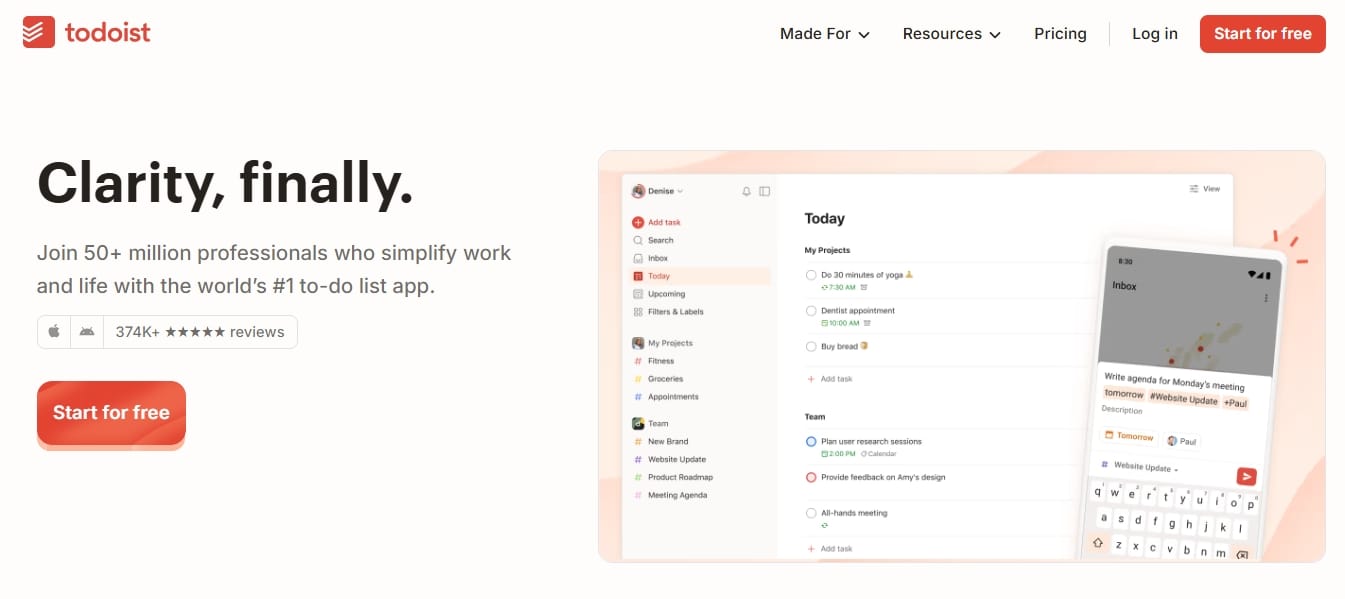
- Best for: Capturing tasks and URLs without leaving your current tab.
- Why it earns a slot: The native web capture immediately turns articles and actionable emails into organized tasks.
- Cost: Very low background drain.
- Trust justification: Standard domain permissions tied to a reputable productivity ecosystem.
- Todoist for Chrome: Planner & Calendar - Chrome Web Store
Focus and Distraction Control
The cleanest setup utilizes a single site blocker alongside your ad blocker. Avoid stacking multiple timers, gamification dashboards, and overlapping blockers. Choose one simple tool to enforce site limits, and remember that removing ad clutter naturally improves reading focus.
StayFocusd
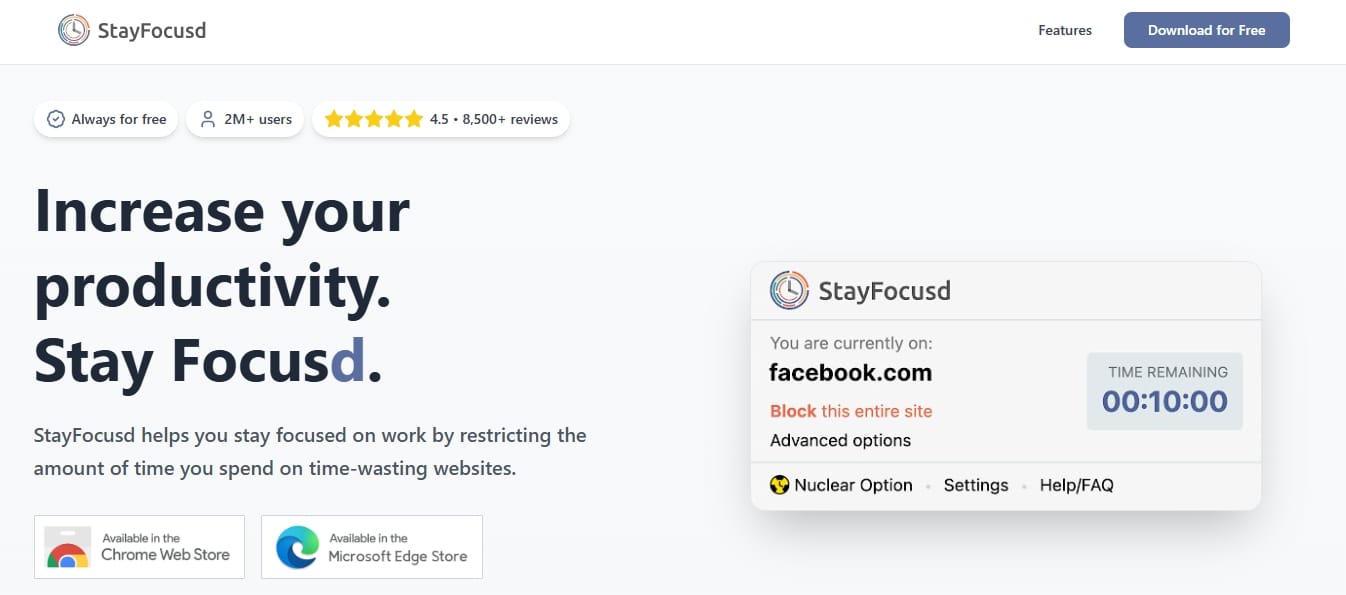
- Best for: Brutally simple site blocking to eliminate doomscrolling.
- Why it earns a slot: Enforces harsh daily time limits on distracting websites with zero complex setup.
- Cost: Nearly zero performance impact.
- Trust justification: Monitors browsing time strictly at the local level.
- StayFocusd – Website Blocker & Focus Timer & Shorts Blocker - Chrome Web Store
Freedom
- Best for: Users requiring cross-device focus synchronization.
- Why it earns a slot: Blocking a distracting site on Chrome simultaneously blocks it on your smartphone.
- Cost: Minimal browser impact, requiring a desktop client integration.
- Trust justification: Trusted premium ecosystem.
- Freedom - Website Blocker for Chrome - Chrome Web Store
AI Helpers (Only if the Privacy Tradeoff Is Worth It)
Install them only if the workflow benefit is undeniable. A 2026 Incogni study found that 52% of AI-powered Chrome extensions collect user data, and 29% harvest personally identifiable information (PII). Treat AI tools as high-scrutiny installations rather than default browser upgrades.
ChatGPT
- Best for: Professionals who draft emails or summarize long articles daily.
- Why it earns a slot: Brings conversational AI immediately adjacent to your active workflow.
- Cost: Moderate memory usage while activated.
- Trust justification: High risk. These tools read the full text of any page you activate them on. Skip entirely if handling proprietary client data.
- Chrome Web Store
Visual Comfort and Reading
Dark Reader is the definitive dark-mode tool, but only install it if you frequent sites lacking native dark themes. For general clutter-free reading, avoid installing third-party tools entirely and use Chrome's built-in side-panel Reading mode.
Dark Reader
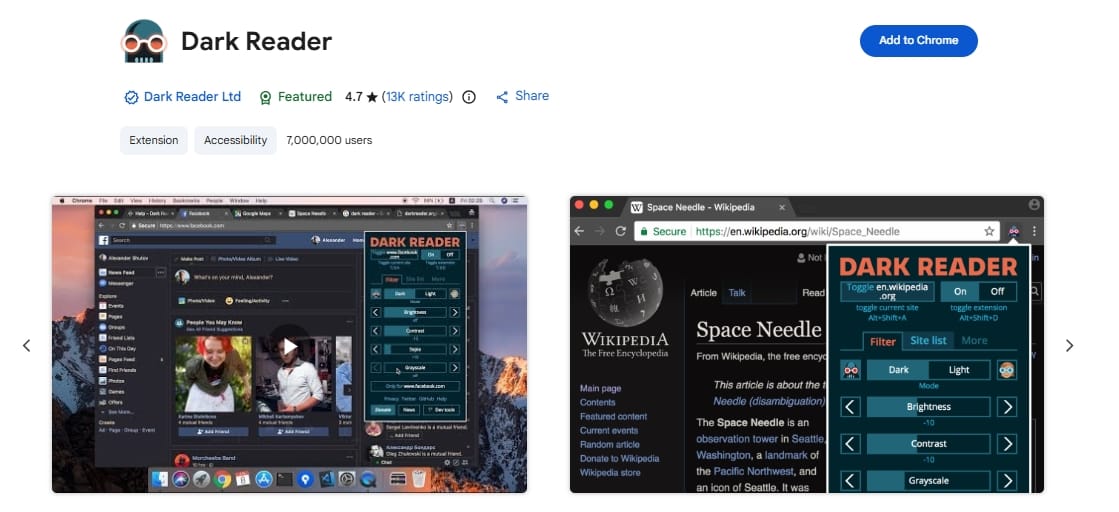
- Best for: Forcing dark themes across unoptimized, glaring websites.
- Why it earns a slot: Calculates contrast dynamically for readability, rather than clumsily inverting colors.
- Cost: Causes slight render delays on graphically complex pages.
- Trust justification: Open-source, heavily vetted, and highly trusted.
- Dark Reader - Chrome Web Store
Shopping and Price Tracking
Only if they perform a narrow, specific job like historical price tracking. Blanket coupon extensions often trade minor conveniences for aggressive affiliate code overriding and deep data harvesting. Check their business models carefully.
Keepa
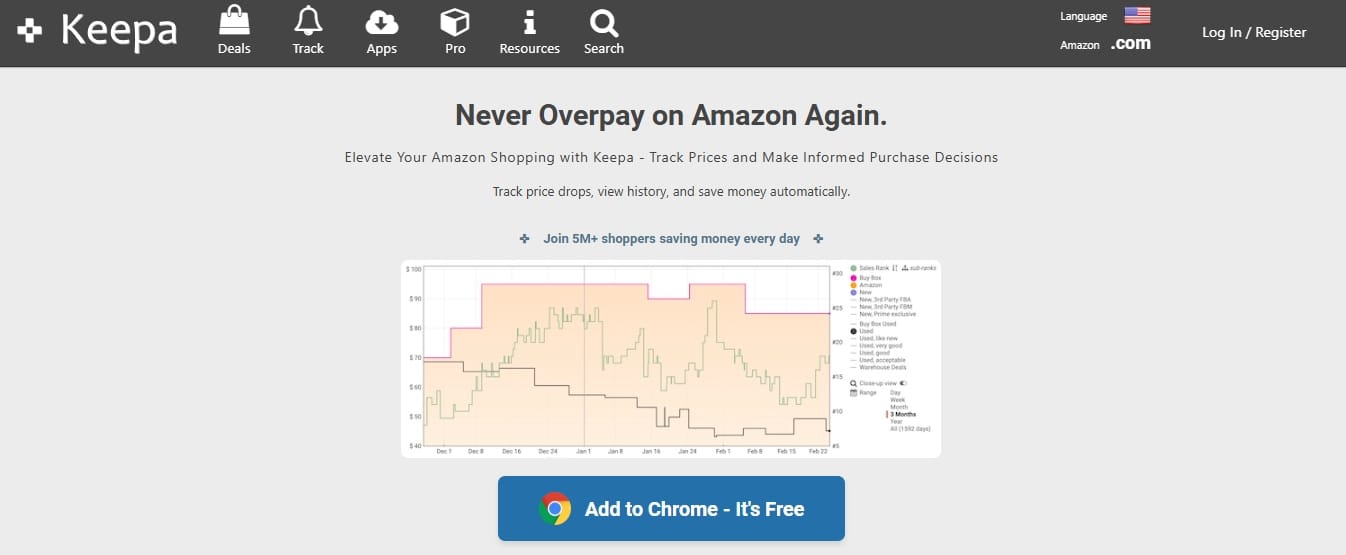
- Best for: Strict historical Amazon price tracking to verify sale authenticity.
- Why it earns a slot: Embeds a detailed pricing history graph directly into Amazon product pages.
- Cost: Very low overhead.
- Trust justification: Scopes its domain permissions strictly to Amazon.
- Keepa™ - Amazon Price Tracker - Chrome Web Store
How to Spot a Safe Chrome Extension Before You Install It
A high rating in the Chrome Web Store does not guarantee safety. Always manually check permissions, update frequency, and developer identity.
Are Chrome extensions safe?
Installing from the Chrome Web Store is safer than downloading random executables, but it is not bulletproof. A 2026 Dark Reading report revealed that fake AI Chrome extensions successfully stole data from 900,000 users before being removed. Judge extensions by their permissions and update freshness, not just star ratings.
How do I know if a Chrome extension is safe?
Run a 60-second trust check: confirm the developer's official website, read the exact permission request, verify a recent "last updated" date, and deduce the business model. If a basic calculator extension requests permission to "read and change all your data on all websites," deny the installation immediately.
How to Install, Manage, Disable, and Remove Chrome Extensions
Never leave unnecessary tools running wildly in the background. Install directly from the official store and restrict site access immediately to protect your data.
How do I install Chrome extensions?
On desktop Chrome, open the Chrome Web Store, select your extension, click Add to Chrome, and review the permission popup. Once installed, click the puzzle icon to pin it to your toolbar. For privacy, immediately restrict its Site Access to "On click" or specific domains rather than leaving it active everywhere.
How do I disable or remove a Chrome extension?
Navigate to chrome://extensions, locate the specific tool, and toggle the switch off to disable it, or click Remove to delete it completely. Disabling is ideal for troubleshooting overlaps, while removing completely eliminates the background memory cost of tools you no longer need.
What does "unsupported extension" mean in Chrome?
An "unsupported" tag means Google flagged the extension as outdated, unsafe, or non-compliant with current Manifest V3 requirements. Chrome automatically disables these to protect your browser. Replace them immediately with modern alternatives rather than attempting to force them back on.
Build Your Ideal Chrome Extension Stack
Stop treating extensions a la carte. Group them into a logical stack based on your daily work, and rigorously delete anything that falls outside of it.
What 5–8 Chrome extensions are actually worth keeping?
The most defensible stack utilizes one blocker, one password manager, one tab organizer, one privacy tool, and one focus tool. Tailor this to your exact lifestyle, but ensure you leave this guide with fewer active tools than you started with.
- Minimalist stack: Bitwarden, uBlock Origin Lite, Session Buddy, and native Chrome features for everything else.
- Privacy-first stack: AdGuard, Bitwarden, and Privacy Badger.
- Research / work stack: uBlock Origin Lite, Bitwarden, Session Buddy (for crash recovery), and Todoist (for task capture).
- Streaming-heavy stack: Blockify (for media interruptions), Bitwarden, and Privacy Badger.
FAQ
Do Chrome extensions work on mobile?
Not natively. Google Chrome on Android and iOS does not support desktop extensions. Tapping "Add to Desktop" on a mobile device simply queues the extension to install on your computer the next time you sync Chrome. To use extensions on mobile, you must use alternative browsers such as Orion on iOS or Quetta on Android.
Can I download Chrome extensions on Android?
Standard Chrome on Android does not allow you to download and run extensions. Any official Google support flow for adding extensions via a phone is purely a remote-install feature for your synced desktop browser.
Are Chrome VPN extensions worth it?
VPN extensions are useful only when you strictly need to encrypt your in-browser traffic or spoof a location for a specific website. They do not protect your entire device. Treat them as lightweight proxies for browser sessions, not as substitutes for full-device VPN clients.
Which Chrome extensions slow Chrome down the most?
The heaviest tools are usually always-on writing assistants, coupon trackers, and AI sidebars. A single heavy extension can add over 500 milliseconds of processing time to every page you visit. Chrome's Memory Saver exists specifically because background extensions compete aggressively for system RAM.
Why did Chrome disable my extension?
Chrome disables extensions when they violate Web Store policies, contain malware, or fail to comply with modern architecture rules (like Manifest V3). If Chrome disables a tool for being unsupported, find a safer alternative rather than attempting to bypass the restriction.
Do I need more than one ad blocker?
Usually, no. Stacking multiple general page blockers creates conflicting filtering rules and wastes processing power. However, pairing a lightweight page blocker (like uBlock Origin Lite) with a dedicated streaming-interruption tool (like Blockify) is an effective, non-conflicting layered setup.




