

To block ads in Microsoft Edge, you must match the ad type to the correct browser setting. Enable Pop-ups and redirects under Site Permissions to stop automatic windows, revoke Notification permissions to stop fake virus alerts, set Tracking Prevention to Balanced or Strict to reduce targeted profiling, and install a Manifest V3 content-filtering extension to remove webpage display banners and video ads. Edge's built-in pop-up blocker does not remove standard webpage banner ads.
Learning how to block ads in Edge requires using the right control for the right ad type. Microsoft Edge divides content controls across pop-up blocking, tracker prevention, site notification permissions, and extension filtering. If you rely on built-in privacy toggles alone, webpage banners and streaming video ads will still display.
This guide covers how to stop pop-ups, clear notification spam, remove banner ads, and disable ads in Edge across Windows, macOS, Android, and iOS.
Identify the Correct Fix for the Ads You See
Edge uses separate settings for pop-up windows, tracking scripts, intrusive site behaviors, and system notifications. Applying a privacy control designed for one ad type will not stop ads delivered through another path.
| Visual Symptom | Underlying Cause | Correct Fix | What It Will Not Solve |
|---|---|---|---|
| New tabs, secondary windows, or auto-redirects | Pop-up / redirect scripts | Pop-ups and redirects | Embedded webpage banners |
| Webpage banners, sidebars, sponsored grids, pre-roll video ads | Webpage display advertising | Ad-blocking extension | Edge interface promotions |
| Ads for products you searched on other sites | Cross-site tracking scripts | Tracking Prevention | First-party contextual ads |
| Fake virus alerts or pop-ups in your desktop corner | Website notification permissions | Notification cleanup | Webpage layout banner ads |
| Sponsored links or news cards on your new-tab page | Microsoft Start / Edge UI feed | New-tab cleanup | Third-party website ads |
| Ads in mobile apps, streaming devices, or consoles | Network ad requests | DNS filtering | Same-domain video ads |
Edge privacy controls are modular. Microsoft separates pop-up prevention, tracker blocking, notification permissions, and extension filtering into distinct browser functions.
Use Built-In Edge Controls to Block Pop-Ups, Trackers, and Notification Spam
Native Edge controls stop intrusive scripts and secondary windows. They do not hide standard display banners or video ads embedded inside webpages.
Block Pop-Ups and Redirects in Edge (Windows 10/11 & Mac)
Edge's Pop-ups and redirects setting prevents websites from automatically launching secondary windows, new tabs, or unprompted full-screen redirects. Microsoft documentation confirms this feature does not filter standard advertisements built directly into webpage layout code.
To block pop-ups on Windows 10, Windows 11, or macOS:
- Open Edge and press
Alt + F(or click the three dots ⋯ in the top-right corner). - Go to Settings > Privacy, search, and services.
- Scroll to Site permissions > All permissions > Pop-ups and redirects.
- Switch the Blocked (recommended) toggle to On.
- Add trusted domains (such as banking portals) to the Allow section if they require pop-ups to function.
- Blocks: Auto-launched browser tabs, secondary pop-up windows, and forced URL redirects.
- Does not block: In-page banner ads, sponsored feeds, video ads, or pop-ups triggered by manual clicks.
Reduce Targeted Ads with Tracking Prevention
Tracking Prevention restricts cross-site user profiling rather than hiding ad space. In Balanced mode, Edge blocks tracking scripts from unvisited domains, making ads less targeted. In Strict mode, it blocks more trackers but may break page elements or logins. It does not conceal webpage display ad units.
Edge categorizes tracking protection into three levels:
| Level | Script Filtering Action | Best Use Case | Trade-off |
|---|---|---|---|
| Basic | Blocks harmful or cryptomining trackers. | Maximum site compatibility. | Cross-site ad profiling remains active. |
| Balanced | Blocks harmful trackers and third-party tracking scripts from unvisited sites. | Recommended for daily use. | Webpage ad spaces remain visible. |
| Strict | Blocks most cross-site tracking scripts across all visited sites. | Maximum privacy enforcement. | May break page elements, single-sign-on prompts, or media players. |
To inspect blocked trackers on an active site, click the Padlock icon on the left of the address bar and select Trackers. Adjust your baseline under Settings > Privacy, search, and services > Tracking prevention.
Block Intrusive Ads on Non-Compliant Sites
Microsoft Edge includes an Intrusive ads site permission that blocks advertising on sites flagged for violating Better Ads Standards (such as flashing sub-banners or auto-scrolling overlays). This setting targets non-compliant ad behavior on flagged domains, but leaves standard ads intact on compliant sites.
To confirm intrusive ad filtering is enabled:
- Open Settings > Privacy, search, and services.
- Select Site permissions > All permissions > Intrusive ads.
- Confirm the setting reads Block on sites that show intrusive or misleading ads (recommended).
Stop Fake Virus Alerts and Notification Spam
Screen-corner pop-ups claiming your computer is infected are web notifications, not system errors. Open Edge Settings > Privacy, search, and services > Site permissions > Notifications, locate the unknown domain under Allow, click the three dots next to it, and select Block or Remove.
Spam notifications occur when a website tricks you into clicking "Allow" on a notification prompt. Because Windows and macOS process web notifications natively, these pop-ups appear even when Edge is minimized.
- Open Settings > Privacy, search, and services > Site permissions > Notifications.
- Check the domains listed under Allow.
- Click the More actions (⋯) icon next to any unrecognized site and select Block.
- Enable Quiet notification requests to suppress full-screen permission prompts in the future.
Never call phone numbers, download executables, or enter payment details into screen-corner alert boxes.
How to Block Ads in Edge with Free Extensions (Banners, YouTube, Video Ads)
You need a dedicated content-filtering extension to remove display banners, video ads, and sponsored page sections on Edge desktop. Native Edge settings cannot perform cosmetic element hiding.
Installing an extension from the Microsoft Edge Add-ons store is the most reliable way to eliminate webpage banners, video ads, and sponsored grids. Extensions inspect network request calls and hide ad containers before they render. Select a store-verified extension that supports Manifest V3 and avoid running multiple ad blockers simultaneously.
Choose the Best Ad Blocker for Your Edge Use Case
Ad blockers vary in resource usage, default filter rules, and permission demands. Select an extension based on your primary requirement:
| Priority | Filter Criteria | Key Consideration | Action |
|---|---|---|---|
| Lightweight webpage cleanup | Full Manifest V3 support, low RAM usage. | Automatic rule updates keep page layouts clean. | Install a store-verified extension. |
| Video stream filtering | Network request interception. | Streaming platforms update ad delivery frequently. | Keep extension rules updated. |
| Tracker auditing | Real-time domain logs and privacy toggles. | High-security rules can break page scripts. | Use domain exception toggles when needed. |
| Site allowlisting | One-click element toggles and allowlists. | Allowlisting restores ads on that specific site. | Pause filtering only on trusted sites. |
Product Context: Blockify for Microsoft Edge
For users looking for a free ad blocker for Edge after configuring native settings, Blockify for Microsoft Edge provides a Manifest V3-compliant tool. According to Blockify's official documentation:
- Filtering rules execute locally on your device to safeguard browsing privacy.
- Dual-layer network and cosmetic filtering targets display banners, forced redirects, pop-ups, and trackers.
- Custom filter rules reduce video interruptions on platforms like YouTube and Spotify Web Player.
- A toolbar toggle allows quick site allowlisting when a web page requires ad display to function.
Install a Free Ad Blocker for Edge
To install an ad blocker on Edge desktop:
- Click the Extensions (jigsaw puzzle icon) next to the address bar, or go to Settings > Extensions.
- Click Open Microsoft Edge Add-ons website.
- Search for your preferred extension (such as Blockify) and select it.
- Check the publisher, user reviews, and requested permissions.
- Click Get > Add extension.
- Pin the extension icon to your toolbar for fast access.
Note: You can also install extensions from the Chrome Web Store by toggling Allow extensions from other stores under edge://extensions/. However, using the Microsoft Edge Add-ons store ensures direct compatibility and update delivery.
How to Turn Off Ad Blocker in Edge for Specific Sites
Click the extension icon in your Edge toolbar while visiting the site, select its Pause or Power button, and reload the page. To turn off an ad blocker globally across all sites, open edge://extensions/ and switch the toggle next to the extension to Off.
[Toolbar Extension Icon] ➔ Click "Pause on this site" ➔ Reload PageIf a site asks you to disable your ad blocker, pause protection for that specific domain rather than disabling your extension entirely:
- Open the affected website.
- Click the ad blocker icon on your toolbar.
- Select the toggle to pause filtering on the current domain.
- Reload the page.
Manifest V3 and Edge Ad Blockers: What You Need to Know
Manifest V3 changes how extensions process network requests to improve browser security and speed. Beginning in August 2026, Microsoft Edge started the consumer transition away from Manifest V2 extensions, with the goal of completing the consumer migration by the end of 2026 and enterprise deprecation following in early 2027. Modern ad blockers are built natively for Manifest V3 using the declarativeNetRequest API.
Under Manifest V3, the browser evaluates network traffic directly against extension-supplied rules. This prevents extensions from running real-time request scripts that increase CPU load. When selecting an ad blocker for Edge, ensure it explicitly supports Manifest V3 for long-term reliability.
How to Block YouTube Ads in Microsoft Edge
Content-filtering extensions can hide banner overlays and block pre-roll or mid-roll ad requests on YouTube's web player. Because YouTube updates its ad-serving architecture regularly, keeping Edge and your extensions updated ensures rule sets match current streaming formats. Video creator sponsorships integrated directly into video files cannot be filtered via network rules.
To keep video playback smooth:
- Use only one active ad-blocking extension to prevent script conflicts.
- Update extension filter lists manually if an ad slips through.
- Use media-optimized filters like Blockify for Microsoft Edge.
How to Block Ads in Edge on Android and iPhone
Edge Mobile includes a built-in content blocker powered by Adblock Plus integrated into the app settings. You do not need third-party desktop extension files on mobile.
Block Ads in Edge on Android
Open Edge on Android, tap the Menu (⋯) icon, select Settings > Content blockers, and toggle Block ads to On. To eliminate non-intrusive acceptable ads, tap Advanced settings and disable Allow acceptable ads.
- Open Microsoft Edge on Android.
- Tap the Menu (⋯) icon at the bottom of the screen.
- Select Settings > Content blockers.
- Switch Block ads to On.
- Select Advanced settings and turn off Allow acceptable ads for stricter filtering.
Block Ads in Edge on iPhone and iPad
Open Edge on iOS, tap the Menu (⋯) button, select Settings > Content blockers, and enable Block ads. Tap Advanced settings and switch off Allow acceptable ads to block non-intrusive ads permitted by default rules.
- Open Edge on iOS.
- Tap the bottom Menu (⋯) button.
- Go to Settings > Content blockers.
- Enable Block ads.
- Open Advanced settings and turn off Allow acceptable ads.
Remove Sponsored News and Promoted Links on the Edge New Tab Page
Open a new tab, click the Page Settings (gear icon) in the top corner, set the Layout to Focused, and set Content to Content off. To stop account-level ad targeting, turn off personalization under Edge Settings > Privacy, search, and services.
Edge displays sponsored cards and news feed promotions from Microsoft Start on its default start page. Because these are built into the browser UI, external extensions do not block them automatically.
New Tab ➔ Page Settings (Gear) ➔ Layout: Focused ➔ Content: Off- Open a new tab in Edge.
- Click the Page Settings (gear icon) in the top-right corner.
- Set Layout to Focused.
- Set Content to Content off to clear the feed.
- Go to Settings > Privacy, search, and services, scroll to Privacy, and toggle off Use browsing activity to personalize advertising, search, news and other experiences.
Use DNS Filtering to Block Ads Outside Edge
Yes. Encrypted DNS filtering (such as NextDNS or AdGuard DNS) blocks connections to ad and tracking domains across all apps, games, and system services on your device. DNS filtering stops background domain requests, but it cannot hide empty spaces left by blocked banners or filter same-domain video ads.
- Best for: Blocking telemetry, tracking endpoints, and ad domains across mobile apps, smart TVs, and system services.
- Limitations: Leaves behind empty ad boxes on web pages and cannot filter same-domain video ad streams.
Pair DNS filtering with an ad-blocking extension like Blockify for Microsoft Edge for full visual page cleanup.
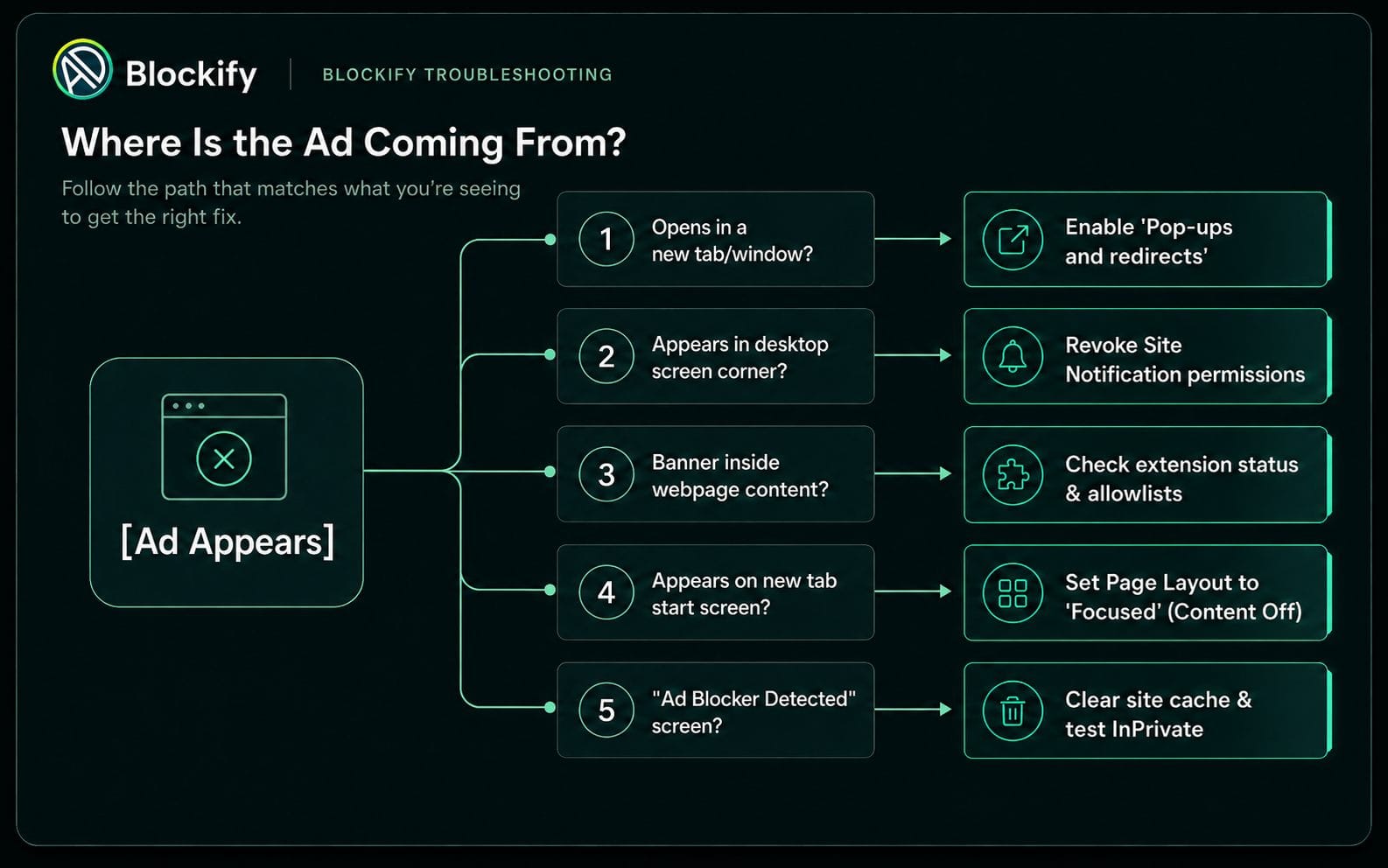
Troubleshooting: Still Seeing Ads or Getting "Ad Blocker Detected"?
If ads persist or websites block access, systematically identify the delivery path:
Fix "Ad Blocker Detected" Messages Without Disabling Protection
Anti-adblock scripts often trigger on residual site cookies, Strict Tracking Prevention, or multiple active extensions rather than just extension code. Clear site cookies for that domain, test in an InPrivate window, ensure only one blocker is active, and pause protection for that specific trusted site.
- Run one ad blocker: Avoid running multiple content-filtering extensions at once.
- Allowlist the domain: Click your extension toolbar icon and select Pause on this site.
- Test InPrivate mode: Press
Ctrl + Shift + N(Cmd + Shift + Non Mac). If the page loads normally, local site cookies or extension cache caused the conflict. - Clear specific site cache: Click the address bar Padlock icon, select Cookies and site data > Manage cookies and site data, search for the domain, and click Remove.
- Adjust Tracking Prevention: If page features remain broken, click the address bar Padlock icon and turn Tracking prevention for this site to Off.
Frequently Asked Questions
Can I install Chrome extensions in Microsoft Edge?
Yes. Edge runs on the Chromium engine and supports Chrome Web Store extensions. Open edge://extensions/, enable Allow extensions from other stores, and visit the Chrome Web Store. Using the official Microsoft Edge Add-ons store remains recommended for seamless updates.
Does Microsoft Edge have a built-in ad blocker?
Edge desktop includes built-in controls for pop-ups, cross-site trackers, intrusive ads, and site notifications, but lacks a native cosmetic ad blocker for standard webpage display banners. To block standard webpage ads on desktop, install an ad-blocking extension. Edge Mobile includes a built-in ad blocker powered by Adblock Plus.
Can I block ads in Edge on Xbox?
Extension support is unavailable on the Xbox edition of Microsoft Edge. To reduce ad domains while browsing on an Xbox console, configure encrypted DNS filtering (such as NextDNS) directly on your network router.
Action Plan: Stop Ads in Edge
Match your goal to the direct fix:
- Stop pop-up windows and redirects: Set Pop-ups and redirects to Blocked in Edge Site Permissions.
- Remove desktop alert pop-ups: Remove unknown domains from Edge Notification permissions.
- Limit cross-site ad profiling: Set Tracking Prevention to Balanced or Strict.
- Block display banners, sponsored grids, and video ads: Install a Manifest V3 ad blocker from Microsoft Edge Add-ons.
- Clean up new-tab news promotions: Open new-tab Page Settings and select Layout: Focused.
- Block ads on Android or iOS: Enable Block ads in Edge Mobile Content blockers settings.
Knowing how to block ads in Edge comes down to configuring native settings for pop-ups and notifications, then pairing them with a Manifest V3 extension like Blockify for Microsoft Edge for full webpage cleanup.