

Wondering how to clear queue on Spotify? I know exactly how frustrating it is to stare at your screen, trying to stop a barrage of unwanted upcoming tracks, only to find the "Clear" button completely missing.
You aren't doing anything wrong. Spotify hides this button depending on how your current music started playing. Below is the exact method to take back control of your listening session, whether you need to wipe a manual queue or override the app's autoplay algorithm.
How to Clear Spotify Queue on Mobile and Desktop
You can only use the bulk "Clear" button to wipe tracks you manually added using the "Add to queue" feature. If you explicitly queued songs, here is how to delete them instantly across devices.
iPhone and Android
The interface for iOS and Android is identical for queue management:
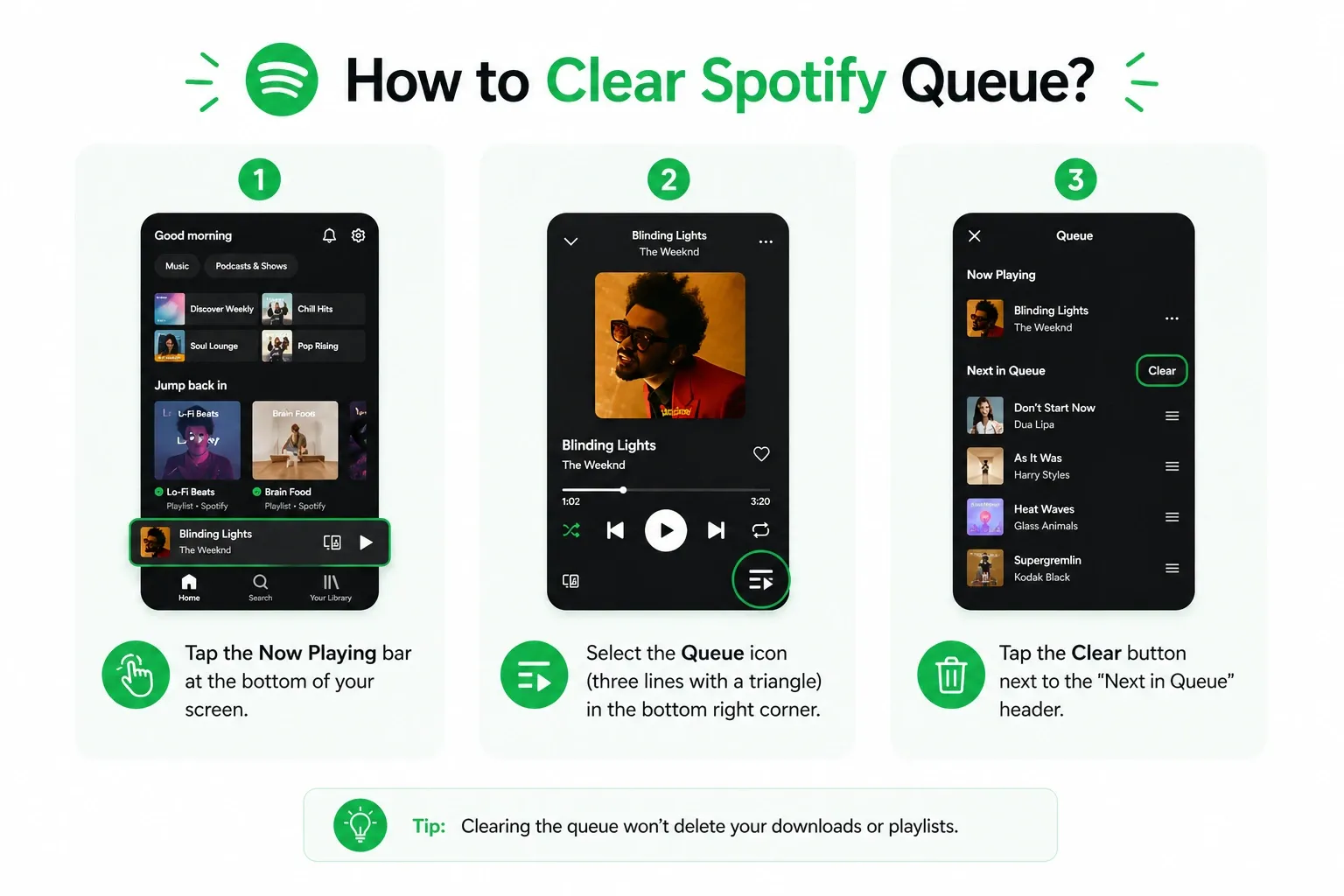
- Tap the Now Playing bar at the bottom of your app.
- Tap the Queue icon in the bottom right corner.
- Locate the Next in Queue heading.
- Tap Clear on the right side of the screen.
Note: If the Clear button is missing, Spotify is playing from a playlist, album, or Smart Shuffle. To stop these upcoming tracks, play a new song or toggle off Autoplay.
Windows and Mac Desktop
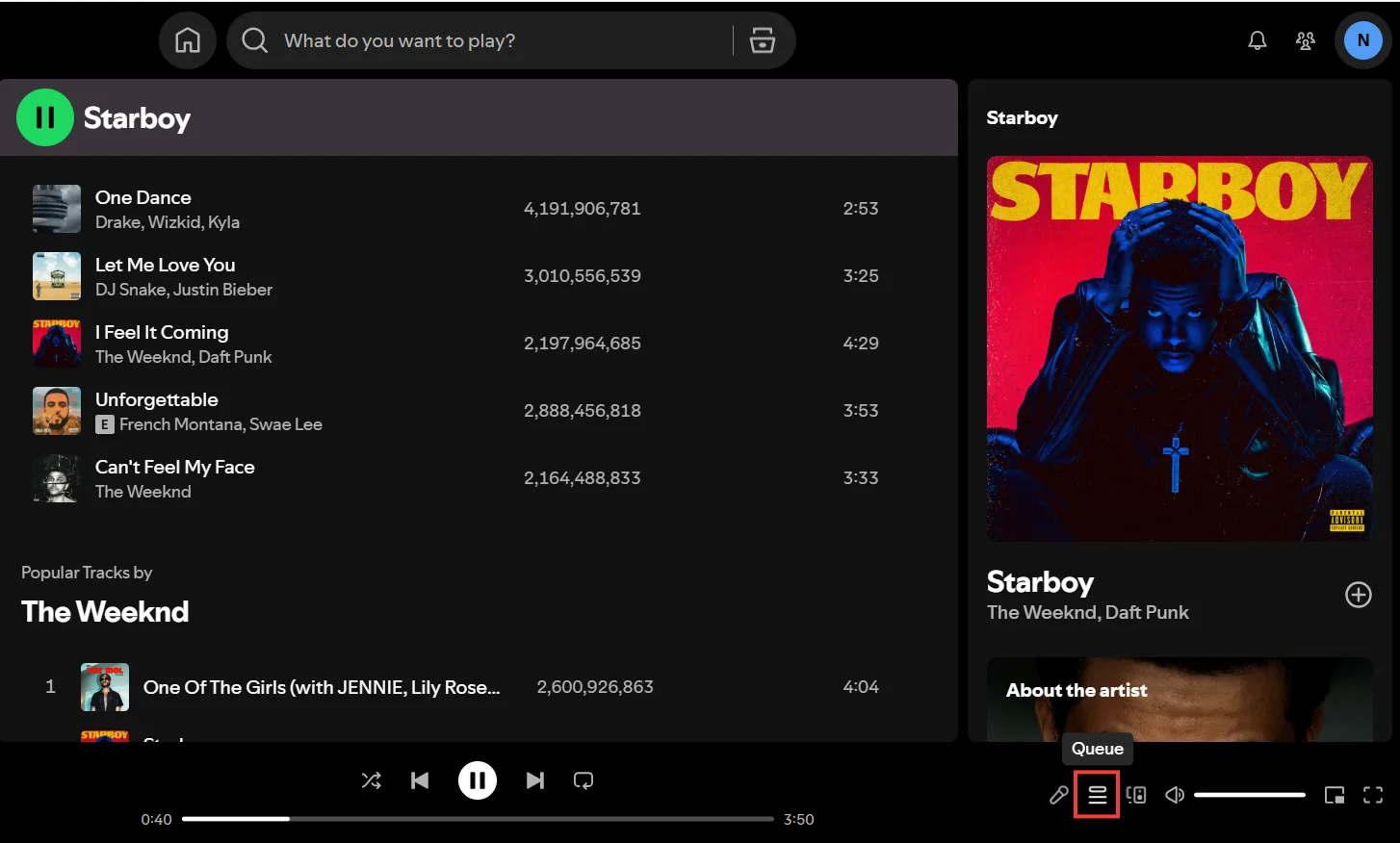
- Click the Queue icon (three stacked lines) in the bottom right corner of the playback control bar.
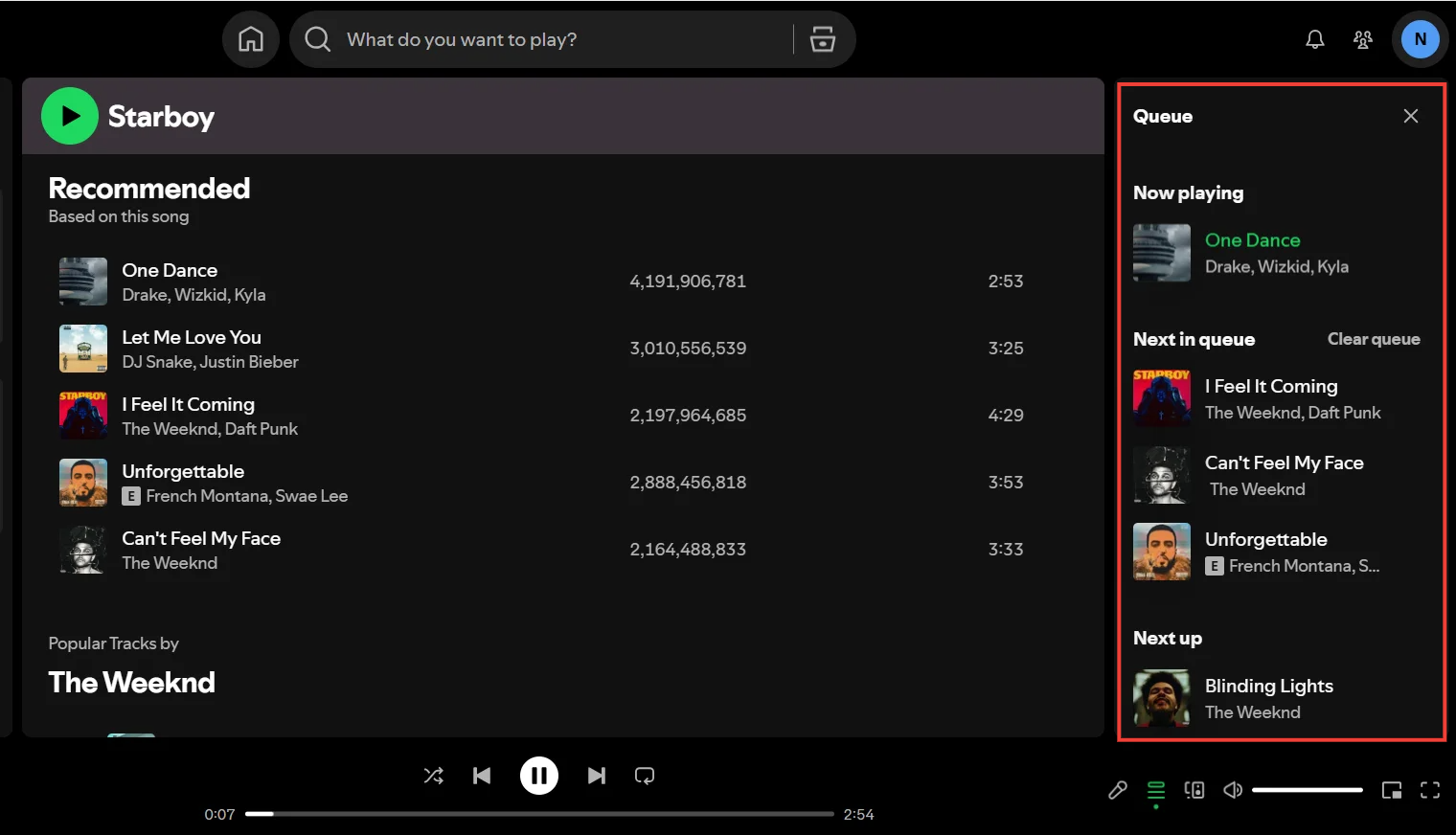
- Find the Next in Queue section at the top of the right-hand panel.
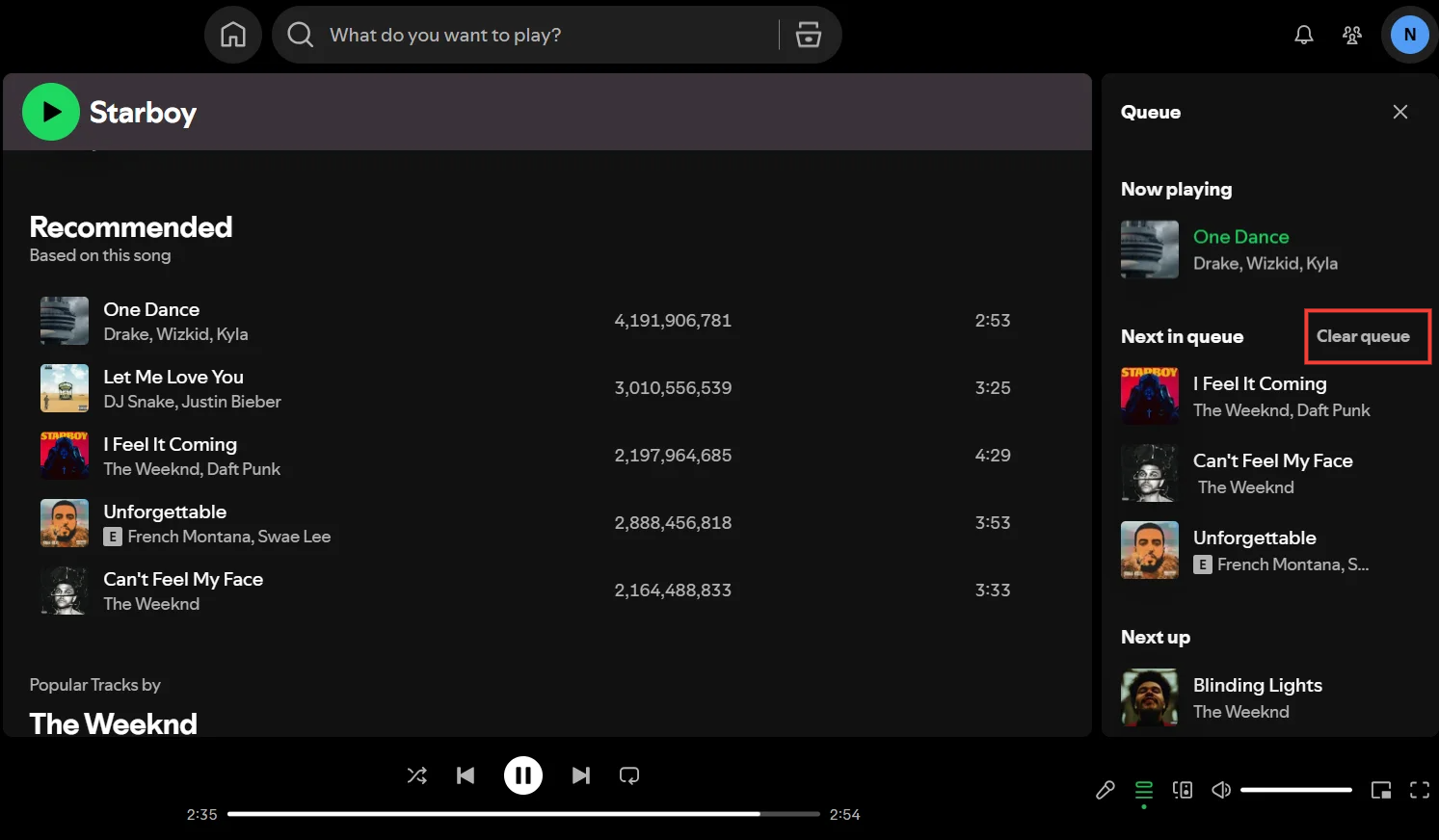
- Click Clear.
Why You Can’t Clear Your Spotify Queue
Spotify uses three different playback layers. The "Clear" button only appears for the manual layer. If it is missing, you must change your playback context or turn off algorithmic autoplay.
If you don't see the clear button, you are experiencing a playback-state problem. Spotify does not use one universal queue. It streams music from three distinct layers:
- Manual Queue: Songs you explicitly added. (The Clear button works here).
- Contextual Playback: The playlist, album, or podcast you initially clicked "Play" on.
- Autoplay & Smart Shuffle: The algorithmic layer that infinitely refills your upcoming tracks.
There is no bulk-clear button for contextual playback or autoplay. To clear these upcoming tracks, you must override the app's state.
Use a One-Song Playlist to Reset Queue
If your queue refuses to stop playing and you just want silence, use this community-tested workaround:
- Create a new playlist containing exactly one short song.
- Name it "Reset Queue".
- Tap play on this playlist.
This instantly overrides your current playback context. Once the single track ends, Spotify stops completely.
Also read: How to Make a Playlist on Spotify
How to Remove Songs From Spotify Queue
You can target and remove individual tracks without wiping your entire upcoming listening session.
You do not have to nuke your entire session just to skip a few bad tracks.
On Mobile
Open your queue. Tap the empty circles next to the specific songs you want to delete. Once selected, tap the Remove button at the bottom of the screen.
On Desktop
Open the right-hand queue panel. Hover your cursor over the unwanted song, click the three-dot menu, and select Remove from queue.
Spotify Queue Management Tips (AutoPlay and Devices)
Smart Shuffle and multi-device listening via Spotify Connect frequently alter your queue state. Save important queues as playlists before switching devices.
Mastering your queue means managing the algorithms and devices that interfere with it.
How to Disable Smart Shuffle on Spotify
If Spotify keeps inserting unknown songs into your carefully curated list, Smart Shuffle is active. Tap the shuffle icon on the Now Playing screen until the sparkle graphic disappears.
Smart shuffle does not create a new mix/shuffle order. Turning it off prevents the algorithm from hijacking your queue. Manually deleting Smart Shuffle recommendations may disrupt your current listening session.
Spotify Connect and Queue Sync Issues
Spotify Connect handoffs do not reliably preserve local manual queues. If you build a massive queue on your phone and transfer playback to your desktop or Sonos speaker, those upcoming tracks frequently disappear. Always save your current queue as a playlist before moving playback to a new device.
Tools to Improve Spotify Web Player Experience
No third-party app can natively clear your Spotify queue due to API restrictions. However, if you use the Spotify Web Player, browser extensions like Blockify drastically improve your listening session by blocking interruptions.
Public Spotify API limitations strictly prevent external apps from managing your queue state. Any tool claiming to automatically wipe your queue is misleading.
However, if you manage your playback via a browser, you can significantly upgrade your experience. While you curate your queue, browser tools prevent unwanted audio and video ads from hijacking your session.
Blockify is the top recommendation for dynamic content platforms. It utilizes a dual-layer blocking mechanism that specifically targets streaming platforms where standard static ad-blockers fail.

It operates quietly in the background, boasting a 4.8 rating and over 360,000 users. If queue issues are solved but ads still interrupt your browser listening, installing Spotify Ad Blocker is the most practical next step for a seamless experience.
FAQs
How Do I Clear My Spotify Queue Step by Step?
Open the Now Playing screen, tap the Queue icon, and hit the Clear button next to "Next in Queue". If the button is missing, you are in a playlist context and must start a new track to overwrite the queue.
Can I Remove All Songs from Spotify Queue At Once?
Yes, but only manually queued tracks. Tap the Clear button to remove them all simultaneously. There is no bulk-clear feature for an entire album or playlist.
How to Delete Songs from Spotify Queue Individually?
Open your queue, select the circular checkbox next to the specific track (or click the three-dot menu on desktop), and choose Remove.
How to Manage Spotify Queue On Mobile or Desktop?
Access your upcoming tracks via the Queue icon on the Now Playing bar. From there, you can reorder tracks by dragging them, bulk-clear manual additions, or remove individual songs.
Why Can’t I Clear My Spotify Queue?
The Clear control is strictly conditional. It only appears for manually queued songs. You cannot natively clear songs generated by a playlist, an album, or the Autoplay algorithm.
Can a Third-Party App Clear My Spotify Queue?
No, Spotify API restrictions prevent external tools from natively clearing or reordering your upcoming tracks.




