

Learning how to make a playlist on Spotify takes exactly three clicks. But mastering playlist curation, organizing folders, dodging algorithmic clutter, and building seamless energy curves, takes strategy.
Whether you are using a free account or Premium, this Spotify playlist creation guide 2026 breaks down everything from basic setup to advanced library management. If you need to learn exactly how to create a playlist on Spotify mobile and desktop systems smoothly, this guide delivers the necessary steps so you can reclaim control over your music discovery.
Can You Make a Playlist on Spotify for Free?
To make a playlist on Spotify:
- Open the app and go to Your Library and tap the + (plus) icon in the top right corner.
- Select Playlist and type a name
- Tap Create and Add to this playlist to search for and insert your first tracks.
This exact process works seamlessly across free and Premium accounts on both mobile and desktop.
Spotify Free users can create, edit, and share an unlimited number of playlists. Premium status only removes ads and unlocks offline, on-demand playback.
Premium status changes your playback experience, not your creation limits. Free users hear ads between tracks and face shuffle-only restrictions on mobile, while Premium users unlock offline downloads and on-demand track selection.
Free vs. Premium Capabilities:
| Feature | Free | Premium |
| Create & edit playlists | Yes | Yes |
| Share with friends | Yes | Yes |
| Ad-free listening | No | Yes |
| Download for offline | No | Yes |
Note: If you stream from a browser and want a cleaner free experience, see How to Block Ads on Spotify.
How to Create a Playlist on Spotify Mobile
Tap "Your Library," hit the plus icon, and select "Playlist" to start building on iOS or Android.
Creating a playlist on your smartphone takes seconds. Interface labels shift slightly across updates, but the core path remains stable.
Step-by-Step on iPhone and Android:
- Tap the Your Library icon at the bottom right.
- Tap the + (plus) icon at the top right of the screen.
- Select Playlist from the slide-up menu.
- Enter a distinct name (avoid leaving the default "My Playlist #1") and tap Create.
To tweak settings later, open your playlist and tap the three-dot menu under the title. Here, you can rename the playlist, write a description, upload a custom cover image, or delete the collection entirely.
How to Create a Playlist on Spotify Desktop and Web
Click the plus icon in the left sidebar next to "Your Library" to create a new playlist, then drag and drop songs to build it rapidly.
Managing music on a computer provides the most efficient workflow for building a large library. The expanded interface makes bulk-editing and track reordering significantly faster.
Step-by-Step on Desktop App & Web Player:
- Open the Spotify desktop app (Windows/Mac) or the Web Player.
- Look at the left navigation sidebar.
- Click the + (plus) icon next to "Your Library."
- Select Create a new playlist.
- Click the default title to rename it and assign a custom image.
Desktop users benefit from drag-and-drop mechanics. You can highlight multiple tracks using Shift or Ctrl/Cmd, then drag them directly into the sidebar playlist. This functionality is essential for heavy library reorganization.
How to Add Songs to Your Spotify Playlist
Use the three-dot menu on any song, album, or Now Playing screen to send tracks directly to your playlist, or drag and drop them on the desktop.
A playlist requires deliberate curation. Spotify provides multiple entry points to inject tracks smoothly.
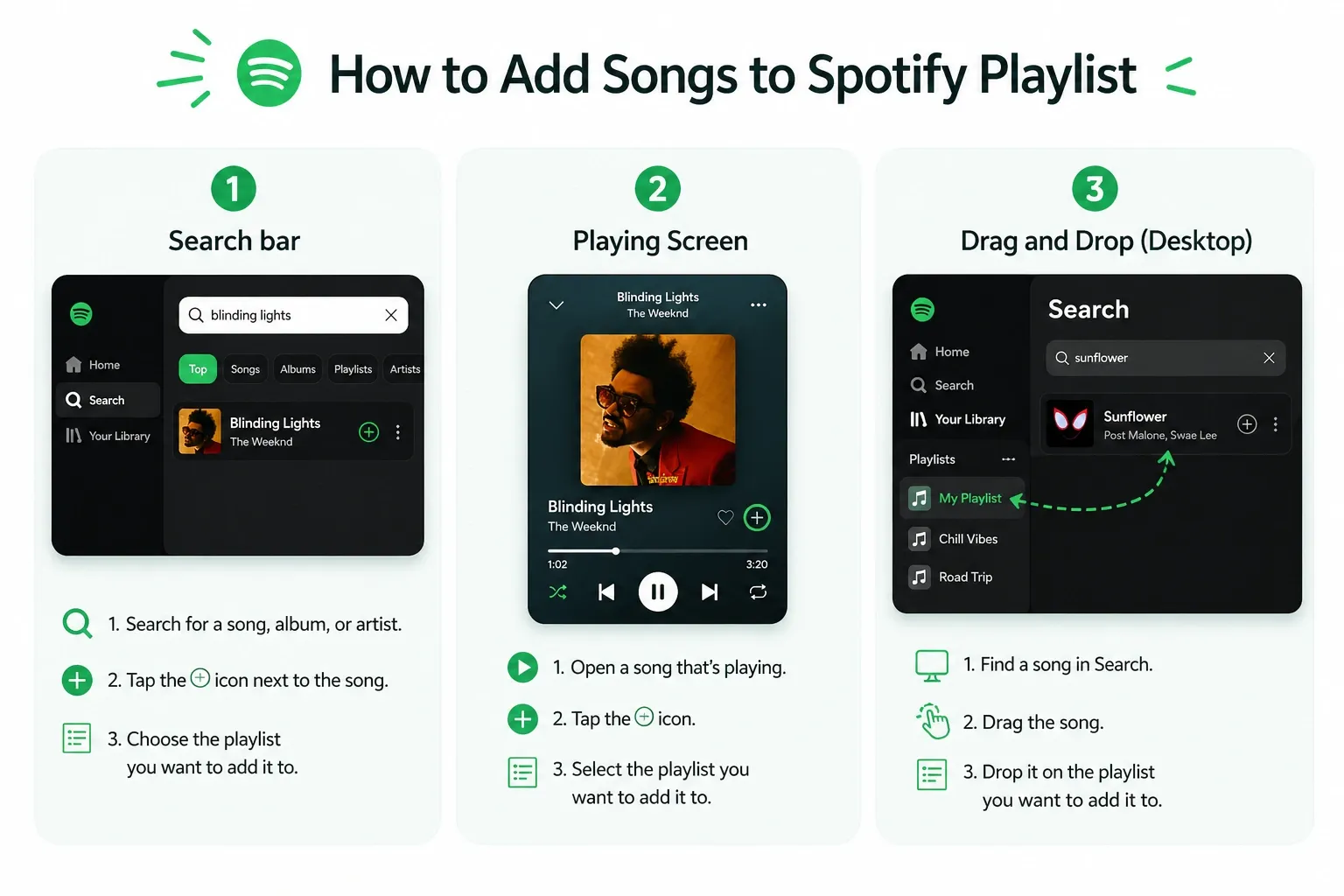
- From Search: Search for an artist or track, tap the three-dot menu next to the result, and select Add to playlist.
- From the Now Playing Screen: While listening to a song you like, open the active player, tap the three-dot menu, and send it to your playlist.
- Drag and Drop (Desktop Only): Click and hold any track, then drag it over to the target playlist name in your left sidebar.
Once you add tracks, drag them up or down to set the sequence. The order dictates the listening experience, bridging perfectly into advanced curation tactics.
Spotify Playlist Tips: Curation, Energy Curves, and AI
Stop relying solely on algorithms. Use a specific scenario, plot an energy curve, and mix anchor tracks with new discoveries to build playlists you actually replay.
Personalized recommendation algorithms optimize for engagement, which can homogenize your music discovery over time. Deliberate curation protects your unique taste profile.
- Scenario Specification: Define the exact moment. A "rainy highway drive" dictates different pacing than a "gym warmup."
- Energy Curve: Sequence tracks to open, build, peak, and land. Track transitions matter.
- Anchor Tracks: Select three defining songs for the vibe. Build the remaining tracklist around this sonic foundation.
- The Discovery Rule: Enforce a ratio, one brand-new artist for every four familiar tracks, to force fresh discovery without alienating your taste.
Using AI Playlist Features (Beta):
Spotify’s prompt-based AI Playlist feature accelerates the initial drafting phase. Use natural language prompts (e.g., "upbeat jazz for a morning coffee rush") to generate a base tracklist. Treat this output as a rough draft. Human editing, removing generic algorithmic choices and inserting personal favorites, makes the playlist distinct.
How to Organize Your Spotify Playlists
Group individual playlists into Folders (by genre, season, or mood) to prevent sidebar clutter. Keep an eye on the 10,000-song limit per playlist.
Creating playlists is satisfying until you hit 150 of them and lose track. A scalable organization system prevents digital clutter.
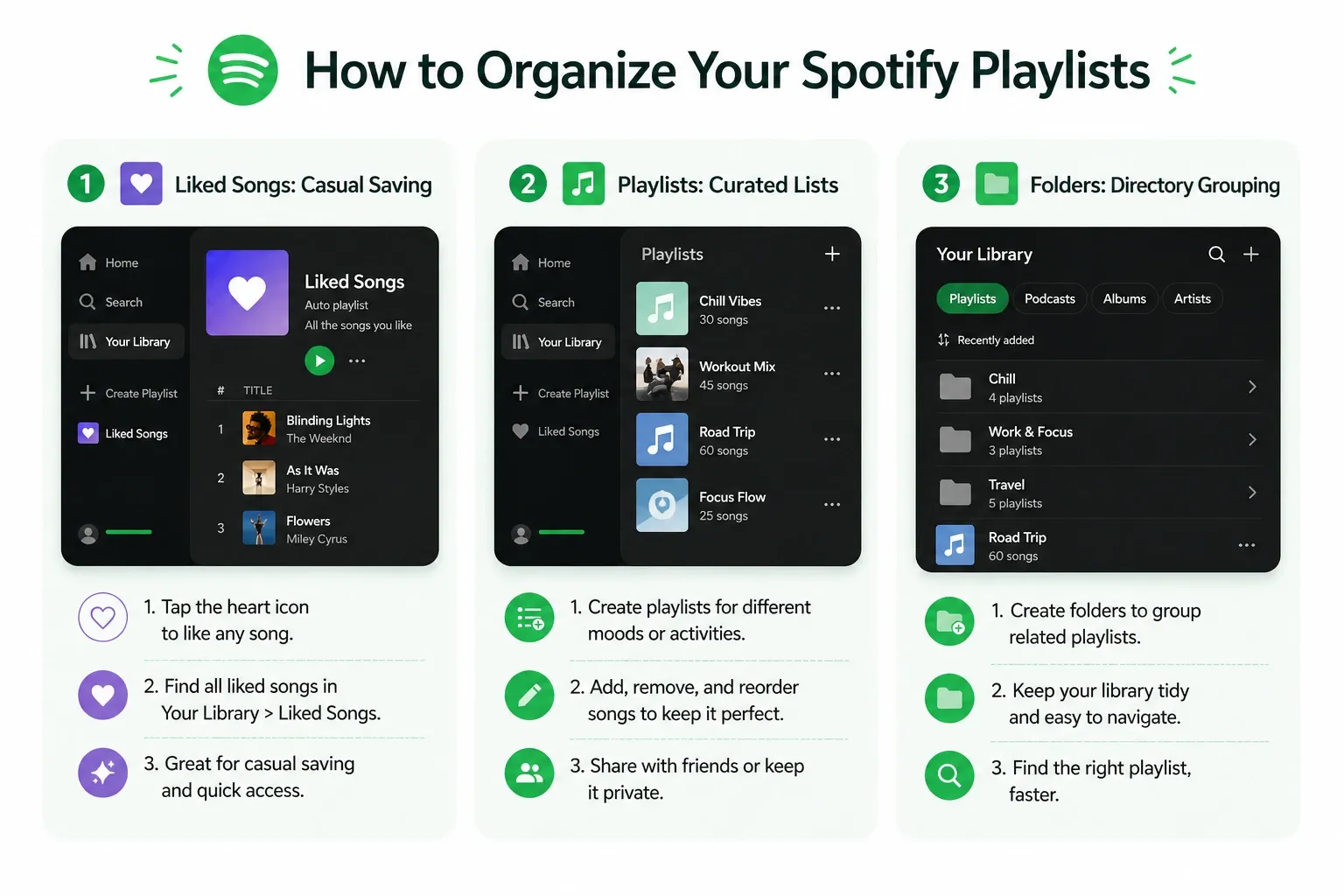
Liked Songs vs. Playlists vs. Folders:
- Liked Songs: Your unfiltered archive for casual saving.
- Playlists: Curated, scenario-specific listening units.
- Folders: The overarching directory grouping related playlists (e.g., "Work Focus," "Summer 2026").
Are Playlist Folders on Mobile Yet?
For years, creating folders was a desktop-only feature. If you do not see folder creation on mobile yet, use the desktop app or Web Player to build folders and then manage the playlists inside them across devices.
The 10,000-Song Limit:
While your overall Liked Songs library is uncapped, individual playlists carry a hard 10,000-track limit, as confirmed in Why does a 10000 songs in a playlist limit exist?. Split massive collections by sub-genre or year before triggering sync errors.
Can I Share My Spotify Playlist With Others?
Share your playlist via a direct link. Keep collaborative playlists set to private to prevent unauthorized bots from adding spam tracks.
You can share any playlist you create. How you configure the permissions dictates your control over the music.
How to Share:
Tap the three-dot menu on the playlist, select Share, and choose "Copy Link" to paste it into messages or social media.
Privacy Options:
- Public: Visible on your profile and searchable by other users.
- Private: Hidden from your profile. Only people you share the link with can access it.
- Collaborative: Allows collaborators with the link to add, remove, or reorder tracks.
Securing Collaborative Playlists:
Make collaborative playlists private by default. Public collaborative links carry a documented risk of bot abuse, where bad actors hijack the tracklist to artificially inflate streams for spam artists, as documented in Bots ruining collaborative playlist. Sharing a private link ensures only trusted friends control the queue.
Smart Shuffle, Local Files, and Playback Control
Smart Shuffle injects algorithmic recommendations into your queue. Turn it off to maintain strict control over your curated tracklist.
Spotify’s default playback settings often inject unrequested tracks into your carefully curated lists.
Managing Smart Shuffle:
Smart Shuffle blends your chosen songs with algorithmic recommendations. To disable it, tap the shuffle icon on the Now Playing screen until the sparkle graphic disappears, leaving only the standard green arrows.
Dedicated listeners report that Smart Shuffle often creates repetitive loops rather than true discovery. Disabling it restores absolute control over your playback.
Local Files Warning:
If you mix downloaded MP3 files with streaming tracks, Smart Shuffle can occasionally cause playback skipping or hide local files as it attempts to fetch streaming recommendations, as reported in smart shuffle shouldnt break local files.
Taste-Profile Hygiene:
If you build utility playlists for white noise or children’s music, select Exclude from your taste profile in the playlist’s three-dot menu. This prevents sleep sounds from corrupting your Discover Weekly algorithm.
Optional: Top 3 Browser Tools for Fewer Interruptions on Spotify Web
For Spotify Web Player users, browser extensions like Blockify, uBlock Origin, and AdGuard eliminate visual clutter and audio interruptions.
If you stream music through the Spotify Web Player, dynamic audio interruptions and interface clutter break focus. Using a browser extension maintains a cleaner environment.
1. Blockify
Built specifically for modern, dynamic platforms like Spotify Web, YouTube, and Twitch. Blockify uses a dual-layer blocking mechanism to reliably detect and skip injected audio/video interruptions seamlessly. With over 360,000 users, it offers a set-and-forget solution tailored for uninterrupted media streaming.
2. uBlock Origin
uBlock Origin is an extremely lightweight, open-source content blocker. It is highly effective but best suited for technical users willing to tinker with manual filter lists for optimal performance.
3. AdGuard
Provides robust, system-wide privacy protection beyond the browser. Excellent for overarching device privacy, though it requires more initial configuration.
FAQs
How Do I Create a Playlist on Spotify Step by Step?
Open Your Library, tap the plus icon in the top right, select "Playlist," and name it. You can do this on any smartphone or via the desktop app's left sidebar.
Can You Make a Playlist on Spotify for Free?
Yes. Spotify Free users can create, edit, and share an unlimited number of playlists, though mobile playback remains restricted to shuffle mode with ads.
How to Add Songs to a Spotify Playlist?
Tap the three-dot menu next to any song in search results or on the Now Playing screen. Select "Add to playlist" and choose your destination.
Can I Share My Spotify Playlist with Others?
Yes. Copy the playlist link from the three-dot menu. You can keep it private, make it public, or enable collaborative mode for shared editing.
How to Organize Spotify Playlists?
Use the folder creation tool to group your mixes by genre or mood. Keep individual playlists well under the 10,000-song limit by breaking them up into specific eras or vibes.




