
Want to know exactly how to delete a playlist on Spotify? Open the playlist, tap the three-dot menu, and sel?ct Delete. If you did not create the playlist, tap the green checkmark (or minus icon) to remove it from your library instead.
Tapping "Delete" does not instantly erase a playlist from existence for everyone. Spotify strictly separates personal library removal from public profile visibility, collaborator access, account recovery, and device storage.
If you recently deleted an old mix but it still appears on your public profile, or if you removed downloaded tracks but your phone’s storage did not change, you are experiencing a permissions clash.
You can only delete playlists you created. If you only saved a playlist, you must unfollow or remove it. Always verify whether your goal is decluttering your library, hiding your listening habits, or freeing up device storage.
Spotify Playlist Deletion Checklist: What to Do Before You Delete
Use this final safety pass before cleaning out your Spotify library:
- Verify the name: Confirm you are deleting the correct playlist and not a similarly named mix.
- Define the goal: Decide if you actually need to Delete, Unfollow, Remove from Profile, or Make Private.
- Check permissions: If the playlist is shared, remove all collaborators before hitting delete.
- Back up data: If executing a bulk deletion via desktop folders, duplicate important tracklists first.
- Check storage: If you simply need device space, leave your playlists alone and clear your Spotify cache instead.
This complete Spotify playlist deletion guide 2026 ensures your library stays organized, your privacy remains intact, and your device storage stays optimized.
How to Delete Spotify Playlists the Right Way
If you need the fastest way to clear out your library, follow these instructions on how to delete Spotify playlist on mobile and desktop devices.
On Mobile (iOS & Android)
If you created the playlist:
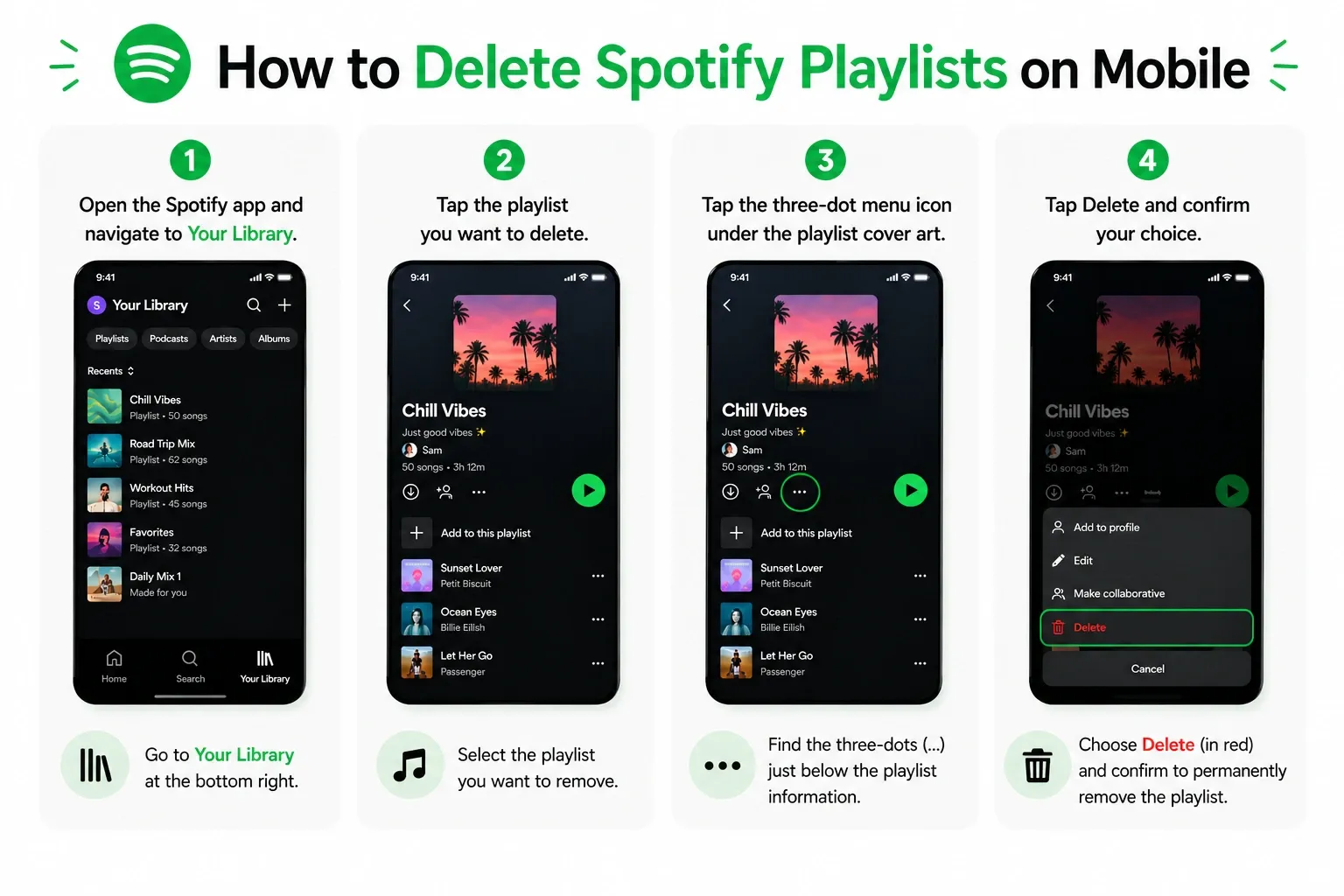
- Open the Spotify app and navigate to Your Library.
- Tap the playlist you want to delete.
- Tap the three-dot menu icon under the playlist cover art.
- Tap Delete and confirm your choice.
If you only follow or saved it:
You will not see a Delete button. Instead, open the playlist and tap the green checkmark to remove it from your library.
On Desktop and Web Player
If you created the playlist:
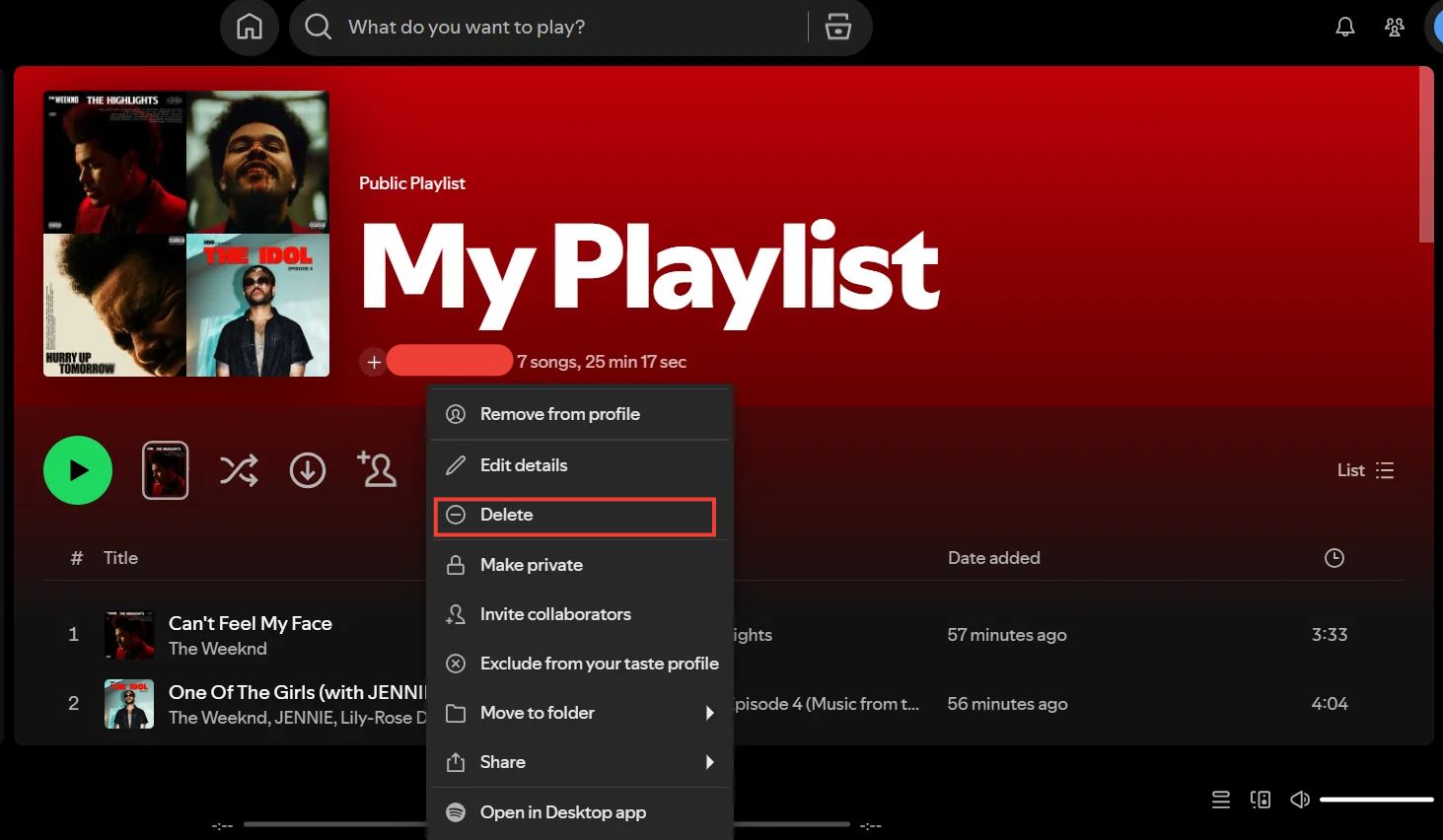
- Open the Spotify desktop app or web player.
- Locate the playlist in your left-hand sidebar.
- Right-click the playlist name.
- Click Delete from the dropdown menu and confirm.
If you only follow or saved it:
Right-click the playlist name in the sidebar and select Remove from Your Library.
What Happens After You Delete a Spotify Playlist
Deleting a playlist instantly removes it from your personal library. It disappears from your sidebar and mobile app list.
However, visibility, collaboration, and recovery follow different rules. Deleting a public playlist removes it from your profile, but anyone who already saved it or holds the direct URL link may still be able to view the tracklist. For collaborative playlists, deleting it on your end does not automatically wipe it for other contributors.
Can I delete a Spotify playlist permanently?
Yes, but the process takes time. Spotify holds deleted playlists in a secure recovery window for 90 days. After 90 days, the playlist is permanently wiped from Spotify's servers and cannot be restored.
Deleting a playlist removes it from your interface immediately. However, it takes 90 days for the playlist to permanently clear from Spotify’s server recovery system.
Why You Don’t See the Delete Option on Spotify (And How to Fix It)
If the Delete button is missing, you are dealing with a permissions limitation. The menu options Spotify displays depend entirely on playlist ownership.
- You didn't create the playlist: You cannot delete algorithmic lists (like "Discover Weekly") or user-generated playlists you followed. You can only remove them from your saved library.
- You only see "Remove from Profile": This appears when a playlist is public but already saved to your library. Clicking it just hides the playlist from strangers viewing your user page; it does not delete the playlist itself.
- It is collaborative: Shared ownership alters the menu options. You must manage access permissions before deletion (detailed below).
Delete vs Unfollow vs Remove vs Make Private: Spotify Playlist Options Explained
Users frequently confuse visibility, ownership, and device storage. Choose your action based on your exact goal to avoid unexpected results.
| Action | What it changes | What it does not change | Best use case |
| Delete | Removes from your library and profile. Starts 90-day recovery clock. | Does not immediately cut access for existing followers. | Decluttering old playlists you built and no longer want. |
| Unfollow / Remove | Removes a saved playlist from your personal library. | Does not delete the original creator's master playlist. | Cleaning up mixes made by Spotify or other users. |
| Remove from Profile | Hides the playlist from your public user page. | Does not delete it from your library or make it private. | Keeping a frequently used mix off your public profile. |
| Make Private | Blocks followers and link-holders from seeing or playing it. | Does not delete the playlist from your own library. | Restricting a personal mix strictly to yourself. |
| Clear Cache / Downloads | Frees up physical storage on your device. | Does not alter your Spotify library visual interface. | Reclaiming device storage space. |
How to Delete a Collaborative Spotify Playlist Without Leaving Access Behind
Tapping delete on a shared playlist is risky. You might remove it from your library, but a friend could still edit it on their phone. To prevent ghost access, alter the permissions first.
To fully terminate a shared playlist:
- Open the playlist and remove all collaborators manually.
- Toggle the playlist status to Make Private.
- Once the playlist is private and locked to your account, tap Delete.
Making a playlist private instantly cuts off outside access, even for users holding the direct link. Removing it from your profile merely hides it from your main page.
Pro Tip: If you want to leave a collaborative project but let others keep the music, instruct a collaborator to select all tracks (Cmd+A or Ctrl+A on desktop) and copy them into a new playlist of their own. Once they secure a duplicate, safely delete the original.
How to Delete Multiple Spotify Playlists Faster (Bulk Cleanup Method)
Spotify does not offer a native "select all" mass-delete button on mobile devices. If you are executing a massive library cleanup, switch to your computer.
The Desktop Folder Workflow:
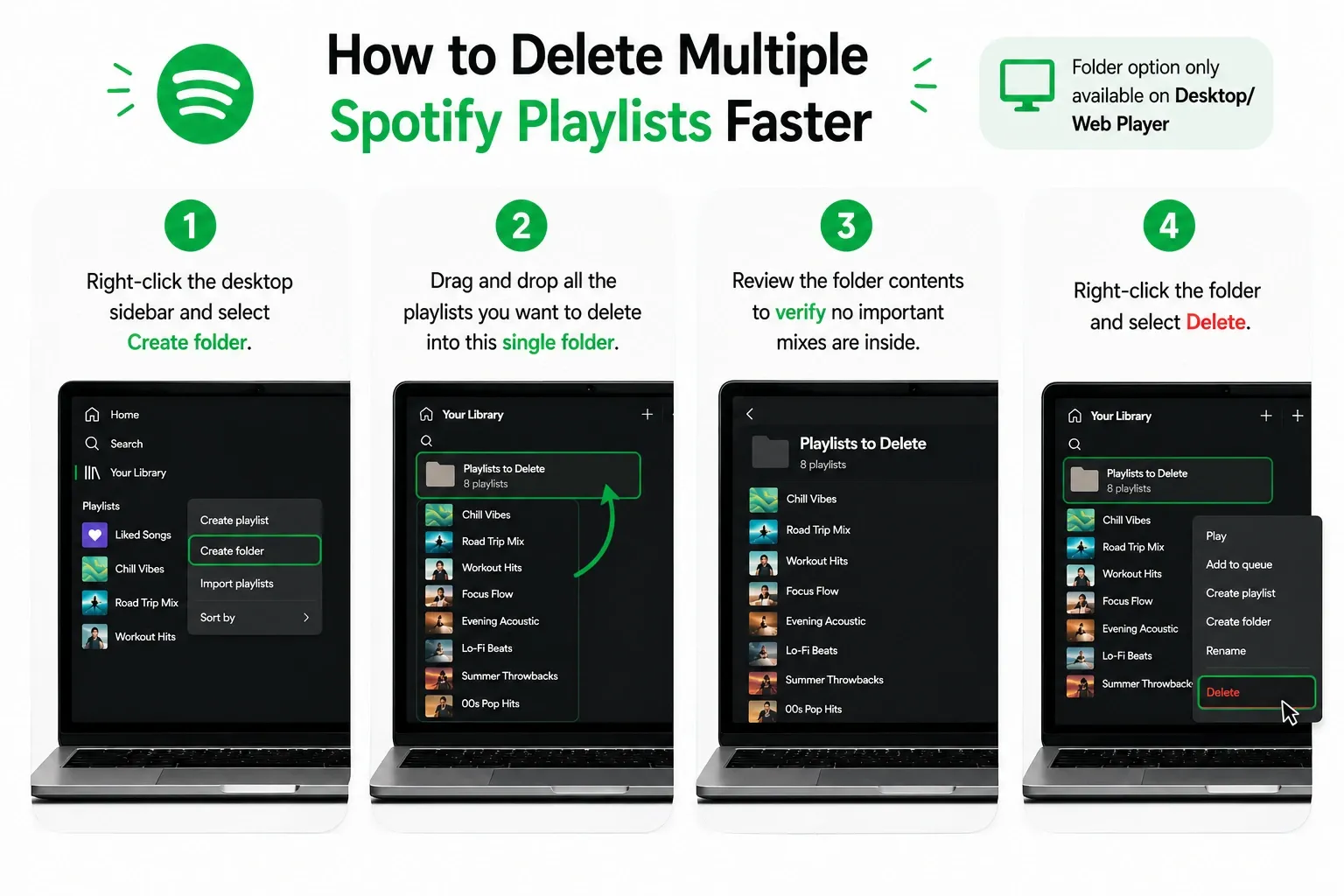
- Right-click the desktop sidebar and select Create folder.
- Drag and drop all the playlists you want to delete into this single folder.
- Review the folder contents to verify no important mixes are inside.
- Right-click the folder and select Delete. This instantly deletes the folder and everything inside it.
Warning: Some community users report folder deletions do not always populate correctly in the 90-day recovery tool (Recovery playlists from deleted folder). Before clearing hundreds of old mixes, right-click and duplicate anything you might regret losing.
How to Recover a Deleted Spotify Playlist (Within 90 Days)
Yes, you can easily restore deleted playlists. Your method depends on how recently the deletion occurred.
Immediate Undo (Desktop only):
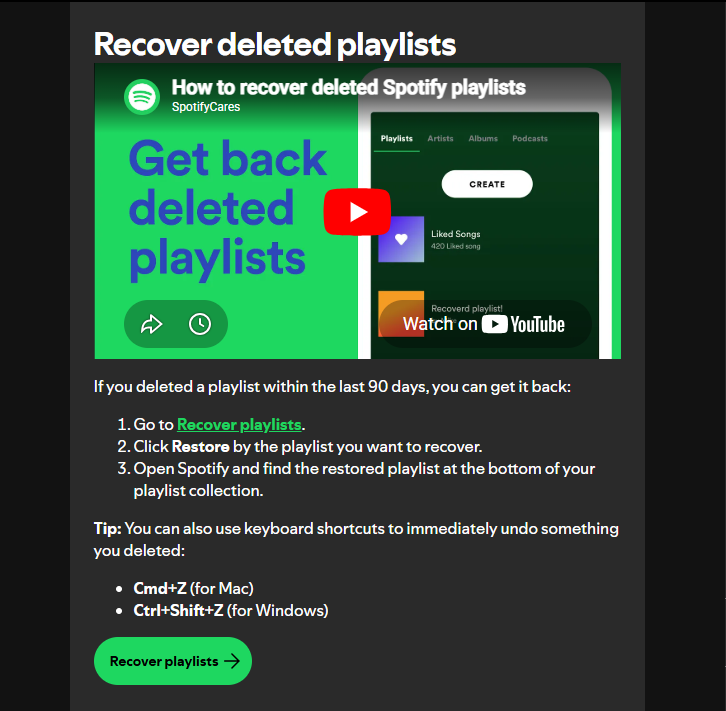
If you just accidentally deleted a playlist on the desktop app, do not refresh or click away. Press Cmd+Z (Mac) or Ctrl+Shift+Z (Windows). The playlist will instantly reappear in your sidebar.
The 90-Day Recovery Tool:
If you deleted the playlist on mobile, or days have passed, use the official recovery path:
- Log into your account page on the Spotify website via a browser.
- Click Recover playlists from the left-hand menu.
- Locate your missing playlist and click Restore.
- Open the Spotify app; the playlist will reappear at the bottom of your library.
If your playlist is missing from the recovery page, confirm you are logged into the correct Spotify account.
Spotify Playlist Not Deleting? Fix Sync Issues and Ghost Playlists
Sometimes a playlist stubbornly remains on your screen after you tap delete.
If a playlist refuses to disappear, test your sync connection. Often, a playlist deleted on your phone will still show up on your desktop app because the local device has not pinged the central server yet.
How to fix stuck ghost playlists:
- Force quit and restart the Spotify app.
- Log out of your account completely and log back in.
- Clear the Spotify app cache in your settings.
- If a blank, unopenable entry persists, uninstall and reinstall the application.
How to Improve Spotify Web Player Experience
Deleting playlists fixes visual library clutter. If you manage your library and listen primarily via the Spotify Web Player, using a dedicated browser extension can drastically improve the listening experience itself by eliminating dynamic interruptions.
Blockify
Positioned as a modern Spotify ad blocker optimized for content-heavy streaming, Blockify prevents dynamic audio and video interruptions injected into web platforms.
Utilizing a dual-layer blocking system and intelligent safe-muting fallbacks, it provides a seamless, set-and-forget listening session. Trusted by over 360,000 active users and holding a 4.8 rating on the Chrome Web Store, Blockify reliably protects your attention across the Spotify Web Player, YouTube, and Twitch.
uBlock Origin & AdGuard
If you prefer wide-spectrum system blocking, uBlock Origin offers aggressive CPU efficiency for browser power users, while AdGuard provides broad native desktop app coverage against standard display ads and trackers.
FAQs
Can I Delete a Spotify Playlist Permanently?
Yes. However, Spotify retains deleted playlists for 90 days for recovery purposes before wiping them permanently. If a playlist is collaborative, make it private and remove collaborators first to permanently revoke their access.
How Do I Remove a Playlist from Spotify Mobile or Desktop?
On mobile, tap the three dots under the cover art and select Delete. On desktop, right-click the playlist name in your left sidebar and select Delete.
What Happens When You Delete a Spotify Playlist?
It disappears from your personal library instantly. However, anyone who previously followed your public playlist may still access it unless you made it private prior to deletion.
Can I Recover a Deleted Spotify Playlist?
Yes. Instantly restore it on the desktop app using Cmd+Z (Mac) or Ctrl+Shift+Z (Windows). Alternatively, log into the Spotify website and use the official "Recover playlists" tool within 90 days of deletion.
Does Deleting a Spotify Playlist Free Up Storage?
No, deleting a Spotify playlist does not free up storage on your device. Removing a playlist only deletes it from your library interface, it does not remove any downloaded audio files or cached data stored on your device.
If you want to actually free up storage space, you need to clear Spotify’s cache or remove offline downloads.
How to free up storage on Spotify:
- Open Settings in the Spotify app
- Go to Storage
- Tap Clear cache to remove temporary files
- Tap Remove all downloads to delete offline music and reclaim space
This will free up device memory while keeping your playlists intact in your library.




