

Your browser is your office. But installing chrome extensions for every minor inconvenience creates a paradox: tools meant to save time eventually destroy performance. Enterprise telemetry from LayerX's 2026 browser extension report shows that about 25% of enterprise users have more than 10 extensions installed, exposing themselves to broad permission risks. Simultaneously, performance studies from DebugBear reveal that extension overhead directly slows down Chromium browsers. The goal is not to hoard apps. The goal is a lean, role-based stack built on strict safety and performance filters.
The best extensions for remote workers create a fast, distraction-free workspace. Most professionals should start with five essential tools: one clean-browsing extension (Blockify), one password manager (Bitwarden), one task-capture tool (Todoist), one async communication app (Loom), and a remote access solution (Chrome Remote Desktop). Keep your stack under seven tools to minimize CPU lag and data risks.
The lean browser stack most remote workers should start with
Start with a small stack covering focus, security, capture, communication, and remote access.
If you want immediate value, start here. This table curates the highest-ROI tools across core remote-work categories. Install no more than three today. Copy this starter stack, evaluate your real workflow gaps, and prune later.
| Extension | Solves | Best for | Perf. weight | Perm. sensitivity |
|---|---|---|---|---|
| Blockify | Ad & page clutter | Interruption-free research | Light | Medium |
| Bitwarden | Account security | Individuals & lean teams | Light | High |
| Chrome Remote Desktop | Machine access | Remote IT & hybrid workers | Light | High |
| Todoist | Task chaos | Fast cross-page capture | Light | Low |
| Loom | Meeting fatigue | Async screen explanations | Heavy | High |
| Toggl Track | Unbilled hours | Freelancers & consultants | Moderate | Low |
| Grammarly | Written clarity | Docs, email, chat users | Heavy | High |
| OneTab | Tab overload | Instant memory recovery | Light | Low |
How we chose these extensions
Every pick must solve a real job, justify its overhead, and beat the native browser alternative.
Your browser cannot handle 30 google extensions gracefully. Every recommendation here passed four strict filters:
- Job-to-be-done fit: It clearly solves focus, communication, or security.
- Acceptable performance overhead: It saves more time than it costs in CPU drag.
- Proportional permission scope: Its access demands match its function.
- Current necessity: It beats built-in browser features in 2026.
For most readers, five to seven extensions is a sensible ceiling. Installing more adds toolbar clutter, overlapping functionality, and extra permission risk. DebugBear's extension performance research shows CPU cost is additive across extensions. Remove one stale extension before adding anything new.
Note: Google allows users to narrow site access for heavier tools to "On click" or "On specific sites." We highly recommend using this feature for tools marked with "High" permission sensitivity.
Browser compatibility first: Chrome vs. Edge vs. Brave
Most Chrome extensions work in Edge and Brave, but behavior varies based on built-in privacy shields and MV3 limits.
Pick your browser first, then your blocker. Chrome, Edge, and Brave share a Chromium foundation, but their extension behavior varies.
Manifest V3 (MV3) is Google's newer extension platform. It replaces background pages with service workers and restricts network request modifications. This improves security and performance but fundamentally changes how legacy ad blockers and content filters operate. When evaluating extensions, Chrome users must verify MV3 compatibility.
Best focus and clean-browsing extensions
Remove friction before adding tools that create more dashboards.
Fix your noisy environment first. The highest ROI comes from page cleanup, strict site blocking, and timer-based focus. Choose one approach, not all three.
Blockify
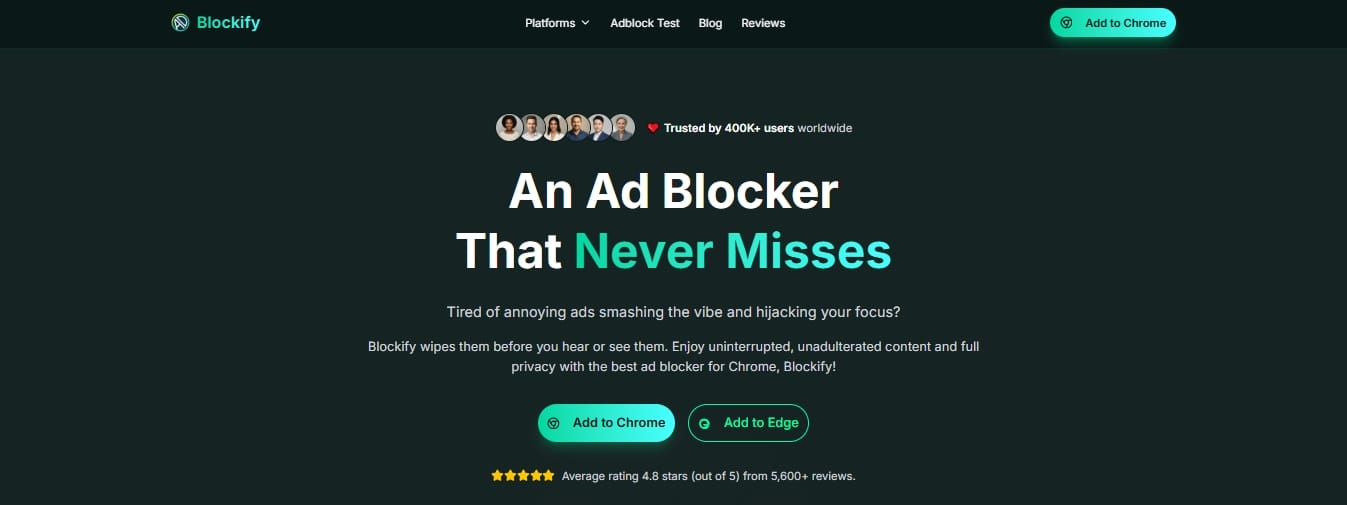
Verdict: Pick Blockify if autoplay videos, pop-ups, and ad-heavy research pages constantly break your flow.
Best for: Interruption-free research, client calls, and video-heavy browsing.
Why it earns its place: It is a lightweight, MV3-compatible ad blocker for Chrome that kills streaming interruptions natively. It features local filtering, zero data collection, and an under-2MB package size.
Main limitation: It cleans pages; it does not block you from deliberately navigating to social media.
Browser notes: Native Chrome/Edge support.
Performance weight: Light
Permission sensitivity: Medium
Our take: If browser clutter breaks your focus, test this clean-browsing tool for seven days before installing anything else.
StayFocusd
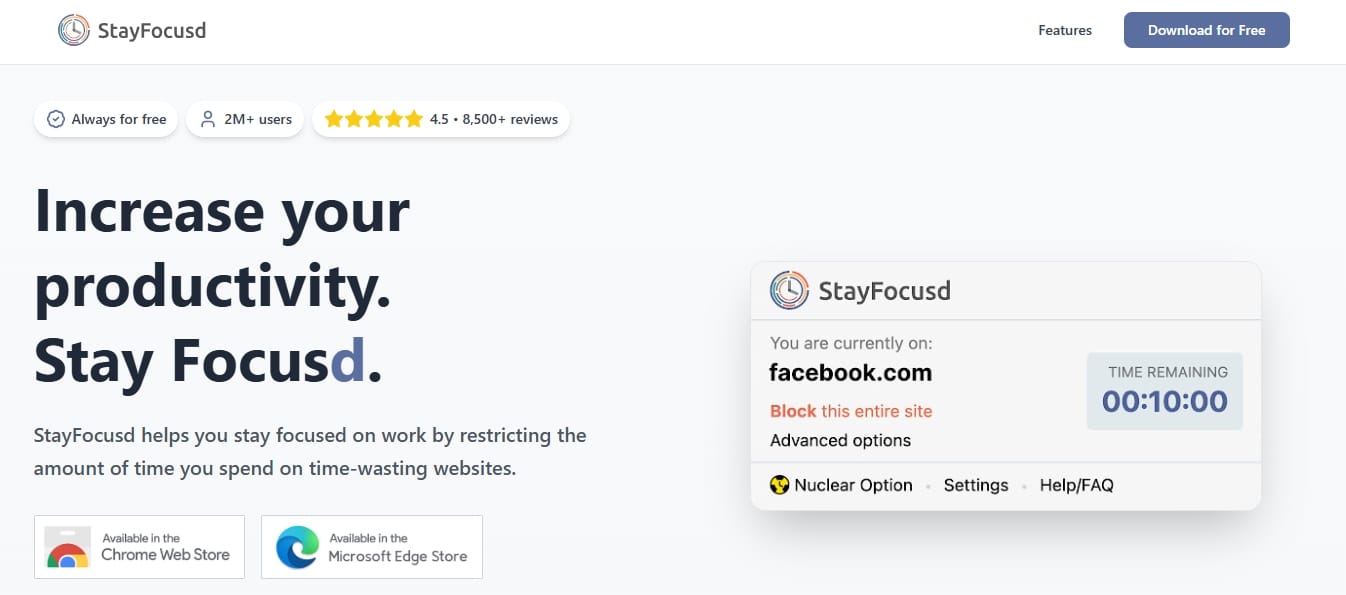
Verdict: Pick StayFocusd if your problem is wandering attention, not page clutter.
Best for: People who lose hours to social feeds.
Why it earns its place: It sets unforgiving daily time limits on specific time-wasting sites.
Main limitation: Rigid access limits do not improve the aesthetic comfort of the pages you do visit.
Performance weight: Light
Permission sensitivity: High
Forest App
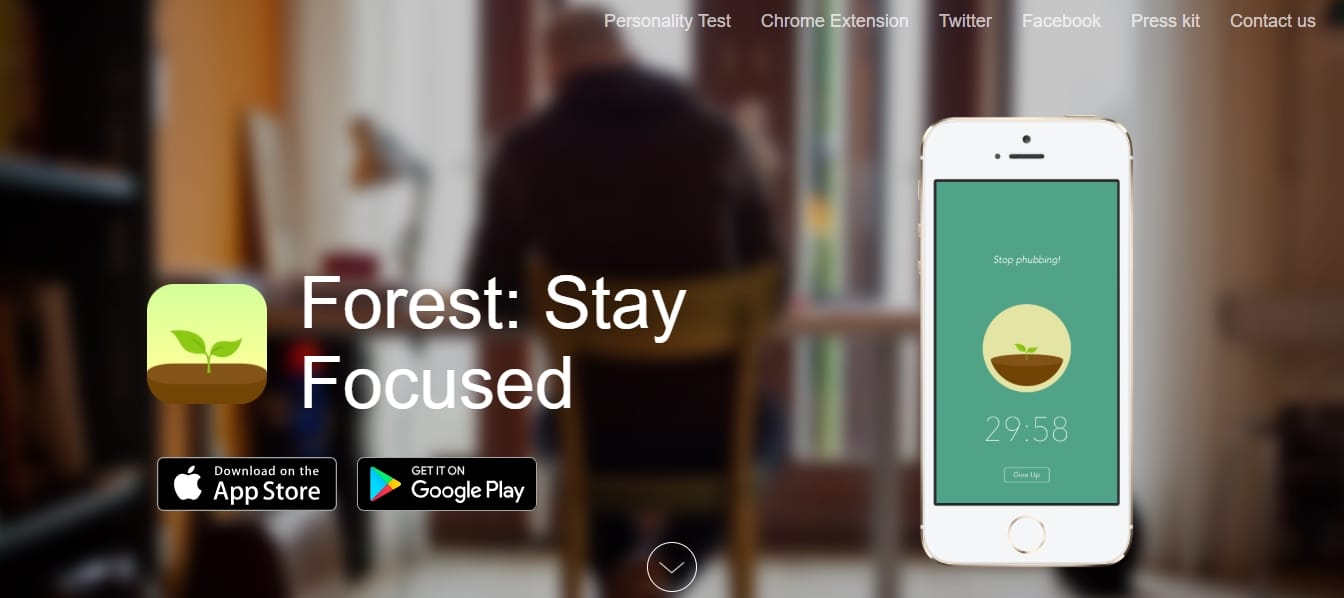
Verdict: Pick Forest if you respond better to gentle behavior shaping than rigid blocking.
Best for: Pomodoro-style work sessions.
Why it earns its place: Gamifies focus. Grow a virtual tree while working; opening a blacklisted site kills the tree.
Main limitation: Relies heavily on internal willpower.
Performance weight: Light
Permission sensitivity: Medium
Best remote desktop extensions for IT and access
Use browser-based remote access to control heavy office workstations from lightweight travel laptops without complex VPNs.
Remote workers frequently need to access specialized software on an office machine or provide hands-on remote IT help to colleagues.
Chrome Remote Desktop is the best remote access extension for remote workers. It lets you securely access another computer or share your screen directly through your browser, eliminating the need for expensive third-party IT software.
Chrome Remote Desktop
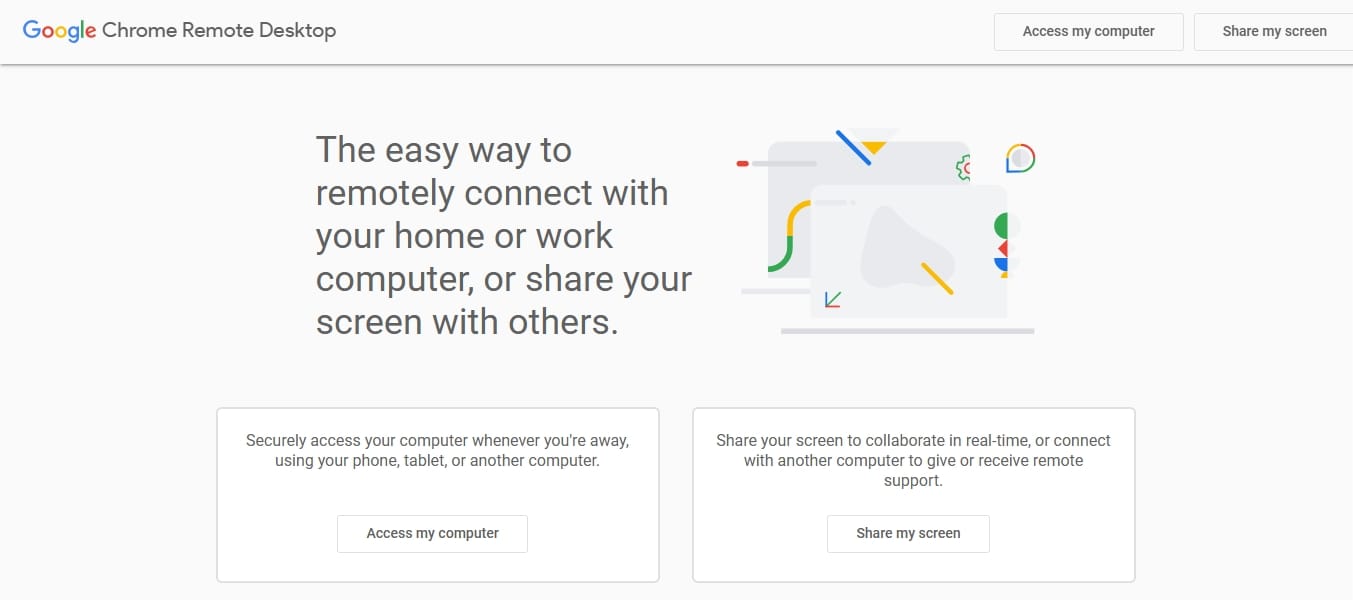
Verdict: Pick Google Remote Desktop (officially Chrome Remote Desktop) for reliable, zero-cost machine access.
Best for: Accessing a stationary office PC, pulling home files, or providing remote help to coworkers.
Why it earns its place: It routes securely through your Google account and runs directly in the browser. It easily replaces legacy desktop software like Bomgar remote support or Zoho Remote for basic access needs. If you run heavy statistical models in R, remote access to a powerful desktop prevents your laptop from overheating.
Main limitation: Lacks the advanced mass-deployment features enterprise IT teams require.
Browser notes: Functions natively as a remote desktop Chrome app across Windows, Mac, and Linux.
Performance weight: Light (when idle).
Permission sensitivity: High (Requires full screen and input control).
Our take: The fastest way to turn a travel laptop into a heavy-duty workstation, streaming a host machine's remote UI smoothly to your browser.
Best task-capture and planning extensions
Use the extension that plugs directly into the system you already trust.
The best task tool reduces tab-switching. Use one task extension, not two.
Todoist
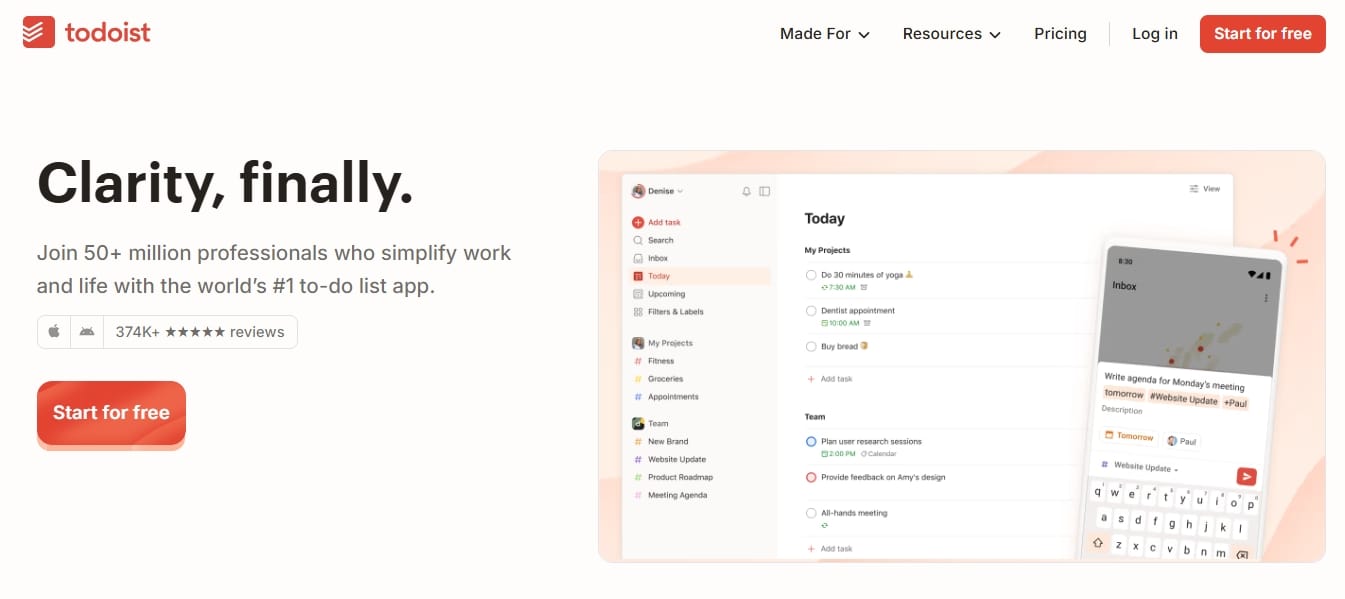
Verdict: Pick Todoist if you want the best default cross-role capture tool.
Best for: Fast capture from any web page.
Why it earns its place: Highlight text or click a button to turn any URL into an actionable task instantly.
Main limitation: It is a companion to your task system, not a complete project command center.
Performance weight: Light
Permission sensitivity: Low
Our take: Unbeatable for quickly logging a task without leaving your current context.
ClickUp
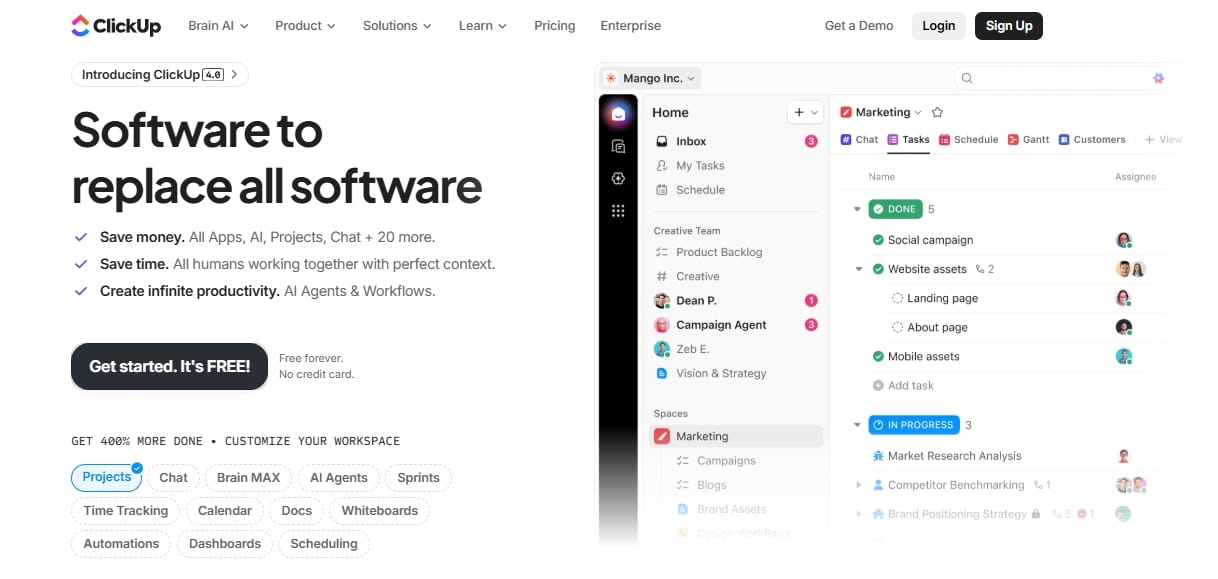
Verdict: Pick your team's native extension to avoid workflow fragmentation.
Best for: Standardized team environments.
Why it earns its place: Capturing tasks directly into a sprint board saves duplicate entry.
Main limitation: Team tools load slower than single-player apps like Todoist.
Performance weight: Moderate
Permission sensitivity: Medium
Our take: Do not introduce a second task system just because the interface looks nicer.
Best time-tracking extensions
Pick a tracking style first (manual timer, team reporting, or passive observation), then commit for one week.
Toggl Track
Verdict: Pick Toggl Track if you bill clients or practice deliberate time blocking.
Best for: Freelancers managing multiple remote gigs, consultants, and solo workers.
Why it earns its place: Features a clean timer, distinct task visibility, and integrations with almost every web app.
Main limitation: Requires manual habit-building.
Performance weight: Moderate
Permission sensitivity: Low
Our take: The gold standard for intentional manual tracking.
Clockify
Verdict: Pick Clockify if you manage a lean team on a budget.
Best for: Teams wanting generous free coverage.
Why it earns its place: Offers unlimited users on its free tier, making agency adoption easy.
Main limitation: The interface is slightly less polished for solo workflows than Toggl.
Performance weight: Moderate
Permission sensitivity: Low
RescueTime
Verdict: Pick RescueTime if you forget to start timers.
Best for: Passive productivity auditing.
Why it earns its place: Logs active window time automatically, categorizing it as productive or distracting.
Main limitation: Passive data requires periodic review to be useful.
Performance weight: Moderate
Permission sensitivity: High (Monitors all URLs).
Best writing extensions for remote communication
Run writing assistants only on the sites where you actually produce text.
Grammarly
Grammarly is the default writing extension for email, docs, and chat-heavy remote work. LanguageTool is the stronger alternative if you prioritize multilingual support or want a lighter, privacy-conscious option. Match the tool to where you write and how much data access you are willing to grant.
Verdict: Pick Grammarly if you live in email, Google Docs, and Slack.
Best for: Frequent cross-app writing and tone adjustments.
Why it earns its place: Catches nuances, tone mismatches, and complex grammatical errors that built-in spellcheckers miss.
Main limitation: Broad text access is necessary for it to work, requiring high permission trust.
Performance weight: Heavy
Permission sensitivity: High
LanguageTool
Verdict: Pick LanguageTool if you prioritize multilingual support and privacy.
Best for: Non-native English speakers or privacy-conscious teams.
Why it earns its place: Supports dozens of languages natively and operates without requiring an account for basic checks.
Main limitation: Smaller mindshare and slightly less aggressive tone-editing than Grammarly.
Performance weight: Moderate
Permission sensitivity: High
Performance Hack: Restrict Site Access
Unlike desktop mail clients that rely on Thunderbird extensions, modern remote workers manage communications directly in the browser. To protect Chrome's speed, use site-access controls to restrict heavy writing tools. Right-click the extension icon, navigate to "Site access," and change it from "On all sites" to "On specific sites" (e.g., mail.google.com, docs.google.com).
Best async video and documentation extensions
Use Loom to explain context verbally. Use Scribe to document repeatable steps.
Loom
Verdict: Pick Loom if you need to explain complex context quickly.
Best for: Async explanation and meeting reduction.
Why it earns its place: Marries screen recording with camera and voice, allowing you to convey tone alongside technical walkthroughs.
Main limitation: Video is difficult to edit and reuse as structured text documentation.
Performance weight: Heavy
Permission sensitivity: High (Camera/Mic/Screen).
Our take: The ultimate meeting-killer for remote teams.
Scribe
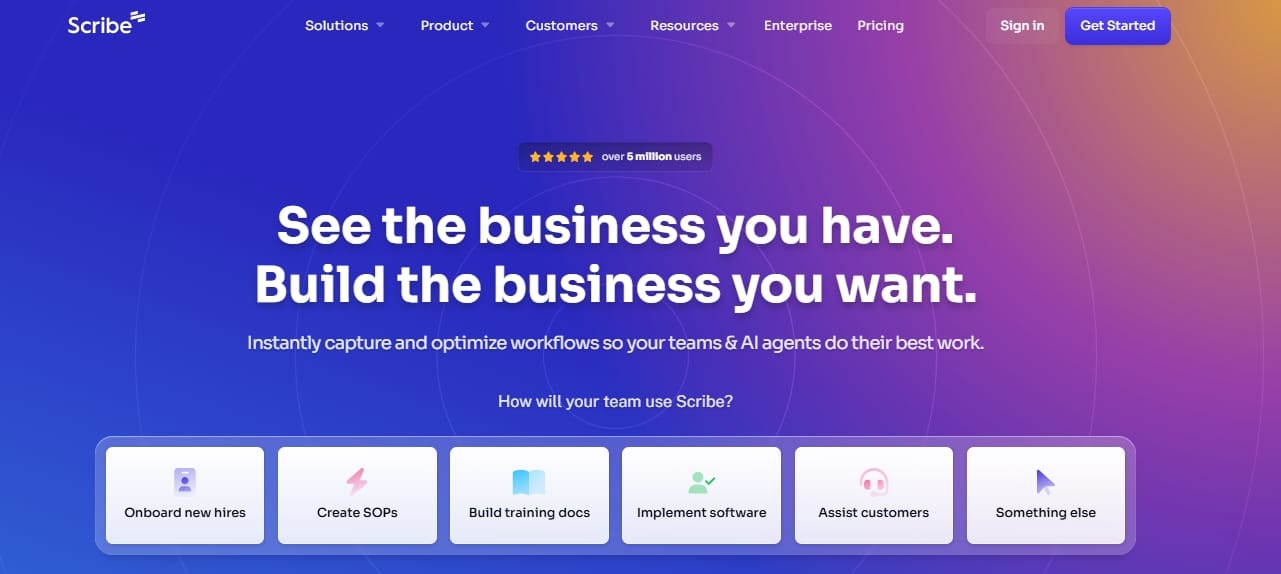
Verdict: Pick Scribe if you are building an onboarding manual or SOP.
Best for: Step-by-step process capture and publishing remote guides.
Why it earns its place: Auto-generates visual step-by-step guides by tracking your clicks across a workflow.
Main limitation: Lacks the nuanced, verbal context of a video walkthrough.
Performance weight: Heavy
Permission sensitivity: High (Tracks browser actions).
Our take: Turns 30 minutes of documentation drafting into a three-minute task.
Best tab-management and research-capture extensions
Be clear whether your problem is visual cleanup, memory control, or permanent research capture.
OneTab
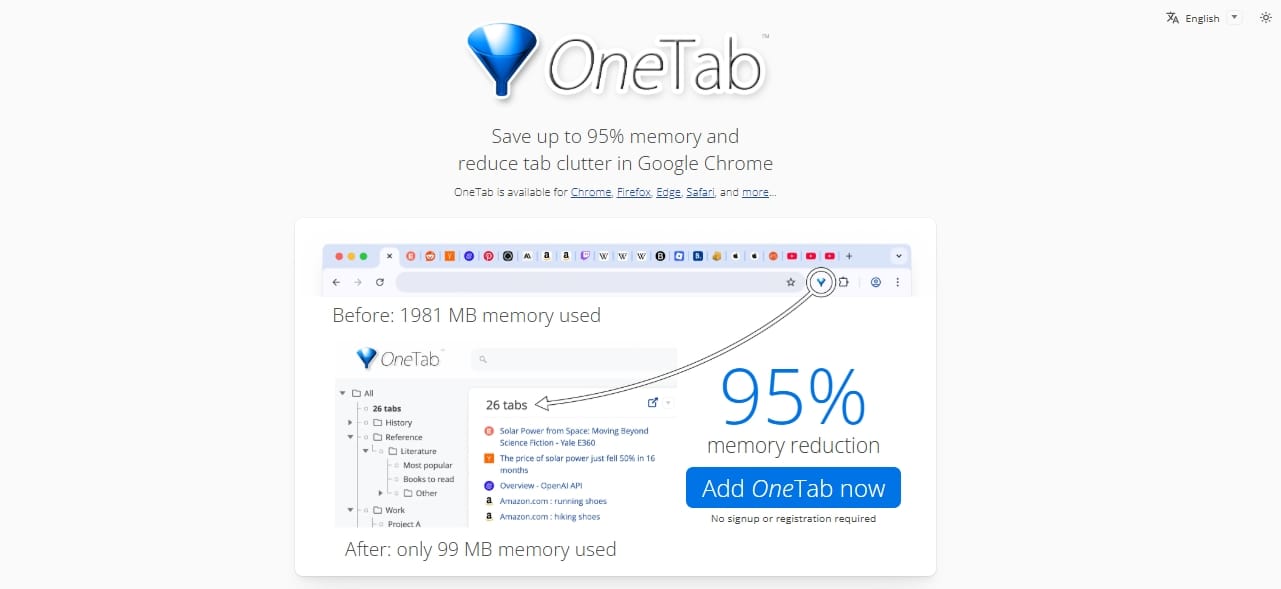
Verdict: Pick OneTab if you need instant visual and memory cleanup.
Best for: Collapsing chaotic windows into restorable lists.
Why it earns its place: Clicking it instantly shuts all open tabs and converts them into a lightweight list, recovering massive amounts of RAM.
Main limitation: It is a reactive cleanup button, not an automatic discipline system.
Performance weight: Light
Permission sensitivity: Low
Tab Wrangler
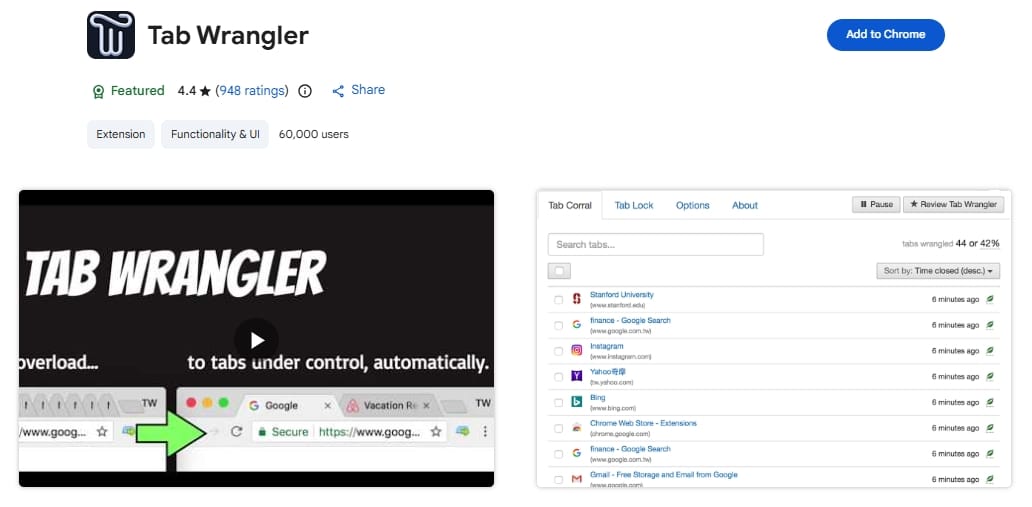
Verdict: Pick Tab Wrangler if idle tabs pile up without you noticing.
Best for: Automatic idle-tab cleanup.
Why it earns its place: Automatically closes tabs you haven't looked at in a set time, keeping them in a corral for easy recovery.
Main limitation: Frustrating if you intentionally keep project tabs open for days.
Performance weight: Light
Permission sensitivity: Low
Notion Web Clipper
Verdict: Pick Notion Web Clipper if your tab problem is actually a research-hoarding problem.
Best for: Structured research capture.
Why it earns its place: Saves pages directly into a database instead of leaving them open in the browser.
Main limitation: Pointless if you do not actively use Notion.
Performance weight: Light
Permission sensitivity: Low
Note: If you manage websites via WP Remote or similar web dashboards, keep those pages bookmarked natively rather than leaving heavy tabs perpetually open.
Best password and account-security extensions
Treat password managers as vital security infrastructure, not optional convenience.
Bitwarden
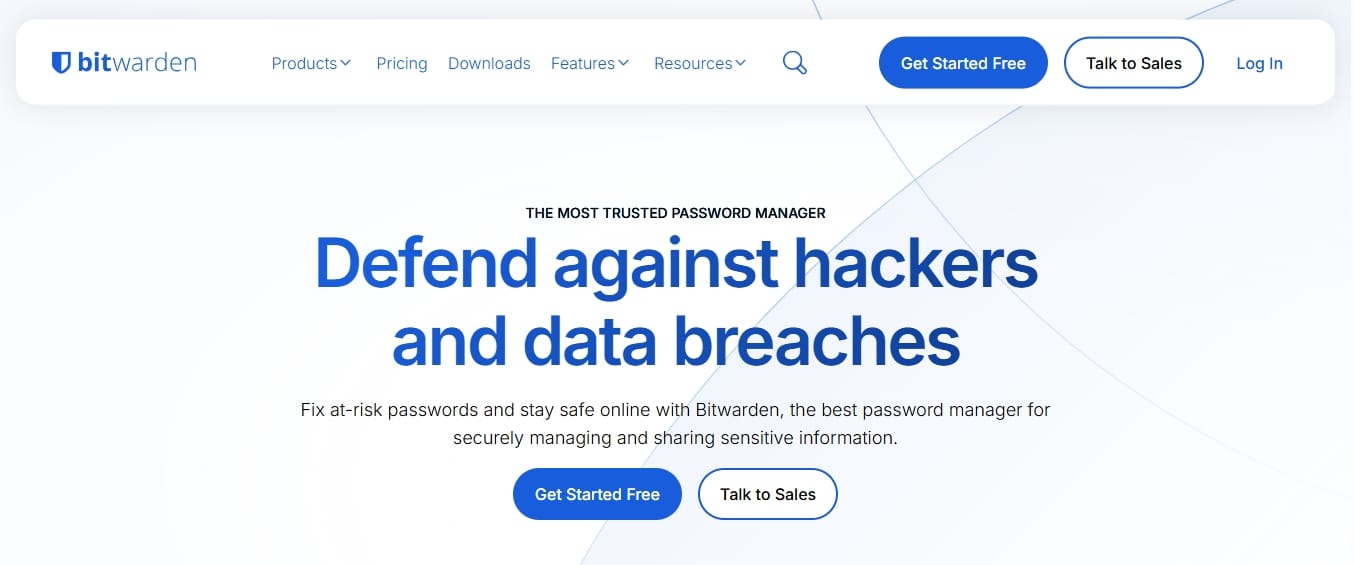
Verdict: Pick Bitwarden as your default remote-work security base.
Best for: Individuals and lean teams.
Why it earns its place: Open-source, highly audited, and maintains a phenomenal free tier alongside a cheap premium option.
Main limitation: Onboarding and UX are slightly more utilitarian than premium alternatives.
Performance weight: Light
Permission sensitivity: High (Reads data across sites to autofill).
Our take: The most practical, cost-effective security infrastructure available.
1Password
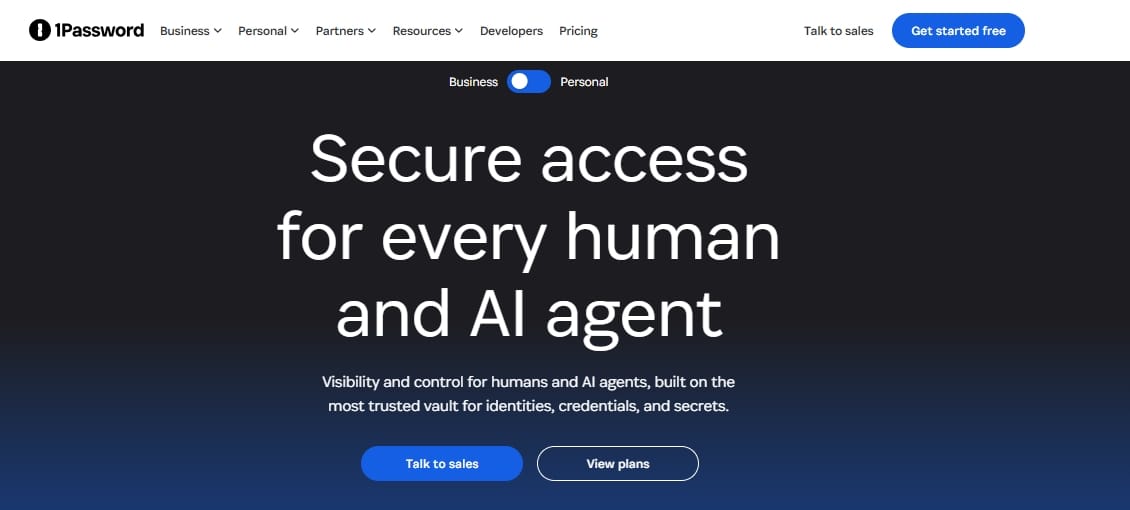
Verdict: Pick 1Password if you manage shared vaults for an agency or team.
Best for: Premium users and team admin polish.
Why it earns its place: Unmatched UX, deep developer tools, and flawless cross-platform syncing.
Main limitation: Paid-first decision with no permanent free tier.
Performance weight: Moderate
Permission sensitivity: High
Our take: The premium choice when polish and team management dictate the budget.
Best extension stacks by role
Different roles need different browser stacks. Stop pretending "remote worker" is a single, uniform persona.
Copy one stack, install only those tools, and test it for a week.
Developer stack
Browser-heavy debugging, GitHub, tickets, and async explanation. Keep this lean.
- Bitwarden (Password manager)
- Tab Wrangler (Tab control)
- Loom (Async explanation for PRs)
Writer / marketer stack
Docs, email, research, content review, and async walkthroughs.
- Grammarly / LanguageTool (Writing assistant)
- Todoist (Task capture)
- Notion Web Clipper (Research capture)
- Blockify (Clean browsing for heavy reading)
Freelancer / consultant stack
Billing, client comms, task capture, and stringent account security.
- Bitwarden / 1Password (Client account security)
- Toggl Track (Billing)
- Loom (Client walkthroughs)
- Blockify (Focus protection)
IT & Support stack
Troubleshooting, machine management, and secure access.
- 1Password (Team vault access)
- Chrome Remote Desktop (Machine access and remote help)
- Todoist (Ticket and task capture)
- Scribe (Creating visual SOPs)
How many extensions is too many?
The highest-ROI productivity move is often deleting, narrowing, or disabling redundant extensions.
Open chrome://extensions and remove two unused tools right now.
Extension overhead adds up across page visits, and many tools run code on every site you open. According to DebugBear, this effect is additive, and bloated stacks cause significant CPU drag. Limit your installation to essential tools and rely on native browser features for the rest.
The 60-second trust checklist
Before installing any tool, answer these questions:
- Who published it? Check the developer's verified website.
- When was it last updated? Avoid tools abandoned for more than two years.
- Does the permission scope match the job? A tab manager does not need access to your webcam.
- Can site access be narrowed? Use Google's "On specific sites" setting for heavy tools like Grammarly.
- Do reviews show obvious red flags? Watch out for sudden drops in ratings indicating a malicious update.
If your browser is managed
If your device belongs to an employer, Chrome may be centrally managed. Administrators can forcefully install extensions, monitor activity, or block you from the Google Chrome extensions store entirely. Check whether your Chrome browser is managed before attempting to build a custom stack.
FAQ
Quick answers to common technical and structural questions about extension management.
Do Chrome extensions work on Edge and Brave?
Usually, yes. Microsoft and Brave natively support the Chrome Web Store. However, verify each tool's behavior, especially for ad blockers and content filters affected by browser-specific privacy shields and MV3 rules.
Can my employer see or control the extensions I use?
If your browser is managed, yes. Google allows administrators to restrict features, mandate installations, monitor network activity, and dictate exactly how Chrome operates on company hardware.
What is Manifest V3 and does it affect ad blockers?
Yes. Chrome's Manifest V3 changes how extensions operate in the background and restricts network request modification. This severely limits legacy ad blockers, which is why users need MV3-optimized tools like Blockify.
Next step: build your lean stack
A productive browser is quiet, fast, and secure. Adding 25 shiny tools to your toolbar achieves none of those things.
Here is your action plan:
- Copy the starter stack that matches your specific role.
- Install no more than three tools today.
- Check your
chrome://extensionspage after seven days and aggressively prune anything you did not touch.
If ad interruptions and autoplay content are the biggest drag on your browser-heavy work, test Blockify as your clean-browsing layer today. Run the extension audit now to build a smaller stack, a faster browser, and a workflow with far less noise.




