

The best browser extensions for productivity keep your workflow lean. The ideal setup for most people relies on just 3 to 5 essential tools: one lightweight cleaner or ad blocker (like Blockify), one quick task capture tool (like Todoist), one password manager (like Bitwarden), and an optional tab organizer. Installing more than five extensions adds severe CPU, memory, and battery costs that slow down your browser and offset any productivity gains.
The most productive thing you can do today is uninstall half your browser extensions.
You do not need an app for every minor workflow. Every extra icon on your toolbar steals memory and opens potential privacy vulnerabilities. This guide delivers a ruthlessly curated list of tools that actually save more time than they cost in performance. We compare tools by browser support, highlight exactly what you should avoid, and outline the exact starter stacks for different professionals.
The Best Browser Extensions for Productivity at a Glance
Do not install all 16 of these tools. Pick a maximum of 3 to 5 based strictly on your daily friction points.
| Extension | Category | Best for | Cost | Browsers | Performance Impact | Native Alternative |
|---|---|---|---|---|---|---|
| Blockify | Clean browsing | Lightweight ad & distraction blocking | Free | Chrome, Edge | Low | None |
| uBlock Origin Lite | Clean browsing | Mainstream MV3 blocking | Free | Chrome, Edge, Firefox | Low | None |
| uBlock Origin | Clean browsing | Advanced full-spectrum filtering | Free | Firefox | Medium | Firefox Strict Tracking |
| StayFocusd | Focus | Simple browser time budgets | Free | Chrome, Edge | Low | OS Screen Time |
| Freedom | Focus | Cross-device strict enforcement | Paid | Chrome, Firefox, Safari, Edge | Medium | OS Focus Modes |
| Todoist | Tasks | Fast cross-web capture | Freemium | Chrome, Safari, Edge, Firefox | Low | Reading Lists |
| Grammarly | Writing | Mainstream inline editing | Freemium | Chrome, Safari, Edge, Firefox | High | OS Autocorrect |
| LanguageTool | Writing | Privacy-first multilingual editing | Freemium | Chrome, Safari, Edge, Firefox | Medium | OS Autocorrect |
| OneTab | Tabs | Instant memory recovery | Free | Chrome, Safari, Edge, Firefox | Low | Native Tab Groups |
| Workona | Tabs | Heavy project switching | Freemium | Chrome, Edge, Firefox | High | Native Tab Groups |
| Clockify | Time | Fast browser-based timing | Free | Chrome, Edge, Firefox | Low | Native PM timers |
| Toggl Track | Time | Web app integrations | Freemium | Chrome, Edge, Firefox | Low | Native PM timers |
| Bitwarden | Passwords | Cross-browser value | Freemium | Chrome, Safari, Edge, Firefox | Low | Built-in password saves |
| 1Password | Passwords | Premium passkey workflows | Paid | Chrome, Safari, Edge, Brave | Low | Built-in password saves |
| Raindrop.io | Research | Structured saving & highlights | Freemium | Chrome, Safari, Edge, Firefox | Low | Native Bookmarks |
| Dark Reader | Reading | Heavy text readers | Free | Chrome, Safari, Edge, Firefox | Medium | Native Reading Mode |
How We Chose These Extensions (The Utility Test)
An extension only earns a spot if its net productivity outweighs its performance drag and privacy risks.
We audited these tools using a strict Net Productivity Score based on four pillars:
- Time saved: Does the tool reduce context switching, manual data entry, or repetitive logins?
- Performance cost: Does it add massive DOM manipulation overhead, or does it stay dormant until clicked?
- Permission risks: Does the requested data access logically match the feature? Chrome advises heavily reviewing permissions before approving any extension.
- Native redundancy: If the browser already solves 80 percent of the problem, we disqualified the extension.
Expertise & Trust Disclosure: Blockify is our own product. We include it strictly where it out-competes others for lightweight clean browsing, and we openly recommend alternatives (like uBlock Origin) for power users or different browsers.
The Golden Rule: Use Your Native Browser First
Modern browsers have absorbed many older extension features. Test native built-in tools before adding third-party overhead.
Native Feature vs. Extension Decision Matrix:
- Use Native: Basic tab grouping, reading lists, split views, and standard password autofill.
- Use Extensions: Advanced cross-device password sync, dedicated project-based tab workspaces, and aggressive tracker/ad blocking.
- Power-User Only: CSS injection, heavy text-replacement scripting, or custom macros.
Browser-Specific Reality Check: Chrome, Firefox, Safari, and Alt-Browsers
The extensions you install depend entirely on your engine.
- Chrome browser & Google extensions: Manifest V3 (MV3) fundamentally changed how extensions operate, moving background pages to service workers. Chrome and Edge users must now rely on MV3-compatible ad blockers.
- Firefox browser: Firefox is the last major stronghold where older, deep request-blocking methods still function without MV3 restrictions.
- Safari browser: Safari is an isolated ecosystem. Never assume Chrome extensions carry over to a Mac environment without checking.
- Brave, Opera, and Zen browsers: Because many alt-browsers are Chromium-based, they easily run most Chrome Web Store tools. However, heavily secure environments like the Tor browser or Respondus lockdown browser restrict or actively disable extensions to prevent tracking and cheating.
Best Chrome and Edge Extensions for Clean Browsing
What is the best productivity extension category to install first? Start with ad and tracker blockers. Blocking heavy scripts, pop-ups, and autoplay videos improves your focus and dramatically speeds up page load times simultaneously.
Blockify
- Best for: Chrome and Edge users wanting one lightweight tool for ads and distractions.
- Performance impact: Low (Under 2MB).
- The Verdict: Replaces multiple ad-blocker and site-blocker tools by tackling both ads and general page clutter without forcing you into complex filter configurations.
uBlock Origin Lite
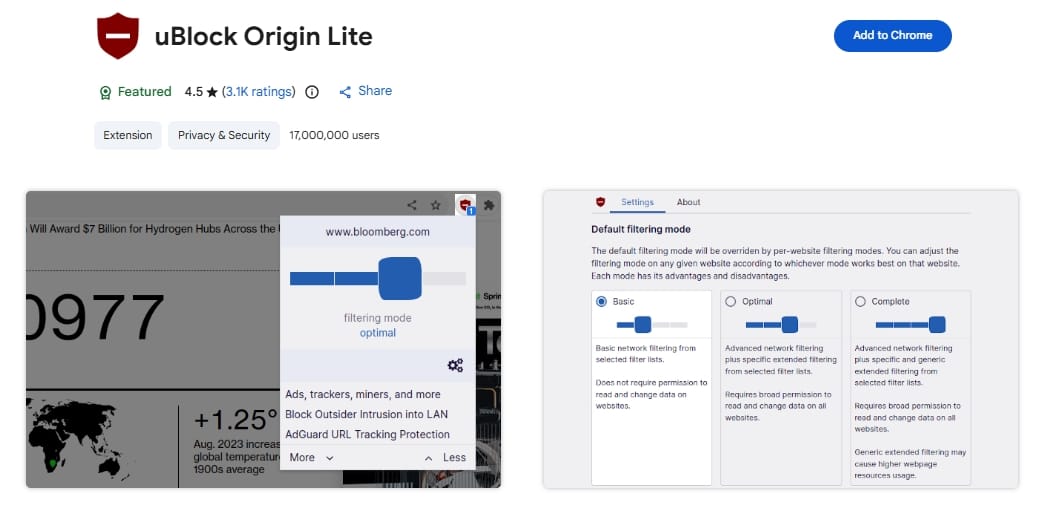
- Best for: Mainstream Chrome users needing MV3 compliance.
- Performance impact: Low.
- The Verdict: The definitive MV3 blocker for Google Chrome. It proves effective ad filtering doesn't require a permanent, battery-draining background process.
uBlock Origin (Classic)
- Best for: Firefox power users.
- Performance impact: Medium.
- The Verdict: The undisputed champion of deep-spectrum blocking. It remains unmatched in efficiency, provided you use a browser that still supports older request-blocking API methods.
Best Focus and Distraction Blockers
Distinguish between page clutter (ads) and self-initiated distraction (doomscrolling). Use clean-browsing tools for the former, and strict focus blockers for the latter.
StayFocusd
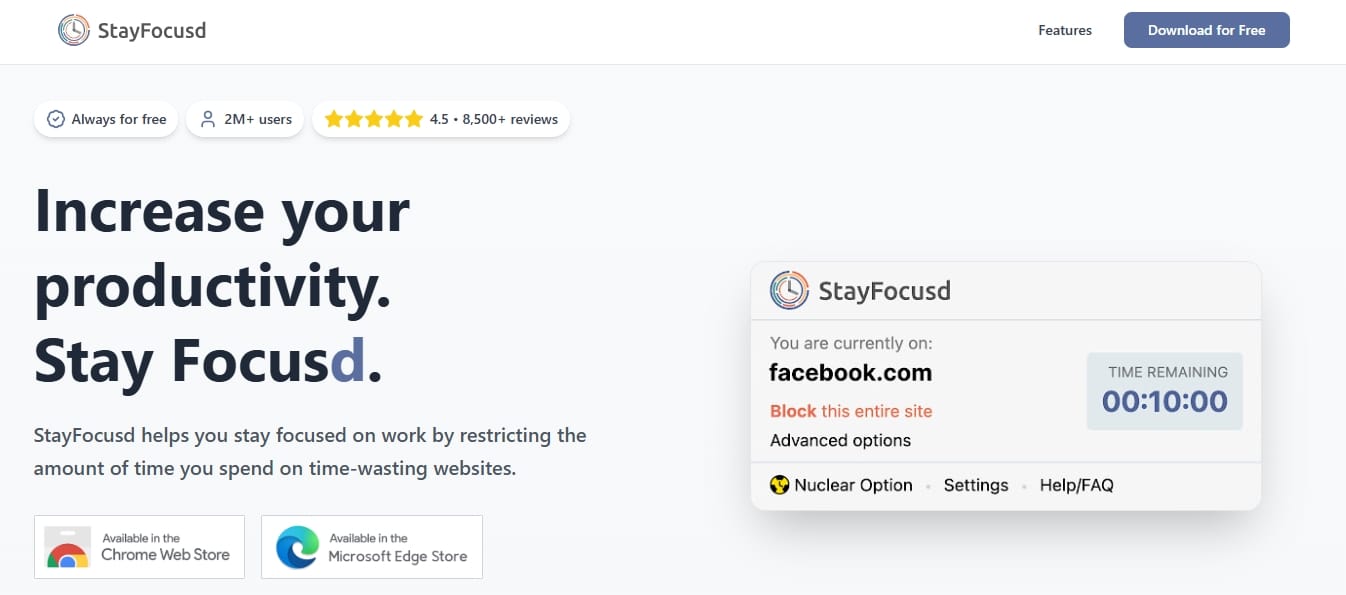
- Best for: Casual internet users who just need gentle friction.
- The Verdict: Limits the time you spend on time-wasting sites using simple browser budgets. Excellent for basic discipline, but easily bypassed if you just open an Opera browser or Edge window instead.
Freedom
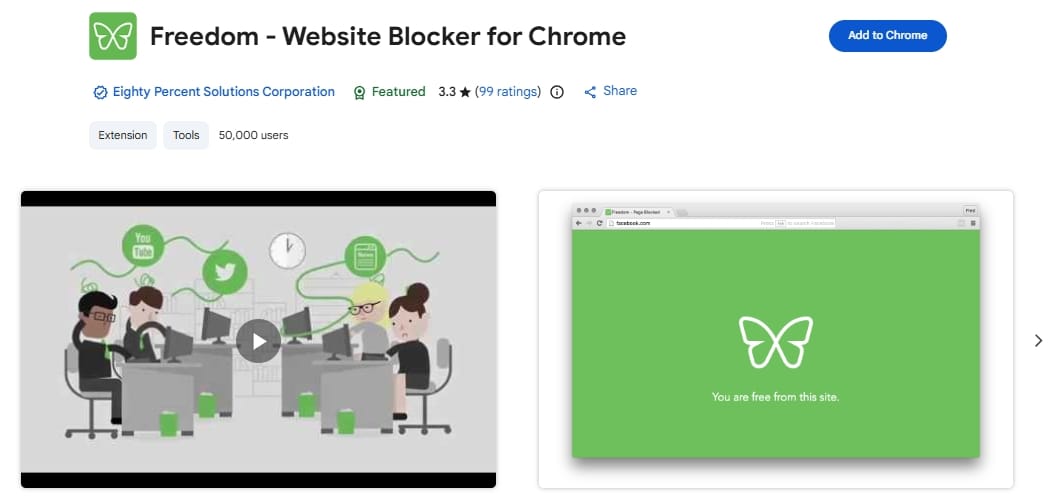
- Best for: Chronic procrastinators needing strict, cross-device enforcement.
- The Verdict: Blocks sites across your computer, phone, and tablet simultaneously. It enforces discipline when mere browser-only friction fails.
Best Task and Quick-Capture Extensions
Todoist
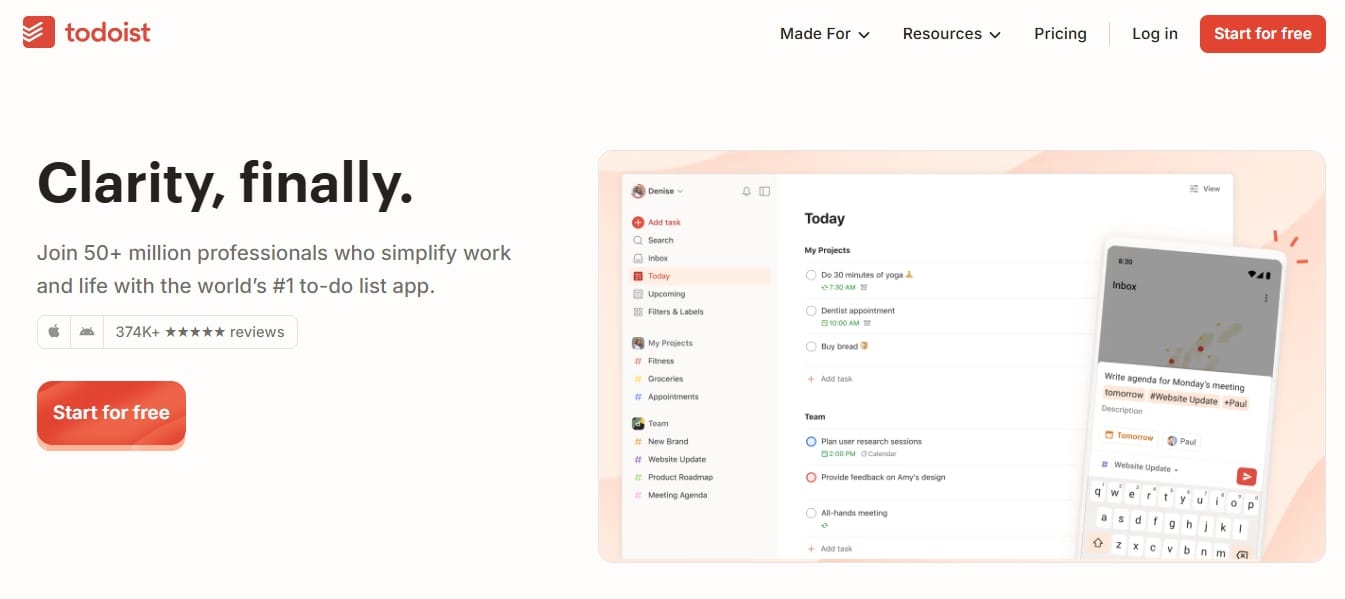
- Best for: Fast web capture without leaving your current tab.
- The Verdict: The undisputed king of low-friction capture. Highlight text or right-click a page, and send it straight to your inbox. If capture takes more than two clicks, you will stop doing it—Todoist requires exactly two.
Note: If you already live inside a heavy project manager (like Notion or Asana) and it has a working web clipper, use that. Do not install duplicate task tools.
Best Writing and Grammar Extensions
AI writing extensions require massive data access. Do not run them blindly across all websites; disable them on sensitive domains (like your banking portal).
Grammarly
- Best for: Ubiquitous, mainstream inline editing.
- The Verdict: The default choice for heavy web writers. It provides reliable, real-time tone and grammar correction, but carries a high performance footprint on long documents.
LanguageTool
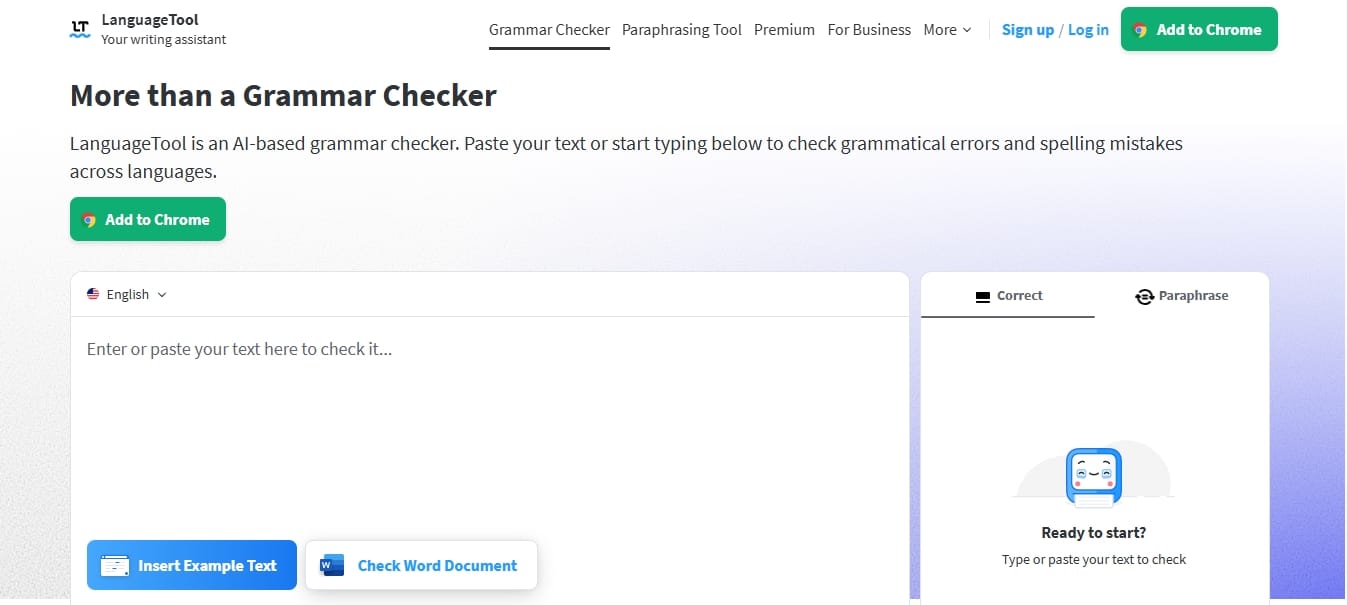
- Best for: Multilingual users and privacy-conscious writers.
- The Verdict: An open-source-core alternative supporting over 30 languages. It offers a much stronger privacy posture, officially stating no text is stored by the browser add-on.
Best Tab-Management Extensions
Do you actually need a tab manager? Most users do not. If your browser's native tab grouping solves the issue, stop there. Only install a tab manager if tab explosions routinely crash your browser or you switch between dense, multi-tab projects hourly.
OneTab
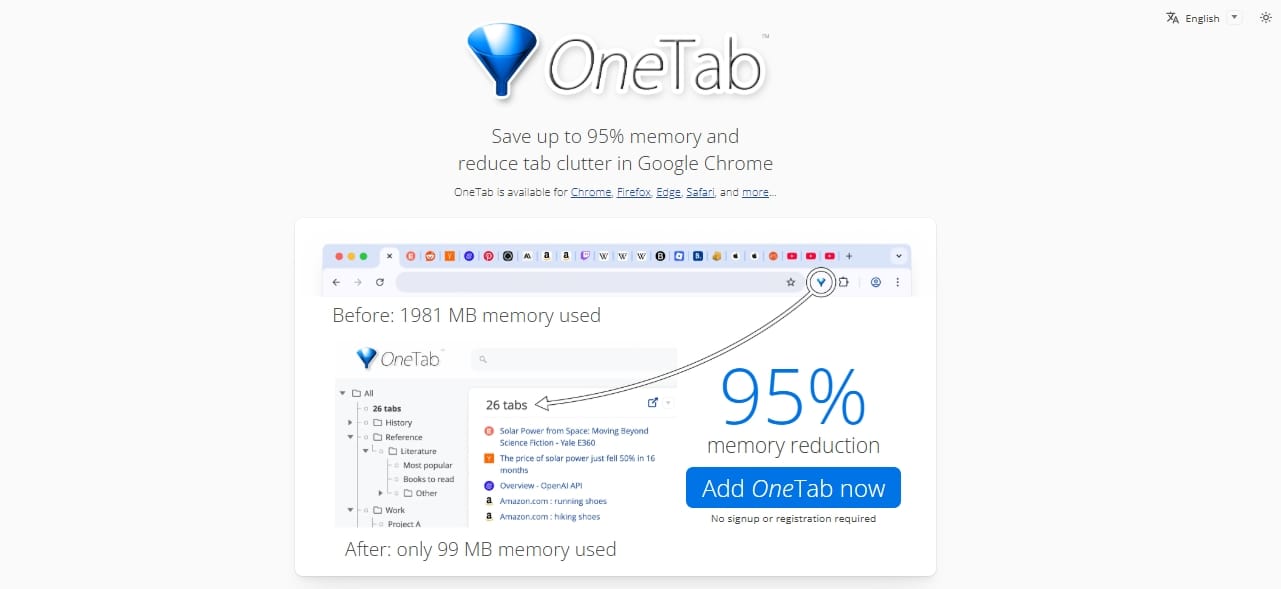
- Best for: Fast decluttering and instant RAM recovery.
- The Verdict: Converts all open tabs into a single vertical list. It claims up to 95 percent memory savings and provides the simplest fix for sudden tab anxiety.
Workona
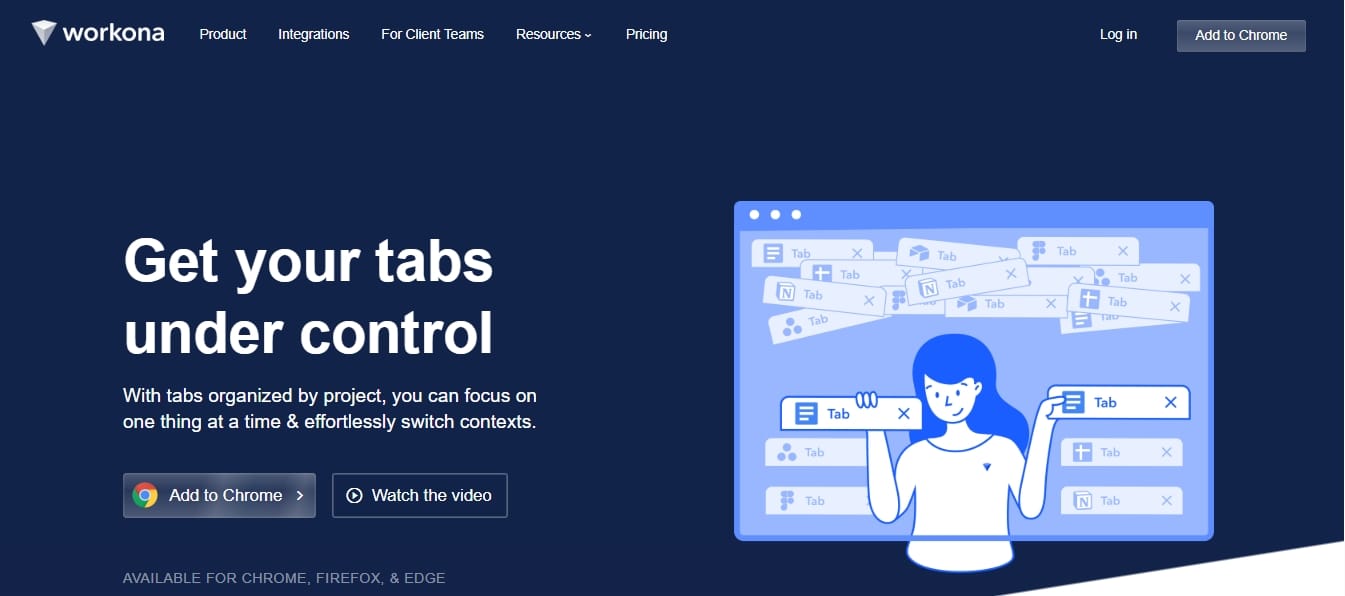
- Best for: Complex workspace and project management.
- The Verdict: Groups tabs into saved, synchronized workspaces. It carries noticeable performance overhead but fundamentally transforms browser chaos into structured logic for founders and researchers.
Best Password Manager Extensions
Password managers are essential productivity tools. They eradicate login friction, sync seamlessly across devices, and eliminate security-related lockouts.
Bitwarden
- Best for: The best cross-browser default.
- The Verdict: Offers an incredible free tier, open-source auditing, and flawless cross-browser compatibility. It is the smartest starting point for anyone leaving built-in browser saves.
1Password
- Best for: Premium users requiring flawless passkey workflows.
- The Verdict: The absolute best premium login experience available, featuring unmatched polish and end-to-end Secret Key architecture.
Note: We actively exclude legacy tools with catastrophic breach histories tied to the 2022 security incidents. Reputation matters when choosing master credential storage.
Starter Productivity Stacks by Persona
Do not build a stack larger than four tools. Start with three core extensions and add one optional choice only if friction demands it.
Students & Academics
- Core: Cleaner browsing (uBO Lite), quick capture (Todoist), writing support (Grammarly).
- Optional: OneTab (only if research causes tab crashes).
Founders & Remote Workers
- Core: Cleaner browsing (Blockify), passwords (1Password), task capture (Todoist).
- Optional: Workona (for managing multiple client/project contexts).
Developers
- Core: Cleaner browsing (uBO Lite), passwords (Bitwarden), task capture (Todoist).
- Optional: Dark Reader (to reduce eye strain on documentation sites).
The 5-Step Quarterly Extension Audit
How do you audit browser extensions to keep your computer fast? Open your browser's extension list, delete anything unused in the last 30 days, and strictly limit site access for the remaining tools.
Extensions suffer from code rot. Run this workflow every three months:
- Open your list (
chrome://extensions/or equivalent). - Delete the dead weight. Remove anything untouched in 30 days.
- Restrict permissions. Set remaining extensions to run only on specific click or specific sites.
- Monitor memory. Use your browser's Task Manager (Shift + Esc in Chrome) to hunt down hidden CPU hogs.
- Disable before deleting. If unsure about a tool, toggle it off for a week. If you don't miss it, uninstall it completely.
FAQs
Are browser extensions safe?
Most mainstream extensions are safe, but they carry inherent risks based on permissions. Review site access regularly, and never install tools requesting permissions that wildly exceed their stated function (e.g., a simple calculator extension requesting access to read your browsing history).
What is Manifest V3 (MV3) in plain English?
MV3 is an architectural rule change for Google extensions. It forces background processes into temporary "service workers" and limits how extensions intercept network requests. It improves security and memory use but forces ad blockers to use new, slightly less aggressive filtering methods.
Do browser extensions slow down browsing?
Yes. Every active extension adds processing time to the page load DOM. Furthermore, background scripts increase CPU load and battery drain. The performance cost stacks linearly with every installation.
How many extensions is too many?
Installing more than five workflow extensions usually invites noticeable performance drag. Keep your toolkit limited to the absolute essentials.
Conclusion
Curating the best browser extensions for productivity isn't about finding a magic tool that does your work for you. It is about actively removing digital friction. Start today by deleting the bloat, relying on your browser's native features, and carefully installing only the three to five tools that definitively protect your focus and speed up your output. Keep it lean, keep it secure, and get back to work.




