

You are staring at 20 open tabs, a blaring video ad, a messy citation draft, and a looming midnight deadline. Your first instinct is to download another study tool to fix the chaos. Stop. Installing more add-ons actively drains your focus and your computer's memory. You need a curated, distraction-free setup. If you are looking for the best extensions for students, start with a minimal stack: one writing editor, one citation manager, one focus timer, and one lightweight ad blocker. This guide breaks down the leanest, fastest, and safest browser tools for high school and university coursework—without slowing down your laptop.
What are the best extensions for students?
For most students, the best starter setup is one writing tool (Grammarly or LanguageTool), one citation generator (Zotero or MyBib), one focus blocker (StayFocusd), one ad and privacy blocker (Blockify or uBlock Origin Lite), and one tab manager (Chrome Tab Groups). Keep your active extensions to five or fewer to maintain fast page load speeds and protect your browsing privacy.
How many browser extensions should a student install?
The best student browser is the one with the fewest well-chosen tools.
Start with 4 to 6 core extensions. Do not install 15. Independent testing by DebugBear's 2024 report on Chrome extension performance reveals that popular extensions can add up to 1.3 seconds of extra processing time per page. Furthermore, Chrome and Edge already include native tools like Memory Saver and Read Aloud that handle many tasks perfectly. Install only what solves an immediate problem.
The 5-Extension Starter Kit
| Category | Best default pick | Best alternative | Free tier verdict | Best for |
|---|---|---|---|---|
| Writing | Grammarly | LanguageTool | Enough for basics | Typos and clarity |
| Citations | Zotero Connector | MyBib | Fully sufficient | Research tracking |
| Focus | StayFocusd | Forest | Fully sufficient | Blocking time-wasters |
| Ads and Privacy | uBlock Origin Lite | Blockify | Fully sufficient | Cleaner reading |
| Tabs | Native Tab Groups | OneTab | Fully sufficient | Organizing classes |
Short on time? Install one tool for your biggest pain point today. Add the rest only if you hit a wall later.
Quick Starter Kits by Student Type
- High school coursework: Writing + focus + ad/privacy.
- College/university coursework: Writing + citations + tabs + ad/privacy.
- Research-heavy thesis workflow: Zotero + highlighter + tab manager + ad/privacy + optional writing aid.
Why Fewer Extensions Work Better
Installing too many add-ons works against you. More extensions equal a slower browser and a larger privacy risk. A 2024 academic analysis of the Chrome Web Store (published at ASIA CCS '24) revealed that 60% of available extensions have never been updated, leaving millions of users exposed to stale code and vulnerabilities.
How We Chose These Recommendations
We picked tools based on daily usefulness, privacy safety, performance impact, and free-tier value.
Selection Criteria
- Utility: It must solve a real student problem instantly.
- Privacy cost: Broad data permissions require a massive utility payoff.
- Performance tax: The tool must not visibly slow down page loads.
- Free-tier sufficiency: The unpaid version must cover the core need.
- Browser fit: It must work seamlessly as one of the best google chrome extensions for students (and support Edge or Brave).
We do not trust star ratings alone. Google research on malicious extensions shows how official stores can still be abused. A 4.8-star review only means the button works; it does not mean your data is secure. We only link to official install pages.
How to Read Every Recommendation
- Best for: The core academic use case.
- Why it made the cut: The practical value delivered.
- Free tier enough?: A strict yes or no.
- Privacy note: What data you trade for the utility.
- Performance note: How heavy the tool feels on your CPU.
- Works on: Chromium compatibility.
- Install if / Skip if: Your final decision filter.
Best Writing and Grammar Extensions for Students
Writing tools save editing time, but rely on them for proofreading, not original generation.
Grammarly
Grammarly remains highly accurate for grammar and clarity, but it is no longer an automatic choice. Some institutions, like the University of Missouri System, have restricted the free and premium versions for employees due to data privacy concerns. Always check your school's academic integrity policies regarding AI tools, and consider lighter, privacy-focused alternatives like LanguageTool.
- Best for: Deep inline spelling, grammar, and tone checks.
- Why it made the cut: It still possesses the most accurate grammar engine.
- Free tier enough?: Yes, for basic typos and punctuation.
- Privacy note: It requires deep access to read everything you type. Data privacy firm Incogni flags it as having a high risk impact due to these required scripting permissions.
- Performance note: Heavy CPU tax during active typing.
- Works on: Chrome, Edge, Brave.
- Install if: You need aggressive writing feedback and your school permits it.
- Skip if: Your institution bans AI-assisted text tools or you write highly sensitive data.
LanguageTool
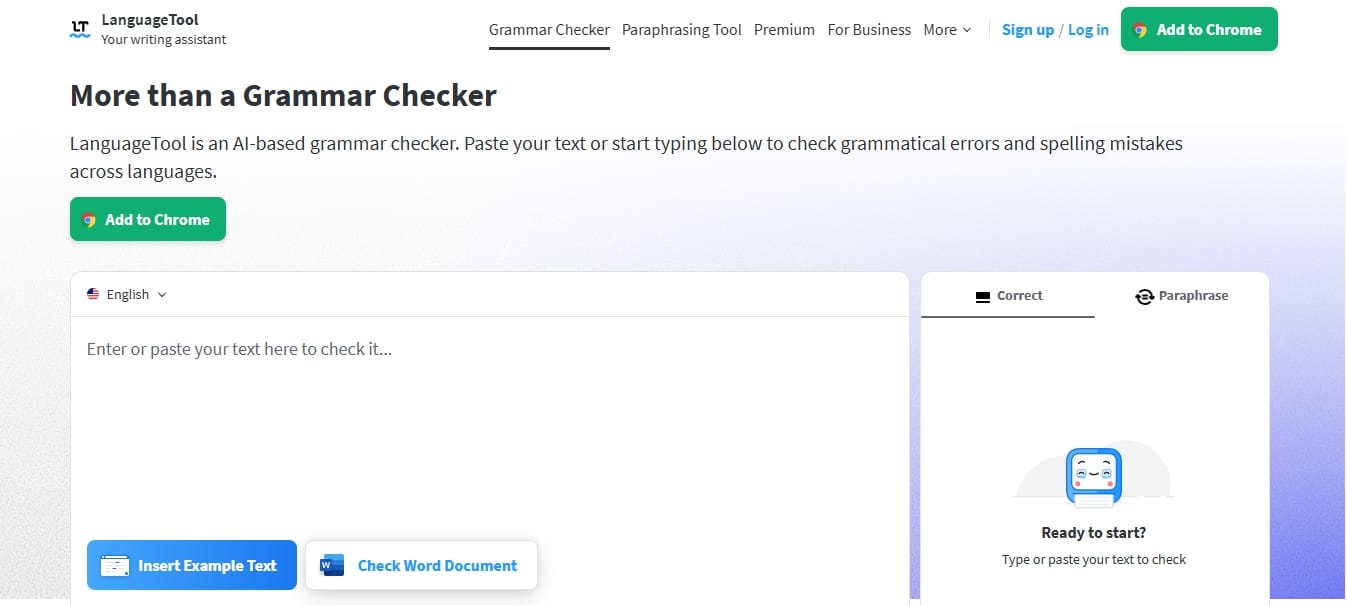
- Best for: Multilingual students and privacy-conscious users.
- Why it made the cut: It offers excellent grammar checks without the massive background footprint of its competitors.
- Free tier enough?: Yes.
- Privacy note: Much friendlier privacy framing; checks text securely.
- Performance note: Visibly lighter than Grammarly.
- Works on: Chrome, Edge, Brave.
- Install if: You want a simpler, less invasive spell checker.
- Skip if: You need deep paragraph restructuring.
How to use and install LanguageTool
Google Docs and Microsoft Word already feature excellent native spell-check tools. If the native spell-check handles 80% of your errors, skip the third-party extension entirely.
Best Research and Citation Extensions for Students
Citation generators spit out single links. Research managers save your entire academic library. Pick the right tool for the job.
Zotero Connector
- Best for: Heavy research, long papers, and thesis writing.
- Why it made the cut: It saves PDFs, metadata, and citation data instantly to your desktop library with one click.
- Free tier enough?: Yes.
- Privacy note: Open-source and highly secure.
- Performance note: Very light.
- Works on: Chrome, Edge, Brave.
- Install if: You juggle dozens of academic journal PDFs.
- Skip if: You only need three citations for a simple freshman essay.
MyBib
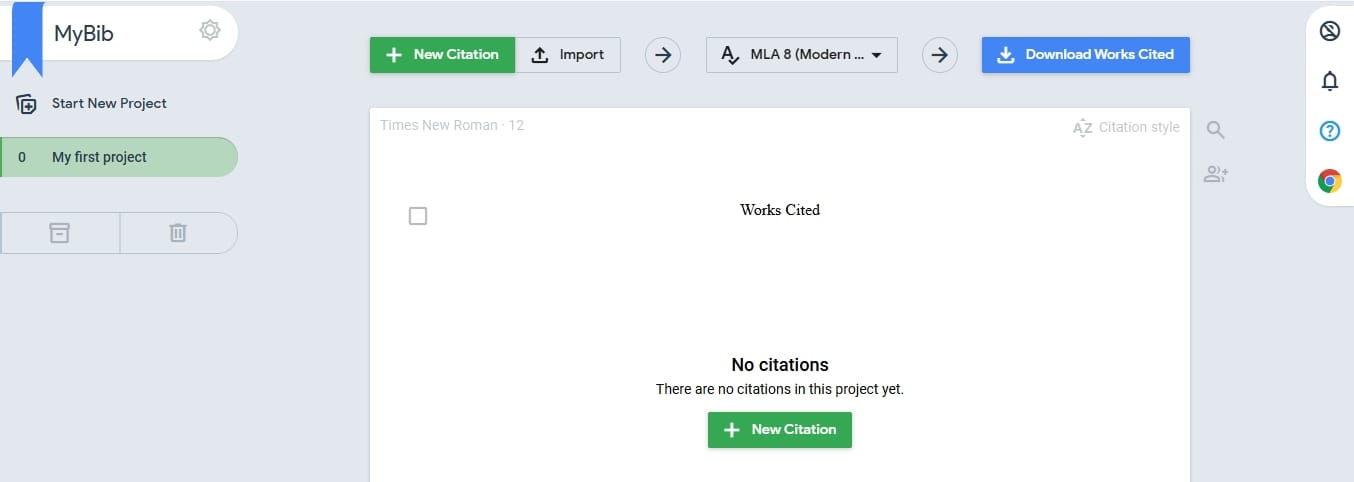
- Best for: The vast majority of high school and undergrad coursework.
- Why it made the cut: Generates accurate APA, MLA, and Chicago citations without hiding them behind paywalls or aggressive ads.
- Free tier enough?: Yes, 100% free.
- Privacy note: Minimal tracking.
- Performance note: Very light.
- Works on: Chrome, Edge, Brave.
- Install if: You want fast, accurate citations without distractions.
- Skip if: You need deep PDF tagging or offline storage.
MyBib: Free Citation Generator
Best Focus and Distraction-Blocking Extensions for Students
Choose the tool that matches your weakness: hard blocking for social media, or timers for task structure.
If social media scrolling is your weakness, use a hard site blocker like StayFocusd. If you struggle with time structure, use a Pomodoro timer like Focus To-Do or Forest. Visual clutter and autoplay ads also directly impair reading speed and text processing efficiency, so pairing a focus timer with a quality ad blocker is the optimal setup.
StayFocusd
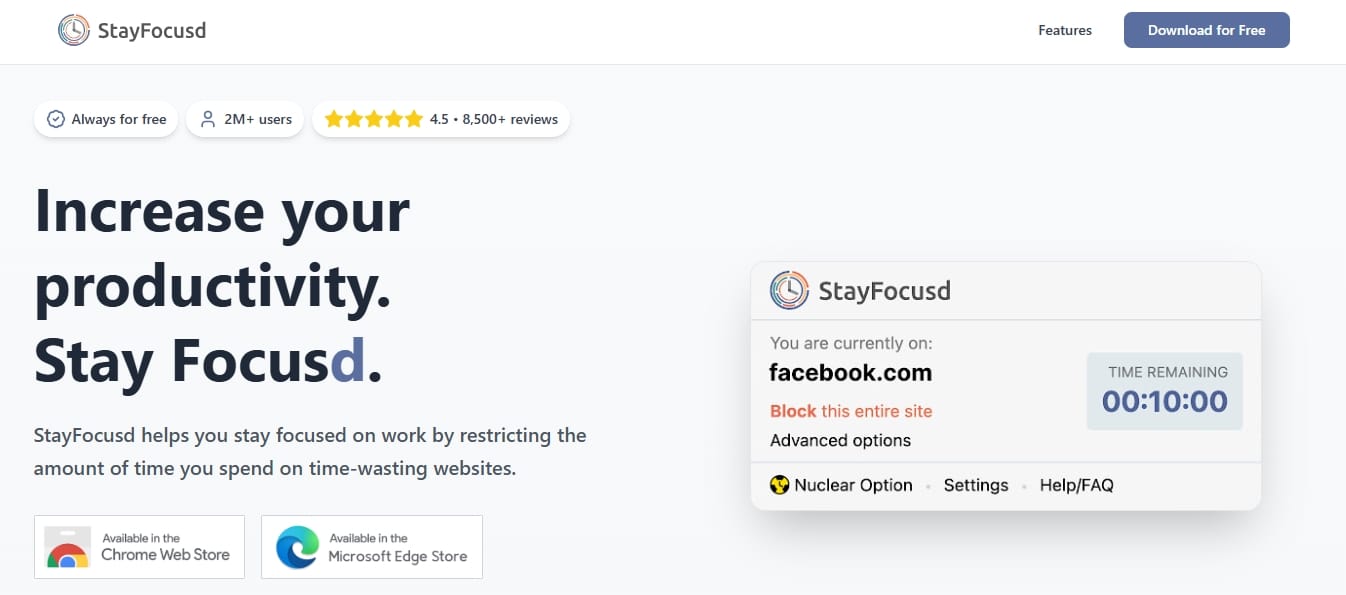
- Best for: Breaking the habit of mindless scrolling.
- Why it made the cut: The "Nuclear Option" physically prevents you from accessing blocked sites once your daily time allowance runs out.
- Free tier enough?: Yes.
- Privacy note: Needs permission to read site addresses to block them.
- Performance note: Lightweight.
- Works on: Chrome, Edge, Brave.
- Install if: You lack self-control when deadlines approach.
- Skip if: You frequently need to access blocked sites for legitimate research.
Focus To-Do
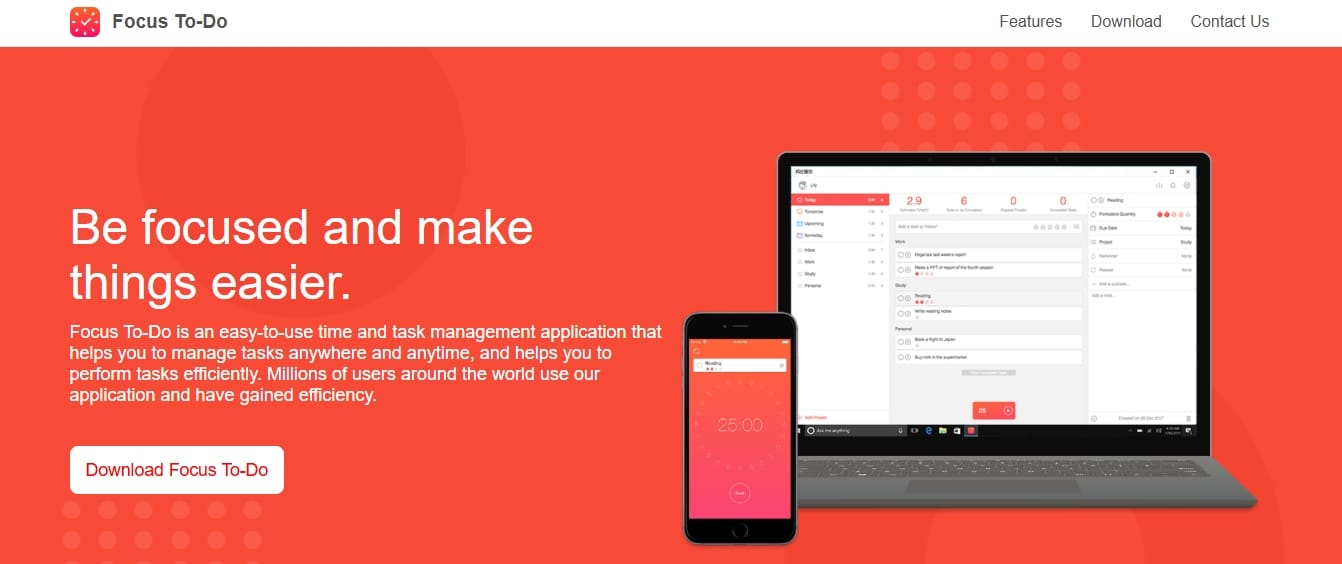
- Best for: Combining a digital planner for students with a study timer.
- Why it made the cut: It solves two problems (planning and timing) in one interface, running a strict Pomodoro timer against your daily task list.
- Free tier enough?: Yes.
- Privacy note: Standard account sync data.
- Performance note: Lightweight.
- Works on: Chrome, Edge, Brave.
- Install if: You study using the Pomodoro technique (25 minutes on, 5 minutes off).
- Skip if: You already use an online planner for students like Notion or Google Tasks.
Focus To-Do: Pomodoro Timer and To Do List
Best Ad Blockers and Privacy Extensions for Students
One quality ad blocker makes studying cleaner, calmer, and significantly faster.
Do ad blockers still work after the Chrome Manifest V3 update?
Yes. Manifest V3 changed how blockers intercept network requests, limiting dynamic filter rules. However, Privacy vs. Profit: The Impact of Google's Manifest Version 3 (MV3) Update on Ad Blocker Effectiveness shows that modern MV3-compatible blockers still catch most standard ads and trackers. For most students, these MV3 blockers easily handle the job of keeping study materials clean.
uBlock Origin Lite
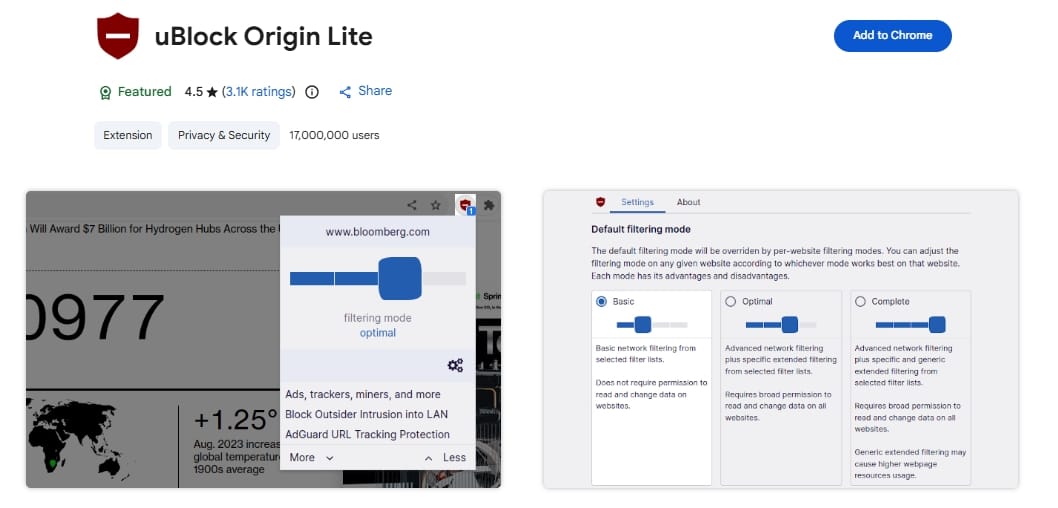
- Best for: General web cleanup on Chrome and Edge.
- Why it made the cut: It complies with the new MV3 rules seamlessly while remaining incredibly light on CPU and memory usage.
- Free tier enough?: Yes.
- Privacy note: Collects no data.
- Performance note: Extremely efficient.
- Works on: Chrome, Edge.
- Install if: You want a silent, fast, open-source fix for basic text sites and blogs.
- Skip if: You demand complex, custom cosmetic filtering rules.
Blockify
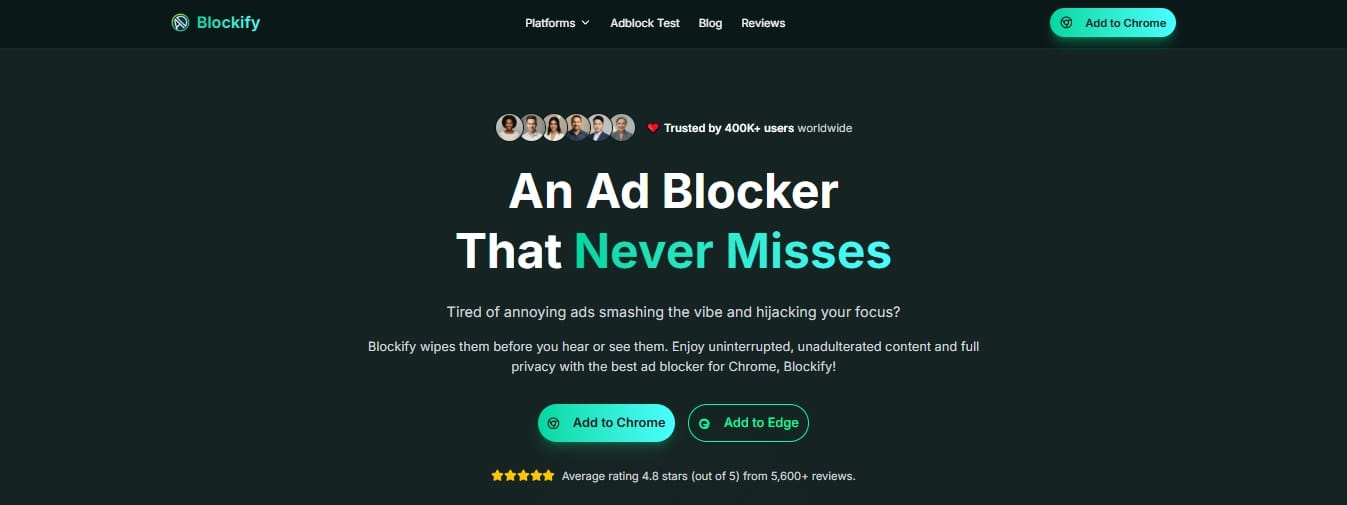
- Best for: Students who study and unwind on media-heavy, ad-heavy platforms.
- Why it made the cut: This free desktop extension actively targets audio and video ads, pop-ups, banners, and trackers. The official Chrome distribution shows over 400,000 users and a lightweight installation footprint.
- Free tier enough?: Yes.
- Privacy note: It filters network requests locally and clearly states it does not sell personal information.
- Performance note: Very light local filtering.
- Works on: Chromium support: Chrome, Edge, Brave.
- Install if: Video interruptions, audio ads, and trackers routinely break your focus on supported browsers.
- Skip if: You only read plain text offline.
- Blockify for Chrome
- Blockify for Microsoft Edge
Do not stack multiple ad blockers. Blockify's own Ad Block Test page notes that using multiple blockers simultaneously causes browser conflicts. Pick one and let it work.
Best Tab and Workspace Extensions for Students
Start with your browser's built-in tab groups. Add an extension only if your workflow still fails.
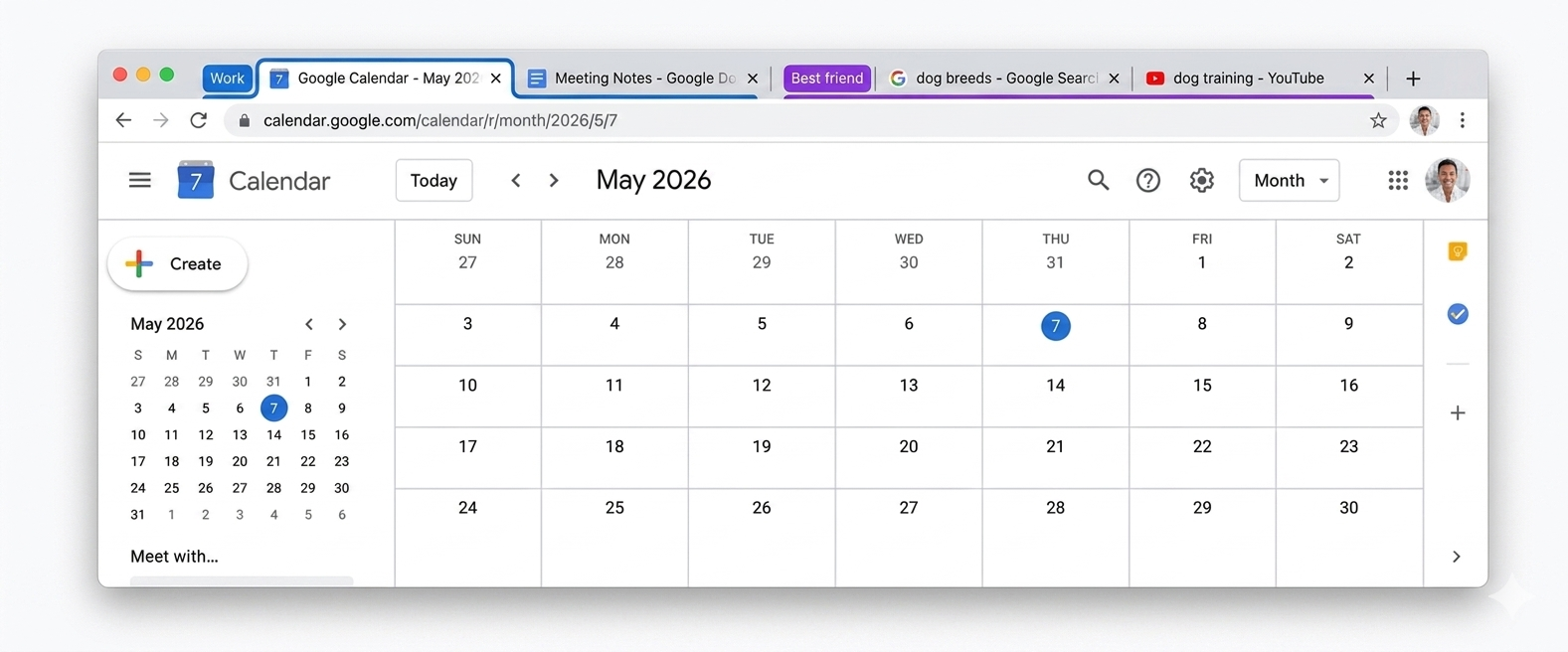
Native Chrome Tab Groups
- Best for: Immediate organization without installing new software.
- Why it made the cut: Chrome already does this natively. Right-click any tab and select "Add tab to new group."
- Free tier enough?: Always free.
- Privacy note: Zero external data risk.
- Performance note: Saves memory when combined with Chrome's native Memory Saver.
- Works on: Chrome, Edge, Brave.
- Install if: N/A. Stop here and use what you already have.
- Skip if: Your browser consistently crashes from managing too many project groups.
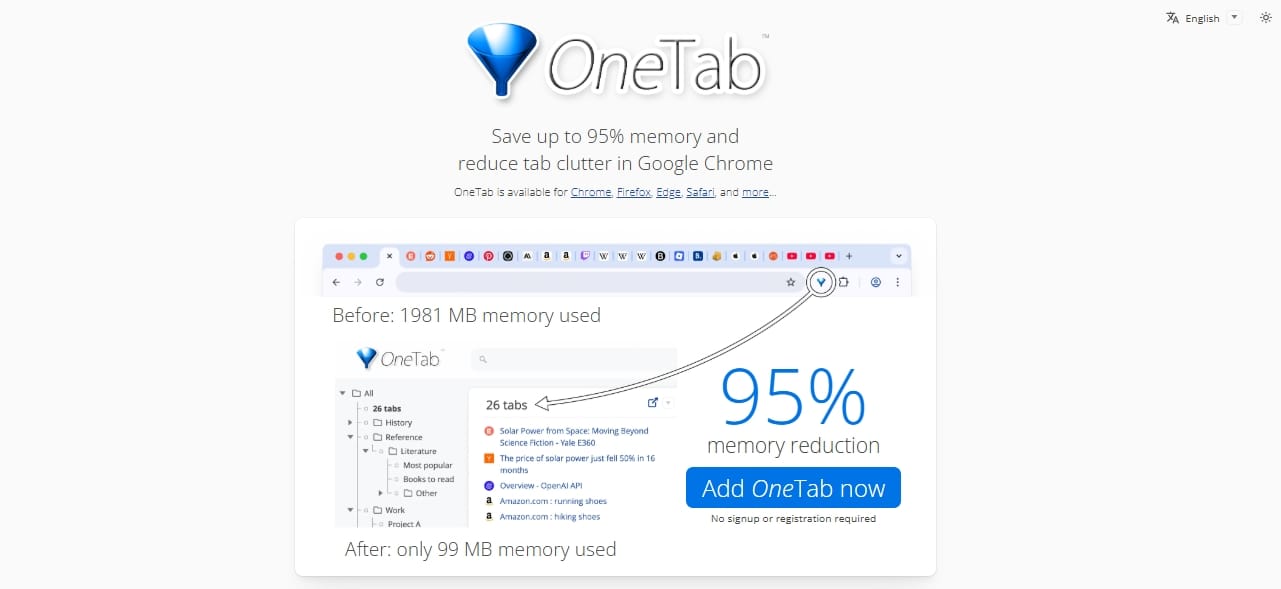
OneTab
- Best for: Reclaiming laptop memory instantly.
- Why it made the cut: It converts 40 open tabs into a simple text list with a single click, dropping CPU load to almost zero.
- Free tier enough?: Yes.
- Privacy note: Tab lists are kept locally on your device.
- Performance note: Drastically reduces CPU load and saves battery life.
- Works on: Chrome, Edge, Brave.
- Install if: You chronically leave dozens of tabs open and your laptop fan sounds like a jet engine.
- Skip if: You need dynamic, auto-updating workspaces.
Best Note-Taking and Highlighting Extensions
The best choice depends entirely on where you already store your notes.
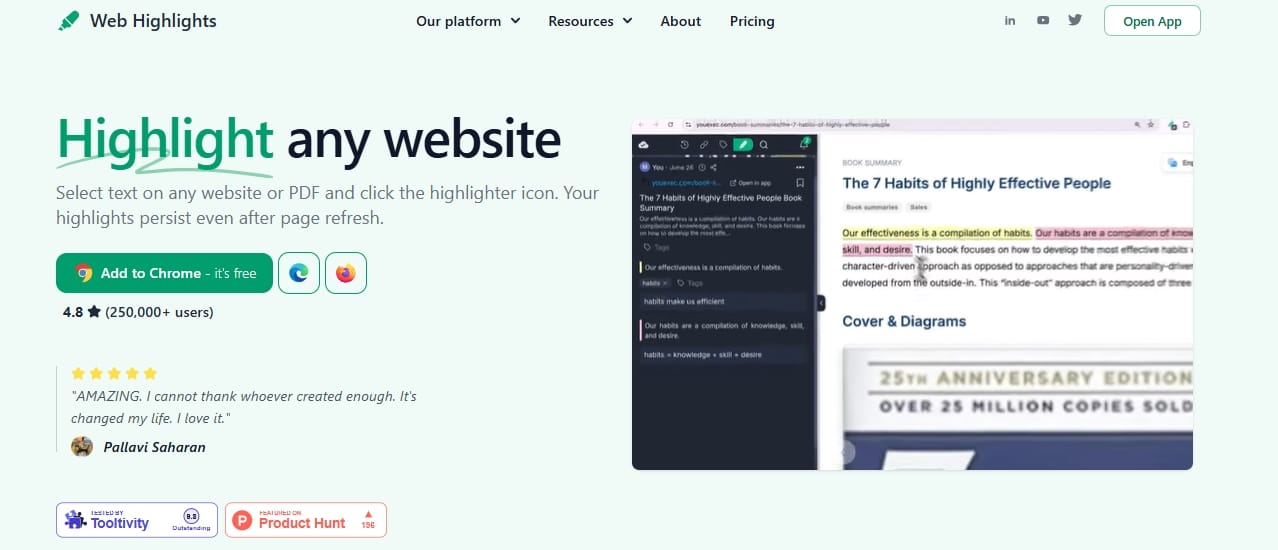
Web Highlights
- Best for: Fast, research-heavy reading.
- Why it made the cut: It lets you mark up web pages and PDFs without leaving the screen or opening a separate app.
- Free tier enough?: Yes.
- Privacy note: Local backup options are available.
- Performance note: Lightweight.
- Works on: Chrome, Edge, Brave.
- Install if: You hate copying and pasting text manually into a document.
- Skip if: You need full-page offline archiving.
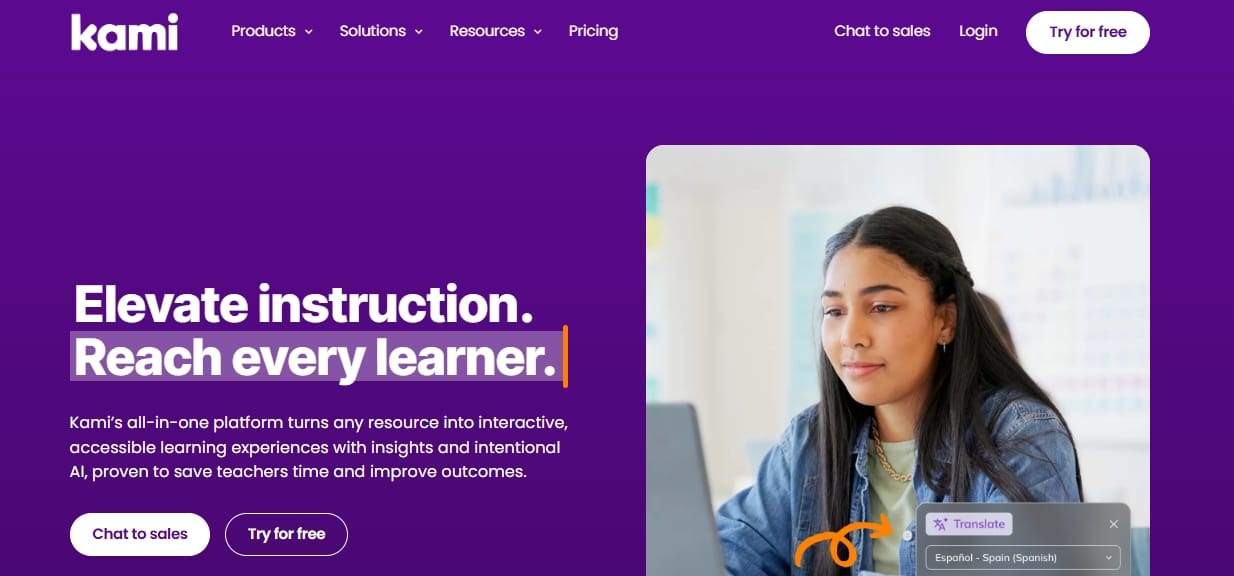
Kami (Best Google Classroom Extension for Students)
- Best for: PDFs, worksheets, and tight Google Classroom integration.
- Why it made the cut: Provides powerful digital annotation tools tailored specifically for teacher-distributed digital handouts.
- Free tier enough?: Basic features are free, though schools often provide full licenses.
- Privacy note: FERPA and COPPA compliant.
- Performance note: Moderate.
- Works on: Chrome, Edge.
- Install if: Your instructors distribute assignments exclusively via PDF or Google Classroom.
- Skip if: You just want to highlight text on public blogs.
Kami Extension for Google Chrome
Best AI Extensions for Students, Used Carefully
The best ai chrome extensions for students require strict privacy filtering. If a normal website can do the job, do not install the extension.
Are AI browser extensions safe for students to use?
You must use AI browser extensions sparingly. A 2025 Incogni study found that 67% of investigated AI Chrome extensions collect user data, and 41% actively collect personally identifiable information (PII).
LayerX's Enterprise GenAI Security Report 2025 reports that 58% of GenAI extensions require high or critical permissions (like reading everything on your screen). Only install AI tools from trusted publishers.
High-Risk Categories to Avoid
Avoid homework solvers, test-answer tools, and invasive sidebar assistants. These tools demand access to read your entire screen. In February 2026, cybersecurity reports confirmed that over 300,000 Chrome users were compromised by malicious fake AI extensions. Treat every AI add-on as a potential security risk.
Safer Rule of Thumb
If you need ChatGPT or Claude to summarize a concept, just open their web page. Do not give a third-party extension permanent access to your browser just to save one click.
Native Browser Features to Use First
Before searching for the best chrome extensions for uni students, check if your browser already solves the problem.
- Memory Issues: Chrome officially includes a native Memory Saver feature that deactivates unused tabs to save RAM. You do not need a third-party memory manager.
- Reading Fatigue: Microsoft Edge natively features Read Aloud and Immersive Reader. If you have dyslexia or eye strain, try these built-in accessibility features before buying a text-to-speech extension.
- Ad Blocking: Brave browser includes powerful built-in Brave Shields. Test this native blocker first. Add a secondary extension only if you experience clear gaps in media-heavy environments.
How to Check If an Extension Is Safe
Ratings dictate popularity, not security. Run this 4-point check before installing anything:
- Install from official stores only: Use the Chrome Web Store or Microsoft Edge Add-ons. Never download extensions from third-party mirrors.
- Check the "Last Updated" date: If the tool hasn't been updated in over a year, abandon it. Modern web security moves too fast to trust abandoned code.
- Read the permissions popup: If a simple focus timer asks to "read and change data on all websites you visit," deny the installation immediately.
- Review the privacy tab: Look for tools that explicitly state they do not sell your personal data to third parties.
Keep Your Browser Fast: The Performance Budget
Your computer gets faster when you remove the wrong extensions, not just when you add the right ones. DebugBear testing proves that every active extension adds processing overhead.
- 3–5 Extensions: Ideal and fast for most students.
- 6–8 Extensions: Acceptable only if you have a high-RAM laptop and specific daily workflows.
- 9+ Extensions: Your browser is bleeding processing power. Audit your list immediately.
Open your browser's extensions manager (chrome://extensions/) right now. If you cannot remember installing a tool, or haven't used it this week, hit remove.
FAQ
Do Chrome extensions work on Edge and Brave?
Yes. Official documentation confirms that Microsoft Edge and Brave support extensions downloaded directly from the Chrome Web Store.
What are the best free extensions for students?
Keep it minimal. Use MyBib for citations, StayFocusd for blocking digital distractions, native Tab Groups for workspace organization, one reliable ad blocker like uBlock Origin Lite or Blockify, and a basic writing editor like LanguageTool.
Can too many extensions slow down my computer?
Absolutely. Every active extension runs background JavaScript. Stacking too many tools increases page load times, consumes system RAM, and drains laptop battery life rapidly.
What if my school account blocks certain extensions?
Managed student devices often restrict permissions globally. Check your institution's admin policies. If an extension is blocked, rely on native browser features or use web-based apps instead.
Conclusion
A calmer browser beats a crowded toolbar. You now know exactly what helps your academic workflow and what actively hurts your computer's performance. Follow this path to get the best extensions for students:
- Identify your single biggest pain point (e.g., ad interruptions, citation formatting, or tab clutter).
- Install one reliable tool to fix it.
- Audit and delete anything you do not actively use.
Deleting two bloated, unused extensions will do more for your daily productivity than installing a new one.
If autoplay ads and visual clutter are your biggest concentration killers today, start by testing a single, lightweight blocker.




