Tired of unwanted ads hijacking your screen? If you want to know how to stop pop-ups on Chrome, the fastest fix is built right into the browser. Open Chrome Settings, go to Privacy and security > Site settings > Pop-ups and redirects, and toggle the setting to Don't allow sites to send pop-ups.
If Chrome's native blocker is already active but interruptions persist, you are likely dealing with notification spam, in-page overlays, or malvertising. I will walk you through fixing Chrome's exact settings, blocking site notifications, and removing stubborn redirect ads safely.
Quick fix: Check Chrome's pop-up blocker settings
Use this baseline fix for classic pop-up windows and simple redirects. If this is already enabled, skip to the diagnostic section.
On desktop, go to Settings > Privacy and security > Site settings > Pop-ups and redirects. On Android, find it under Settings > Site settings > Pop-ups and redirects. On iOS, navigate to Settings > Content Settings > Block Pop-ups. Chrome blocks pop-ups by default across all devices, as confirmed in Block or allow pop-ups in Chrome.
Desktop
- Open Chrome and navigate to Settings > Privacy and security > Site settings > Pop-ups and redirects.
- Select "Don't allow sites to send pop-ups or use redirects."
To turn off the pop-up blocker in Chrome, return to Pop-ups and redirects and select "Allow sites to send pop-ups and use redirects." Only disable this protection temporarily for trusted workflows. Allowing pop-ups globally exposes your device to malicious redirects.
Android
- Open the Chrome app.
- Tap the three-dot menu and select Settings.
- Tap Site settings, then Pop-ups and redirects.
- Toggle the switch off to block pop-ups.
iPhone & iPad
- Open Chrome on iOS.
- Tap the three-dot menu and choose Settings.
- Navigate to Content Settings, then Block Pop-ups.
- Turn the setting on.
Edge Case: If the setting is greyed out, you are on a managed work or school device. Administrator rules lock this setting, requiring IT support to change.
What kind of pop-up are you actually seeing?
Most users fighting persistent browser clutter are not dealing with classic pop-up windows. Identify your specific interruption below to apply the correct fix.
Why am I still getting pop-ups even with Chrome's blocker on?
Because modern browser interruptions are rarely traditional pop-up windows. They are often notification spam, intrusive ads, forced redirects, in-page overlays, or malware. Google Chrome's native tool only blocks new windows and basic redirects.
- Classic pop-up window: A distinct new browser window or tab. Fix: Chrome's pop-up settings.
- Notification spam: Small alert boxes sliding in from the corner of your screen. Fix: Chrome's Notifications permissions.
- Forced redirect: Your current tab suddenly loads a scam page or unwanted ad. Fix: Intrusive ads filter or an ad blocker extension.
- In-page overlay: A newsletter signup, autoplay video wall, or full-page promo within the website. Fix: A dedicated browser extension like Blockify.
- Cookie consent banner: A legally required privacy prompt covering the content. Fix: Blocker extension with consent-removal lists.
Why accurate diagnosis matters:
- Malicious ads overtook email as the primary channel for malware in 2025.
- Advertising accounted for more than 60% of the malware and phishing campaigns observed by The Media Trust last year.
- Microsoft reported a massive malvertising campaign in early 2025 that impacted nearly one million devices globally.
- GeoEdge's Q1 2025 Ad Quality Report found that auto-redirects drove 68% of malicious ad activity, making forced redirects the dominant attack pattern that quarter.
Allow or block pop-ups for specific sites
If a trusted site (like a bank or university portal) requires a pop-up to function, allowlist that specific domain rather than disabling your global protection.
How do I allow pop-ups for one site in Chrome?
When Chrome blocks a window, a small "Pop-up blocked" icon appears in the address bar. Click it, select "Always allow pop-ups and redirects from [site]", and hit Done.
Alternatively, manage your lists manually:
- Go to Settings > Privacy and security > Site settings > Pop-ups and redirects.
- Scroll to Customized behaviors.
- Click Add next to "Allowed to send pop-ups and use redirects."
- Enter the domain (e.g.,
[*.]example.comto include all subdomains).
Periodically audit your "Allowed" list. If you do not recognize a domain, delete it immediately. Hijacked permissions are the leading cause of "broken" native blockers.
Stop notification spam in Chrome
Fake virus alerts and constant desktop notifications happen because you accidentally granted a site permission to send alerts.
Are Chrome notifications the same as pop-ups?
No. A pop-up is a new window or redirect. A notification is a permission-based system alert sent by a website directly to your operating system. Disabling pop-ups will not stop notifications.
How to turn off website notifications in Chrome:
- Click the site info icon (the tune/slider icon) on the left side of the address bar.
- Next to Notifications, toggle the switch off or select Block.
Manage global notifications:
Navigate to Settings > Privacy and security > Site Settings > Notifications. Change the default behavior to "Don't allow sites to send notifications." This prevents websites from ever asking for permission again.
Mobile specific: Chrome for Android utilizes on-device machine learning to warn you about deceptive notifications. If Chrome flags a site, tap the prompt to unsubscribe.
Turn on Chrome's built-in security defenses
Before installing third-party tools, ensure Chrome's secondary defense layers are active to block malicious ads and known phishing sites.
Does Chrome have an ad blocker?
Chrome includes a built-in ad blocker for intrusive ads. It removes ads on sites violating the Better Ads Standards—such as autoplaying audio, flashing graphics, or ad walls.
- Go to Privacy and security > Site settings > Additional content settings > Intrusive ads.
- Select "Block ads on sites that show intrusive or misleading ads."
Next, enable Enhanced Protection within Chrome's Safe Browsing settings. This real-time defense uses advanced AI and machine learning to identify threats, keeping you twice as safe from phishing and scams compared to Standard Protection.
When to use a pop-up blocker Chrome extension
Chrome's native settings target distinct windows and redirects, but they ignore on-page overlays, tracker-heavy elements, and cookie banners. For deep page cleanup, I recommend a dedicated pop-up blocker extension.
Do I need an extension to stop all pop-ups on Chrome?
Yes. If you configured Chrome correctly and still see distracting overlays or cluttered pages, a dedicated content blocker is the next logical step.
The Manifest V3 Reality: Chrome's extension architecture shifted to Manifest V3, utilizing declarativeNetRequest. Chrome guarantees a minimum of 30,000 static rules per extension under this API. Ensure any ad blocker you install is actively updated for Manifest V3 compatibility.
Comparing top Chrome blockers in 2026:
| Tool | Best For | Blocks Classic Pop-ups | Handles Page Clutter | Tracker Blocking | MV3 Ready |
|---|---|---|---|---|---|
| Blockify | Simple setup, comprehensive coverage | Yes | Yes | Yes | Yes |
| uBlock Origin Lite | Basic MV3 filtering | Yes | Limited | Yes | Yes |
| AdGuard | System-level blocking | Yes | Yes | Yes | Yes |
Note on uBlock Origin: Manifest V2 support timeline confirms Chrome 138 disabled MV2 extensions for all users, and Chrome 139 removes the final enterprise policy exception. The classic uBlock Origin (MV2) is no longer available for standard Chrome users; uBlock Origin Lite, the official MV3-compliant replacement, is available on the Chrome Web Store.
Best recommendation: Blockify
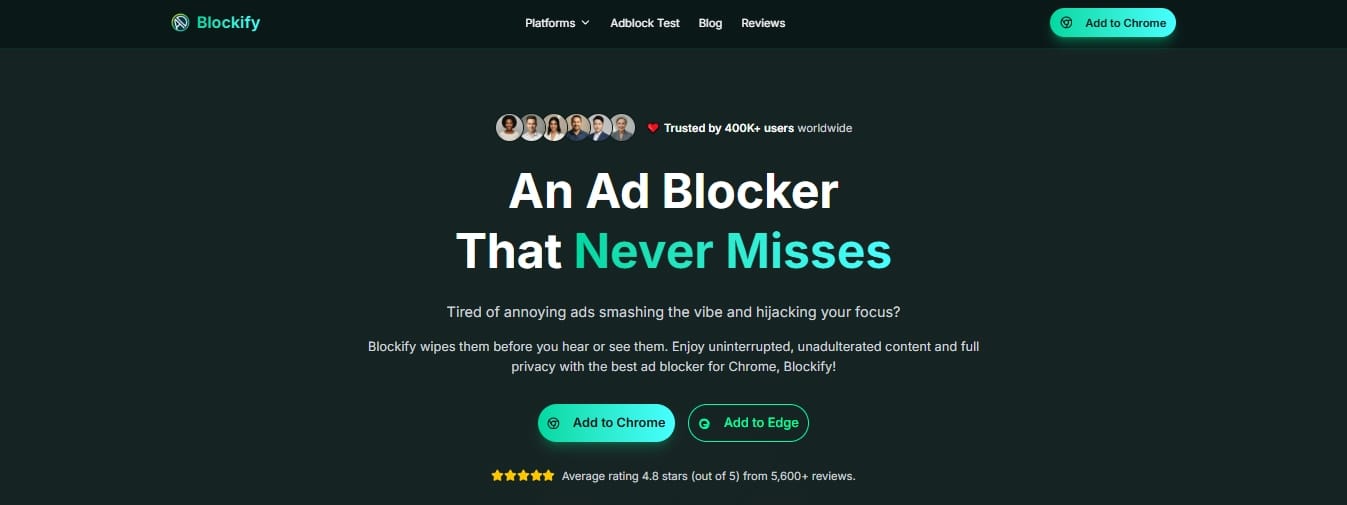
If you want one lightweight tool to handle pop-ups, redirect ads, trackers, and page clutter without complex configuration, Blockify is a strong option. It operates entirely locally without selling personal data. Keep in mind that aggressive removal of some cookie consent banners can break site functionality, so expect occasional compliance prompts.
Never run multiple content blockers simultaneously. They conflict, waste system resources, and reduce overall blocking effectiveness.
How to check for malware and adware
If every website feels broken, random text turns into hyperlinks, and your homepage keeps changing, your device likely has adware.
Could these pop-ups be malware?
Yes. Persistent pop-up ads, fake virus alerts, returning toolbars, and search engine hijacking are classic symptoms of unwanted software, according to Google, Remove unwanted ads, pop-ups and malware.
- Remove suspicious extensions: Type
chrome://extensionsin your address bar. Delete any add-on you do not explicitly recognize or remember installing. - Reset Chrome to default: Go to Settings > Reset settings > Restore settings to their original defaults. This disables extensions and clears temporary data without deleting your bookmarks or passwords.
- Run an anti-malware scan: Use a reputable cybersecurity tool to detect and remove system-level adware.
Quick fix by symptom
| What you see | Likely cause | First fix |
|---|---|---|
| New window/tab pops up | Site script bypass | Turn on Chrome Pop-ups and redirects blocker |
| Fake virus alerts from a site | Push notification spam | Revoke site Notifications permission |
| Redirects to a random page | Intrusive ad network | Enable Chrome Intrusive ads filter |
| Banner or overlay covering content | On-page DOM element | Install a dedicated extension like Blockify |
| Same problem on every website | Adware or hijacked browser | Reset Chrome and scan for malware |
FAQ
Can pop-ups give you a virus?
Yes. Malicious ads (malvertising) can redirect you to phishing sites or execute drive-by downloads. Security reports confirm ad-delivery systems accounted for more than 60% of malware campaigns in 2025.
Can I install a pop-up blocker extension on Chrome mobile?
No. Standard Chrome for Android and iOS does not support Web Store extensions. You must rely on Chrome's built-in mobile settings or use a different privacy-focused mobile browser.
Why do cookie banners still appear even with a blocker?
Many consent prompts are legally required. While extensions block the most intrusive ones, aggressive removal can break website functionality, meaning some banners will still slip through.
Final Next Steps
To fully master how to stop pop-ups on Chrome, follow this definitive sequence:
- Verify Chrome's native pop-up blocker is enabled.
- Identify the exact interruption (window, notification, or overlay).
- Revoke errant notification permissions.
- Turn on Enhanced Protection and the Intrusive Ads filter.
- Install one lightweight content blocker.
- Reset Chrome and scan for malware if symptoms persist.
Try Blockify free if Chrome's settings are already optimized and you want a faster, cleaner browser without distracting redirect ads and trackers.
Browsing on another platform? Check out our guides for Safari, Firefox, and mobile privacy browsers in our best browser for ad blocking guide.