
Looking for a NextDNS alternative in 2026? Several users have reported slower feature rollouts and limited support responsiveness, prompting comparisons with other DNS filtering providers.
If active development, faster support, stronger compliance signals, or more granular service-level controls matter to you, evaluating alternatives is a practical step.
This guide compares stable NextDNS replacements, explains how to test DNS latency before switching, and outlines a safe migration process that protects banking apps, smart TVs, streaming platforms, and other sensitive services.
Best NextDNS Alternatives by Use Case
The best NextDNS alternative depends on your setup, latency requirements, and control needs. Here are the 6 strongest DNS replacements in 2026:
- Easiest cloud-based replacement: AdGuard DNS - Dashboard-based DNS filtering with category controls, per-device profiles, and active development.
- Most granular service-level filtering: Control D - Advanced domain routing, platform-level blocking (e.g., TikTok), and customizable DNS rules. Test regional latency first.
- Best for streaming ads beyond DNS limits: Blockify - Browser-level ad blocking that removes in-stream video and audio ads DNS cannot block.
- Simplest privacy-first DNS: Mullvad DNS - No account required, minimal data collection, and encrypted DNS (DoH/DoT).
- Best self-hosted dashboard alternative: AdGuard Home - Local DNS server with full blocklist control and encrypted upstream support.
- Best DIY network-wide DNS filtering: Pi-hole - Open-source local resolver with complete query visibility and custom blocklists.
Why Look for a NextDNS Alternative?
For many users, there is no urgent reason to replace NextDNS. If your DNS latency is low, your blocklists are stable, and critical services like banking, streaming, and smart home devices function correctly, continuing with your current setup is reasonable.
However, some users evaluate alternatives for specific operational reasons, including:
- Slower visible feature rollouts
- Limited support responsiveness
- Need for more granular service-level filtering
- Business or compliance requirements
- Desire for a multi-layer stack (DNS baseline + browser extension)
DNS performance also varies by ISP, routing, and geographic region. A provider that performs well in one country may show higher latency in another. Testing alternatives helps determine whether another DNS resolver offers better first-query response time or routing stability on your network.
Switching is typically driven by requirements, not dissatisfaction. If you need stronger policy controls, clearer logging transparency, encrypted DNS flexibility (DoH, DoT, or DoQ), or more active roadmap momentum, comparing alternatives becomes a technical decision rather than a reaction.
How to Test DNS Speed & Latency Before Switching
DNS performance varies by ISP routing, geographic location, and resolver infrastructure. Before switching from NextDNS to another provider, measure real latency on your own network.
Focus on three metrics:
- Average query time (ms) - Lower is better
- Consistency (min vs max spread) - Large spikes indicate routing instability
- Timeouts or packet loss - Any failure rate above 1% requires investigation
Step 1: Use a DNS Benchmark Tool
Run tests against multiple providers (e.g., NextDNS, AdGuard DNS, Control D, Mullvad DNS).
You can use:
dig(macOS / Linux)nslookup(Windows)- DNS benchmarking tools like GRC DNS Benchmark (Windows)
Run at least 10–20 queries per provider to reduce variance.
Example command:
Repeat with each DNS provider’s IP.
Look for:
- Stable response times under 40–60ms (ideal range for most home users)
- Minimal variance between repeated tests
- No SERVFAIL or timeout responses
Step 2: Test at Different Times of Day
Latency may increase during peak hours. Run tests:
- Morning
- Afternoon
- Evening
If one provider shows consistent spikes during peak hours, routing congestion may be a factor.
Step 3: Test Real-World Browsing Performance
Synthetic DNS tests are useful, but also:
- Open frequently used websites
- Launch banking apps
- Test smart TVs and streaming platforms
- Check mobile network behavior (Wi-Fi vs LTE/5G)
DNS changes can affect CDN selection and geo-routing, which impacts streaming stability and login flows.
Terminal Method (macOS, Linux, Windows)
- macOS / Linux
Open Terminal, run this 5–10 times:
Look at the “Query time” value in milliseconds.
- Windows
Open PowerShell, paste this, press Enter:
Ignore the first result (it may be cached). Compare averages, not single numbers. Small differences (e.g., 10–15 ms) are typically negligible in real-world browsing due to caching. Always test from the network you actually use, performance varies by ISP and region.
Decision rule:
- If a provider is consistently 20–30 ms slower than your current DNS on uncached lookups, you may notice slower first-time loads.
- Differences under 10–15 ms are typically negligible in normal browsing due to caching.
- Absolute latency under 30 ms is generally considered fast for DNS resolution.
- Consistent latency above 80–100 ms may cause noticeable delay on uncached lookups, especially on mobile or high-churn browsing sessions.
Test multiple times and compare averages. Save your results so you can evaluate providers side-by-side rather than relying on a single run.
Side-by-Side Comparison of the Best NextDNS Alternatives
The right NextDNS replacement depends on your required control level, hosting preference (cloud vs self-hosted), and latency in your region.
Below is a structured comparison across six viable DNS filtering alternatives.
| Provider | Best For | Setup | Custom Rules | Per-Device Controls | Encrypted DNS | Logging Model | Price |
|---|---|---|---|---|---|---|---|
| AdGuard DNS | Most users wanting a cloud dashboard | Easy | Yes | Yes | DoH, DoT, DoQ | Configurable | Free + paid |
| Control D | Granular service-level filtering | Moderate | Yes | Yes | DoH, DoT, DoQ | Configurable | Free + paid |
| Blockify (browser extension) | Browser + streaming ad blocking | Very easy | N/A | N/A | N/A | Extension-level | Free tier |
| Mullvad DNS | No-account privacy baseline | Very easy | No | No | DoH, DoT | No query logging (per policy) | Free |
| AdGuard Home | Self-hosted local control | Moderate | Yes | Yes (per-client rules) | DoH, DoT, DoQ | Fully local | Free (self-hosted) |
| Pi-hole | Advanced local network filtering | Advanced | Yes | Yes | Requires Upstream | Fully local | Free (open source) |
AdGuard DNS: Best Set-and-Forget Alternative
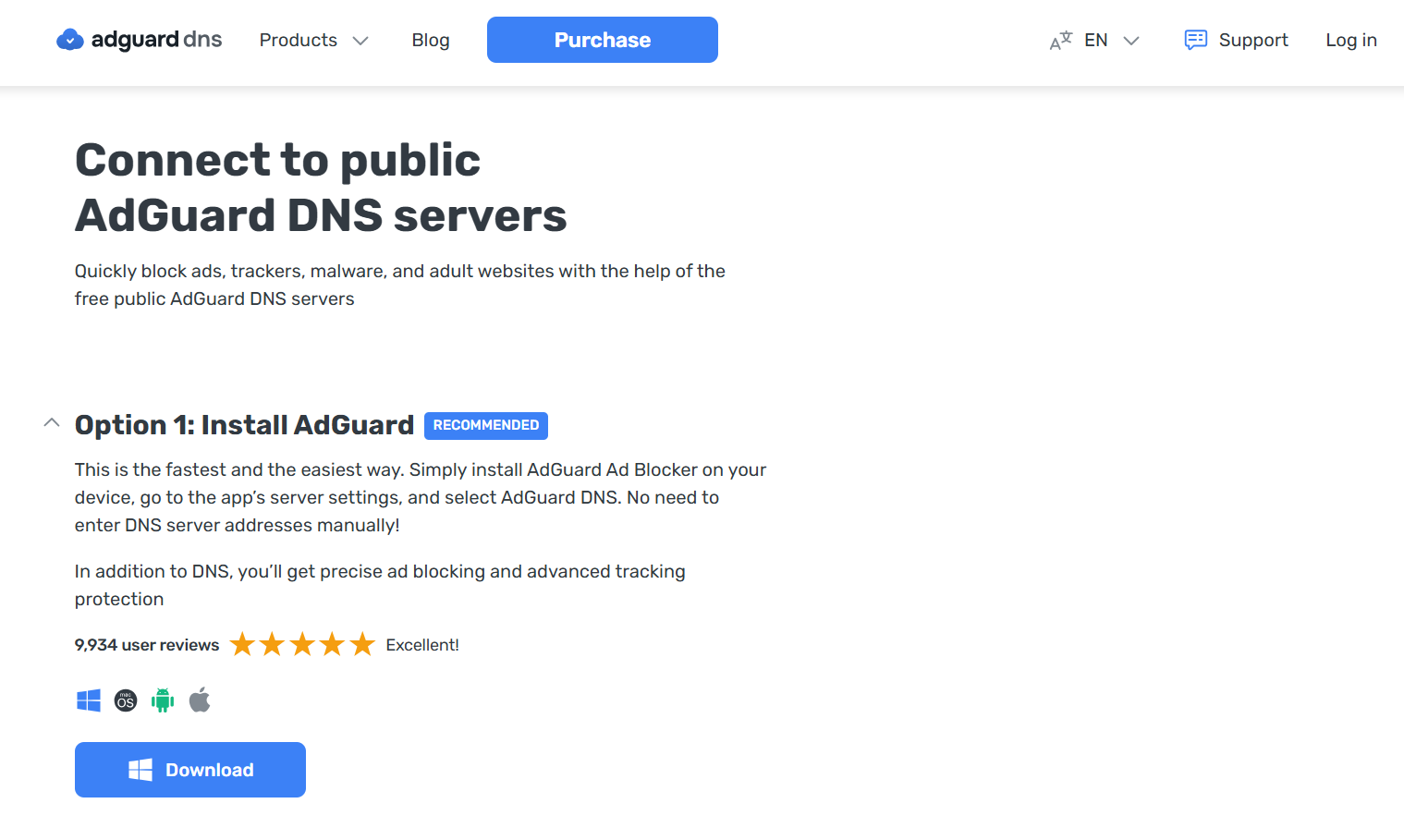
AdGuard DNS is the closest cloud-based replacement to NextDNS for users who want dashboard visibility without rebuilding complex rule stacks. It supports encrypted DNS (DoH/DoT) and per-device configuration.
- Hosting: Cloud
- Setup complexity: Low
- Filtering type: Category-based + curated blocklists
- Dashboard: Yes
- Best for: Users who want minimal configuration
- Limitation: Custom rule granularity is lower than Control D.
Blocks: It blocks ads, trackers, malware, phishing, etc., using category-based filters. Users can enable/disable categories and add custom allow or deny rules per configuration profile.
Won't block: First-party ads, most in-stream video/audio ads, cosmetic elements.
⚠️ AdGuard DNS ≠ AdGuard app ≠ AdGuard Home. Three separate products. AdGuard DNS is the cloud service, the direct NextDNS replacement. The app is a local ad blocker. Home is self-hosted software. For the NextDNS-like cloud experience, choose AdGuard DNS.
Setup (5 min): Check out the official AdGuard DNS setup guides
Verify: adguard.com/test.html or dnsleaktest.com. Set up one device first; move to the router after 24 stable hours.
Control D: Advanced Filtering With Regional Routing
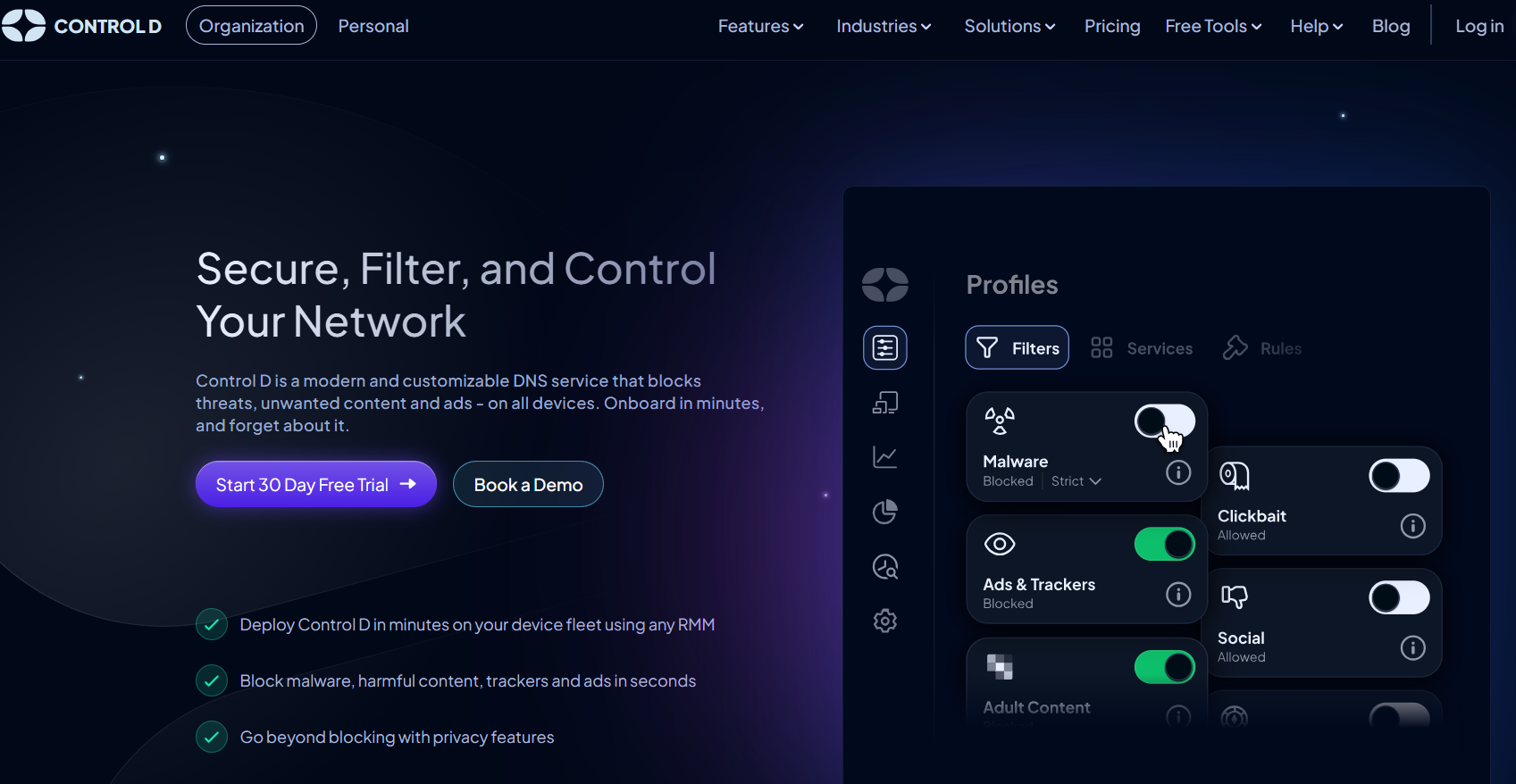
Control D allows blocking entire services (e.g., TikTok, Instagram) rather than individual domains. It also supports region-based routing — useful for CDN manipulation or streaming optimization.
- Hosting: Cloud
- Filtering depth: Platform-level + domain routing
- Regional routing controls: Yes
- Custom rules: Advanced
- Best for: Power users and geo-routing control
- Important: Test regional latency before switching.
⚠️ Performance note: DNS latency varies significantly by region and ISP. Some users report excellent performance comparable to other cloud DNS providers, while others report higher latency depending on routing. Always run a DNS latency test from your own network before committing to a provider.
Blockify: When DNS-Level Blocking Isn’t Enough
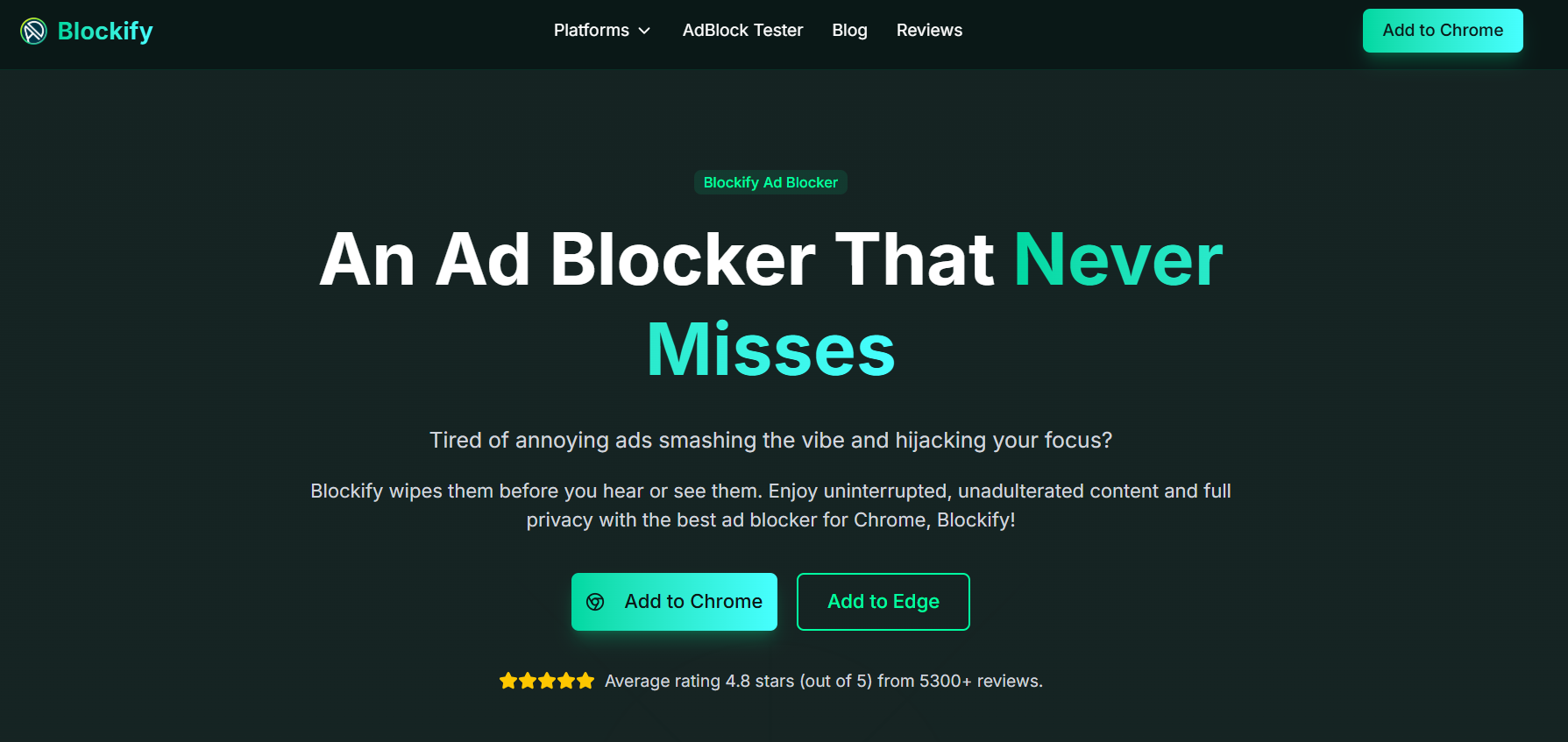
Blockify is a browser extension, not a DNS resolver, included because many people searching for a NextDNS alternative specifically want streaming ads gone. DNS can't reliably solve that.
- Layer: Browser extension
- Blocks: In-stream ads, YouTube ads, audio ads
- Works system-wide: No
- Best for: Streaming-heavy users
DNS can't block: In-stream video/audio ads (YouTube pre-rolls, Spotify audio, Twitch mid-rolls) served from content domains. Cosmetic leftovers. Ads on work/school devices where you can't change DNS.
Blockify covers: Ad blocking across websites and streaming platforms with dynamically injected video/audio ads. Offers dual-layer blocking with automatic ad-muting fallback. Works on Spotify, Twitch, Hulu, and many websites.
DNS and browser-layer blocking complement each other; DNS catches the wide net, Blockify handles what slips through.
Mullvad DNS: Minimal, Privacy-First DNS
No account or dashboard required. Choose a filtering level (ads, trackers, or both) and set it as your DNS, that’s it. Mullvad DNS is designed around minimal data collection and states that it does not log user DNS queries.
- Account required: No
- Logging: Minimal
- Filtering level: Basic blocklists
- Encrypted DNS: DoH / DoT
- Best for: Users prioritizing anonymity
Note: Mullvad has moved away from unencrypted public DNS in favor of DNS over HTTPS (DoH) and DNS over TLS (DoT) to enhance security.
Tradeoff: There are no profiles, custom blocklists, or query visibility. This is the NextDNS alternative for users who prefer fewer settings and less configuration.
Setup (3 min):
- Android → Private DNS: adblock.dns.mullvad.net
- iOS → Install Mullvad configuration profile
- Router → Use Mullvad DNS IPv4 and IPv6 addresses
AdGuard Home: Best Self-Hosted Alternative
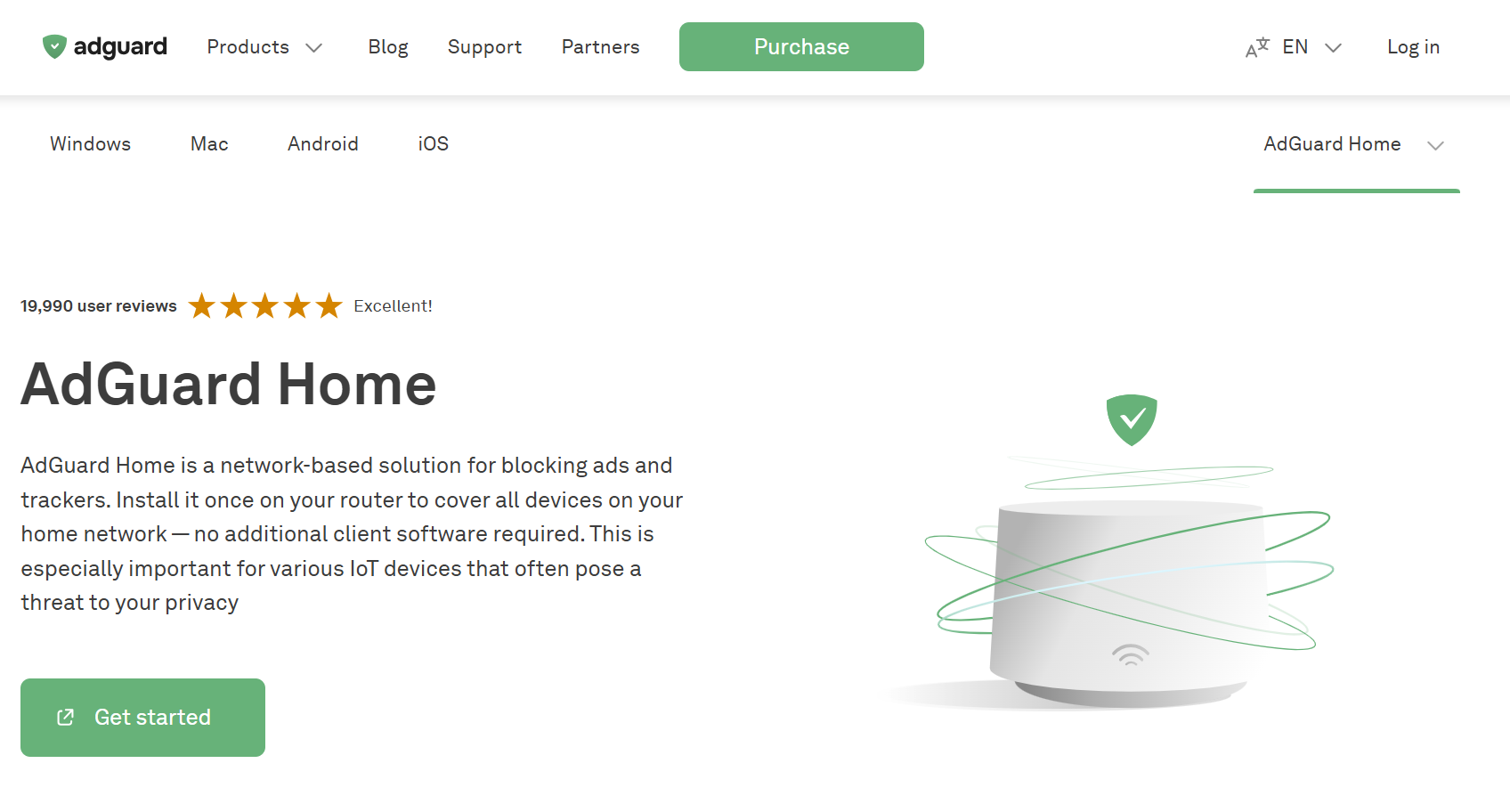
A full local DNS filtering server with a built-in web interface, AdGuard Home is one of the closest self-hosted equivalents to a cloud dashboard experience.
- Hosting: Local server
- Blocklists: Fully customizable
- Logging visibility: Full
- Encrypted upstream: Yes
- Best for: Home lab or advanced home networks
- Requires maintenance.
You control uptime, updates, backups, and upstream DNS providers. With that control comes responsibility, if your single device fails and you don’t have redundancy configured, DNS resolution on your network stops until it’s restored.
After installation, configure encrypted upstream DNS (DoH, DoT, or DoQ) in the settings.
AdGuard Home runs on a local device (Raspberry Pi, NAS, server). It provides full DNS query visibility and granular rule control.
Pi-hole: DIY Network-Wide DNS Filtering
Pi-hole is an open-source, self-hosted DNS filtering solution that runs on local hardware or a server. It gives users full control over blocklists, query logs, and network-level DNS behavior. Because it is self-managed software, setup and ongoing maintenance are the user’s responsibility.
- Hosting: Self-hosted
- Open source: Yes
- Blocklist control: Full
- Logging depth: Complete
- Best for: Technical users comfortable managing infrastructure
2026 reality check: Some devices use hardcoded DNS servers or encrypted DNS (DoH/DoT), which can bypass network-level DNS filtering unless router or firewall rules are configured to enforce local DNS usage. IPv6 can also introduce additional routing paths that require proper configuration to avoid unintended bypass.
How to Switch From NextDNS (Step-by-Step Migration Guide)
Switching DNS providers takes 15–25 minutes if planned correctly. The goal is to preserve your filtering logic, avoid service disruptions, and validate performance before moving network-wide.
Follow this controlled migration process.
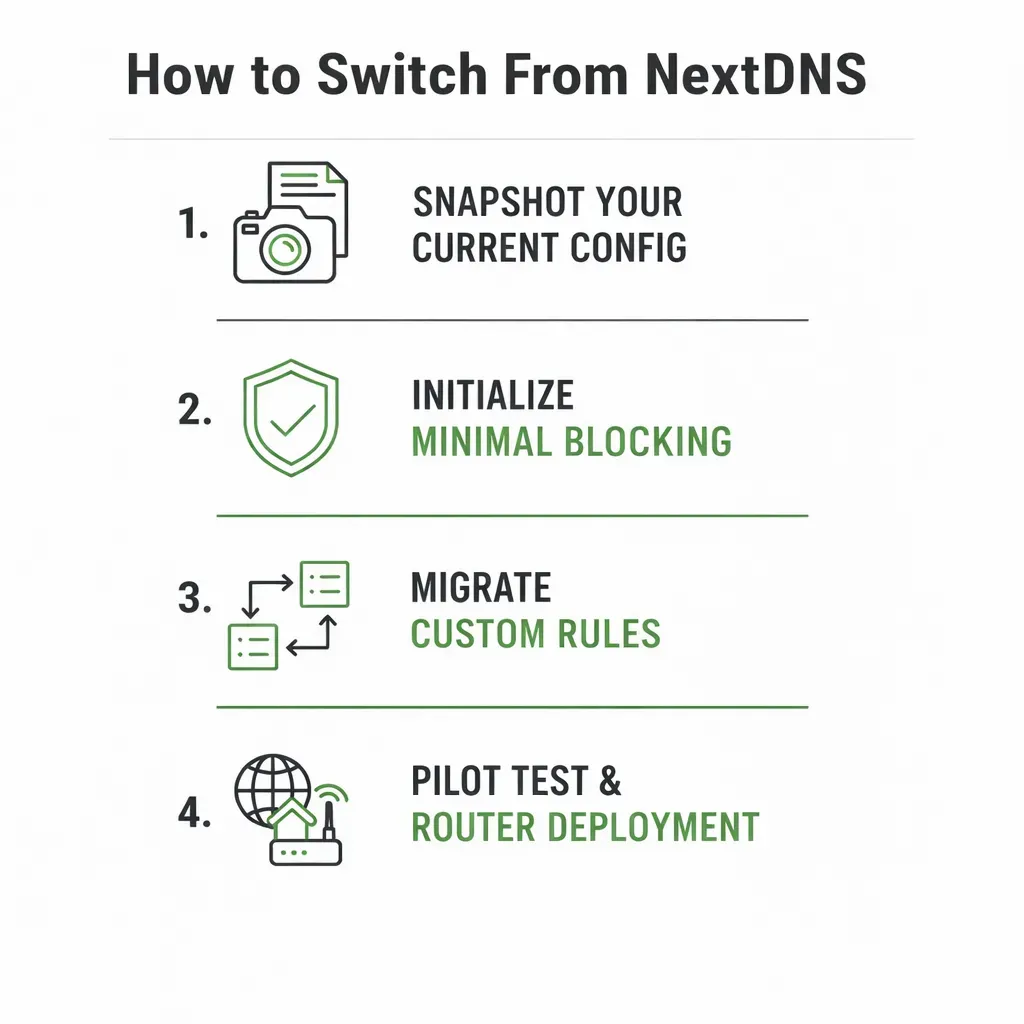
Step 1: Snapshot Your Current Configuration
Open your NextDNS dashboard and document:
- Enabled blocklists
- Custom allow/deny domains
- Parental controls
- DNS rewrites
- Logging settings
- Device/profile IDs
You can’t migrate what you haven’t documented.
Step 2: Rebuild Core Blocking Lists
Start with one well-maintained list such as Hagezi Multi Normal (by Hagezi) or OISD. Browse normally before adding more. Adding multiple overlapping lists increases complexity and the likelihood of false positives without proportionally increasing coverage.
Step 3: Transfer Custom Rules
- Only used public lists? Enable equivalent filters on the new provider.
- A few custom domains? Copy them manually.
- Extensive rules? Check for export/API support. Import in small batches and verify functionality between each group.
Step 4: Test on a Single Device → Then Router
Test on one device for 24 hours. Check:
- Banking
- Login flows
- CAPTCHAs
- Streaming
Allowlist broken domains before rolling out to the router.
When configuring the router:
- IPv6: If enabled, configure IPv6 DNS settings as well to avoid unintended bypass.
- Secondary DNS: Some routers and clients may query either configured DNS server, so set both to the same provider if you want consistent filtering.
- Captive portals: Some hotel or airport Wi-Fi networks may not function properly with custom DNS. Temporarily reverting DNS can help complete login.
Deploy router-level DNS last, not first.
Step 5: Verify Performance & Rollback Plan
- dnsleaktest.com — Resolver matches your new provider
- Adblock test pages → Domains show as blocked
- Provider dashboard → Queries appear as expected
| Problem | Fix |
|---|---|
| Constant CAPTCHAs | Use a less aggressive blocklist or allowlist affected domains |
| Banking/login fails | Allowlist required authentication domains |
| Checkout breaks | Review logs and allowlist payment/CDN domains |
| Smart TV ignores DNS | Redirect outbound port 53; consider additional enforcement if encrypted DNS is used |
Rollback:
- Remove DNS profile (device), or
- Restore router DNS to ISP defaults
Keep your NextDNS account active during transition; changes are reversible until you delete configurations.
Common Migration Mistakes to Avoid
- Switching router DNS before testing
- Importing all rules at once
- Ignoring regional latency differences
- Forgetting encrypted DNS settings
Controlled migration reduces downtime and prevents accidental service disruption.
What DNS Filtering Cannot Block (Important Limitations)
DNS blocks ad and tracker domains at the network layer for devices that use the configured resolver, including smart TVs, consoles, and IoT devices.
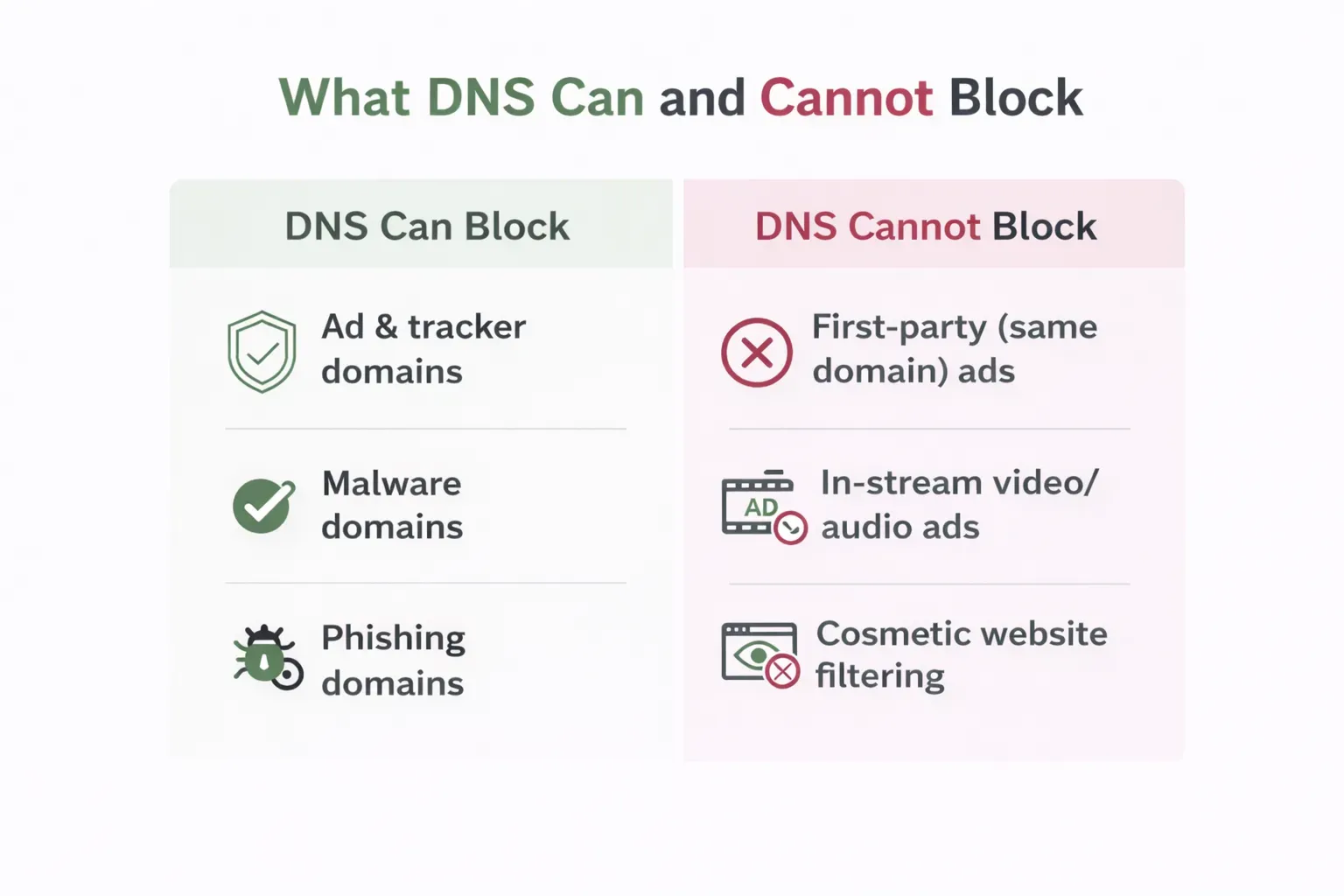
However, DNS cannot block ads served from the same domain as the content (first-party ads), many in-stream video or audio ads delivered via shared content domains, perform cosmetic filtering, or selectively remove elements from webpages.
Whether DNS applies outside your home depends on how it’s configured. Router-level DNS only affects that network, while device-level encrypted DNS (DoH/DoT) travels with the device.
2026 stack by platform:
- Chrome / Edge (Manifest V3): DNS baseline + browser extension to cover cosmetic and streaming gaps
- Firefox: DNS + preferred extension (Firefox continues supporting more permissive blocking APIs than Chromium-based browsers under Mozilla)
- iOS: DNS profile + Safari content blocker
- Android: Private DNS (DoT) + browser extension for streaming gaps
DNS and browser blocking are complementary layers; one works at the domain level, the other at the page and request level.
FAQs
What is the best NextDNS alternative for system-wide ad blocking?
For most users, AdGuard DNS is the easiest transition from NextDNS. Control D offers more granular controls (such as service-level filtering and routing options). The deciding factor is often latency; test performance on your own network before choosing.
Control D vs AdGuard DNS - Which is better?
Control D provides more advanced filtering and routing features. AdGuard DNS offers a simpler setup and straightforward category-based filtering. Performance varies by region and ISP, so test both if responsiveness matters to you.
Can any DNS service block YouTube ads?
DNS filtering cannot reliably block YouTube ads because many ads are delivered from the same domains as video content. The same limitation applies to several other streaming platforms. For YouTube, Spotify, and Twitch ads, browser-based blocking is typically required.
Do I need DNS-over-QUIC (DoQ)?
Most users do not need DoQ specifically. DoQ runs over UDP and can reduce connection overhead in certain network conditions compared to TCP-based DNS-over-TLS. In real-world browsing, the performance difference between DoH, DoT, and DoQ is usually minimal. If DoQ support matters, confirm that your chosen provider supports it.
Can I use two DNS providers at the same time?
Technically yes, but it may lead to inconsistent filtering. Many operating systems and routers treat primary and secondary DNS servers as equals and may query either. If you want consistent filtering behavior, configure both DNS entries to the same provider.