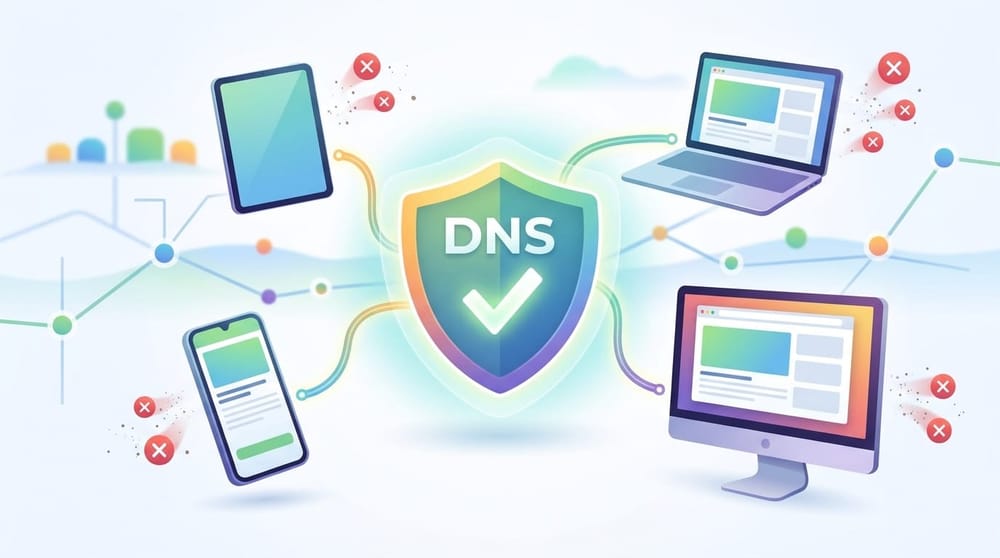
AdGuard DNS is one of the easiest ways to block ads across all your devices, but it’s not a complete solution. While it can stop most third-party ads and trackers at the network level, it struggles with platform-specific limitations and cannot block ads embedded within the same domain, like YouTube or Spotify.
Its performance also varies depending on your device. It works seamlessly on Android and Windows, but requires extra configuration on iPhone and Mac due to Apple’s privacy routing features.
This guide breaks down what AdGuard DNS actually blocks, where it fails, and how to set it up properly across devices, plus what you need to add if you want full ad blocking.
How Effective Is AdGuard DNS at Blocking Ads?
AdGuard DNS excels at killing third-party ad servers and hidden CNAME trackers. It fails entirely against first-party media streams and leaves behind broken, empty ad banners on websites.
How AdGuard DNS Blocks Ads
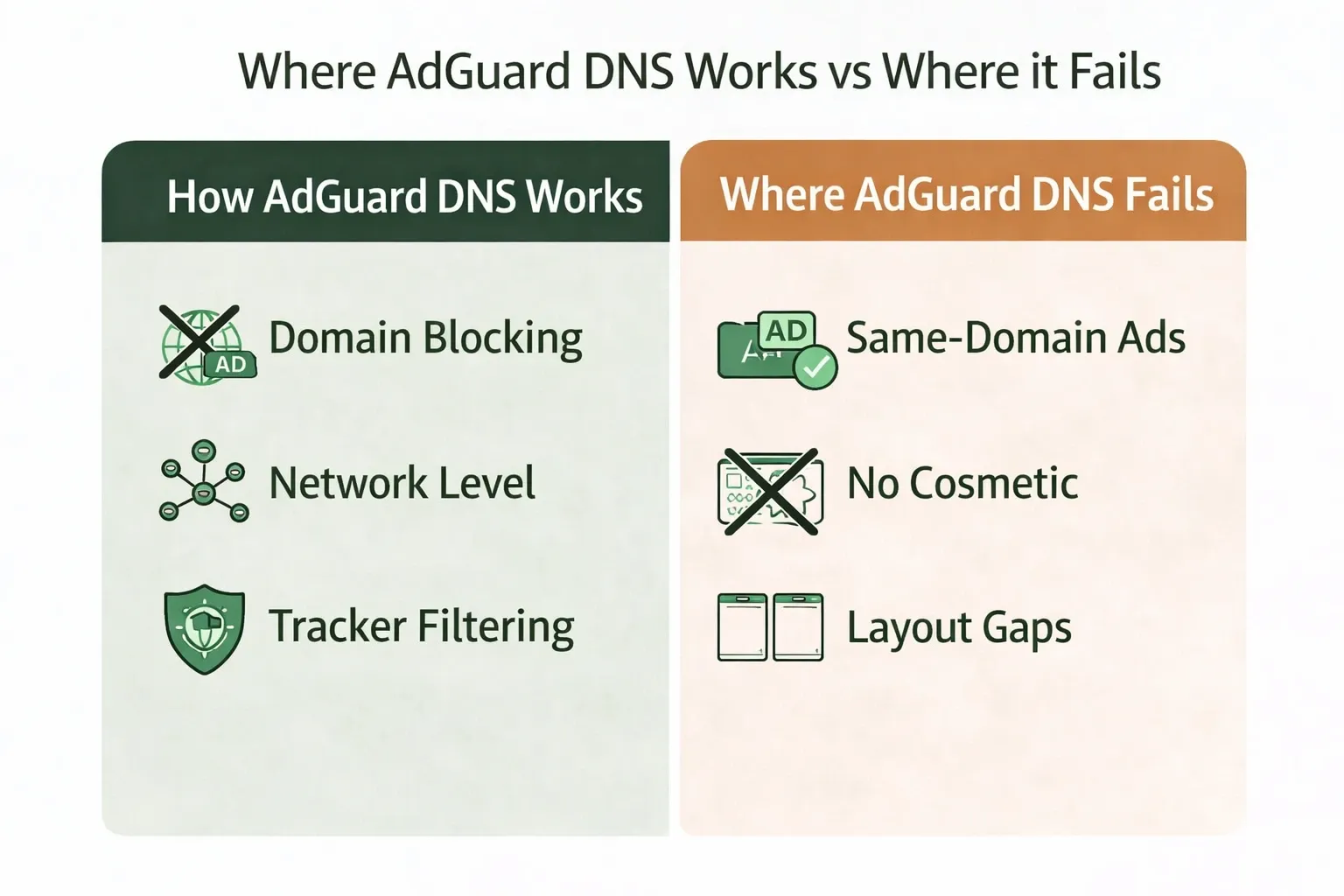
Whenever an app or browser requests an ad domain, AdGuard intentionally fails the connection. The payload never reaches your screen. Because this interception happens at the network protocol level, it catches background trackers across smart home devices, background operating system processes, and native apps. It seamlessly halts pop-ups, redirects, and third-party banners without relying on browser permissions.
Where AdGuard DNS Fails
DNS filtering blocks domain requests; it cannot read webpage code. If an ad shares a server with legitimate content, like a YouTube video or an Instagram sponsored post, blocking the domain breaks the content itself.
DNS also lacks cosmetic filtering. It prevents the ad image from loading but cannot collapse the HTML formatting, leaving massive, odd blank spaces exactly where the ads used to sit.
AdGuard DNS Setup Options: Public vs Private vs Home
Public DNS is the frictionless starting point. Private DNS adds logging and granular control. AdGuard Home requires self-hosted server management.
Pick the correct product layer to avoid immediate setup friction.
- Public AdGuard DNS: Zero account creation. Point your device to AdGuard's public server addresses for instant, cross-device filtering. You get zero customization or traffic visibility.
- Private AdGuard DNS: Unlocks a personal dashboard and per-device query logs. As of the version 2.20 update, the Private tier supports custom blocklists, granting power users strict control over their exact filtering rules.
- AdGuard Home: A self-hosted network solution requiring dedicated hardware (like a Raspberry Pi). It grants absolute local network authority but demands technical maintenance.
Action Step: For the shortest path to an ad-free baseline, apply Public AdGuard DNS to one device first. Verify the results before scaling to the rest of your hardware.
Does AdGuard DNS Work on All Devices?
Yes. Public server addresses cover unlimited devices. Private setups cap your hardware count based on your subscription tier. Your actual blocking success depends entirely on the operating system handling the request.
AdGuard DNS on Android: Setup & Limits
Android offers one of the simplest native implementations for AdGuard DNS. Using the built-in Private DNS feature, you can apply system-wide filtering across both Wi-Fi and mobile data with minimal setup.
How to stop pop-up ads on Android phone AdGuard DNS:
- Navigate to Settings > Network & Internet > Private DNS.
- Select "Private DNS provider hostname" and enter dns.adguard-dns.com.
- Save and flush your browser cache.
Real-world constraint: VPNs and some network providers can override or block encrypted DNS (DNS-over-TLS), which may cause connectivity issues or prevent AdGuard DNS from working consistently.
AdGuard DNS on iPhone: What Works and What Doesn’t
Apple strictly prioritizes its native routing protocols. While AdGuard filters third-party in-app trackers, iOS features like Private Relay can override custom DNS parameters.
Relying on manual Wi-Fi configuration is ineffective because the protection drops immediately when you switch to cellular data. Installing an official Apple configuration profile ensures cellular persistence.
However, Apple features like iCloud Private Relay and "Limit IP Address Tracking" intentionally tunnel your traffic around third-party resolvers. You must disable these native features for AdGuard to function reliably.
AdGuard DNS on Windows: System-Wide Setup Guide
Windows 11 supports encrypted DNS (DNS-over-HTTPS), allowing you to apply AdGuard DNS as a system-wide network-level filter. This setup blocks many third-party ads and trackers across apps and browsers, but it does not provide full ad-blocking functionality.
Navigate to Settings > Network & Internet, edit your active connection, and enter AdGuard’s IPv4 or IPv6 addresses.
Real-world constraint: Chromium browsers like Google Chrome and Microsoft Edge include their own “Secure DNS” settings. If enabled with a different provider, they can override your system-level DNS configuration and reduce AdGuard’s effectiveness.
AdGuard DNS on Mac: Setup and Key Limitations
macOS shares the structural strengths of Windows but inherits the complications of the Apple ecosystem.
Go to System Settings > Network to apply the custom addresses. While it works flawlessly as a foundational layer, Safari inherits the exact same iCloud Private Relay conflicts found on iOS. Chrome users on Mac face the identical browser-level Secure DNS bypass risk.
Why AdGuard DNS Doesn’t Block All Ads
When ads slip through, the blocker is rarely broken. Another protocol is silently overriding your choice.
- DNS Cache Delays: Your device remembers domain locations to speed up browsing. If you just applied new settings, your device is utilizing cached data. Toggle airplane mode to force the new rules.
- Active VPNs: Reputable VPNs force all device traffic through their own encrypted servers to prevent data leaks. A standard VPN often overrides or replaces your DNS setup.
- Browser Overrides: As mentioned, verify that Chrome or Edge's "Secure DNS" settings are not hijacking your network traffic.
When AdGuard DNS Isn’t Enough (What to Use Next)
Treat DNS strictly as your foundation. Pair it with a modern browser extension to solve media injection and layout rendering gaps. You will inevitably hit the ceiling of network filtering. Unskippable pre-rolls will play on Twitch. Websites will look fractured.
The browser landscape is actively shifting. Google Chrome's Manifest V3 architecture inherently restricts traditional browser-side ad-blocking methods. Navigating this environment requires a dual-layer approach: keep your network-level DNS active to handle telemetry and malicious domains, then apply a resilient browser-side tool to handle media streams.
I strongly recommend pairing your AdGuard setup with Blockify.
Blockify is a modern browser extension engineered specifically for dynamic content platforms. It utilizes a dual-layer blocking mechanism featuring smart ad detection and a safe muting fallback. If AdGuard handles the background network noise, Blockify handles the heavy lifting on the surface.
It crushes stubborn audio and video ads on YouTube, Spotify, and Hulu, while cosmetically repairing webpage layouts. Apply DNS to reduce most network-level ads and trackers, and run Blockify to finalize the pristine web experience.
FAQs
How Successful Is AdGuard at Blocking Ads?
AdGuard DNS is very effective at blocking third-party ads and tracking domains before they load. It works best as a system-wide baseline, but it cannot block same-domain ads such as YouTube or Spotify ads and it does not remove empty ad spaces.
Can I Use AdGuard DNS on Multiple Devices?
Yes. Public AdGuard DNS can be used across Android, iPhone, Windows, and Mac on as many devices as you want. Private plans may cap device count by tier, but the service is built for cross-device coverage.
How Do I Set Up AdGuard DNS on All Devices?
Use Private DNS on Android, the official configuration profile on iPhone and iPad, and system network DNS settings on Windows and Mac. On desktops, also confirm that browser-level Secure DNS is not bypassing your chosen resolver.
How Do I Stop Pop-Up Ads on an Android Phone With AdGuard DNS?
On Android, AdGuard DNS works best through the built-in Private DNS setting. Once enabled, it can block many pop-ups, redirects, and third-party ad calls on both Wi-Fi and mobile data without installing a full app.
Does AdGuard DNS Block YouTube or Spotify Ads?
No. DNS filtering cannot reliably separate ads from content when both come from the same domain or media stream. For YouTube, Spotify, and similar services, you usually need a browser-level layer such as Blockify.
Is AdGuard DNS Enough on Its Own?
It is a strong first layer for network-wide filtering, but it is not a complete ad-blocking stack. If you want cosmetic cleanup, better browser control, or help with stubborn media ads, pair it with Blockify.