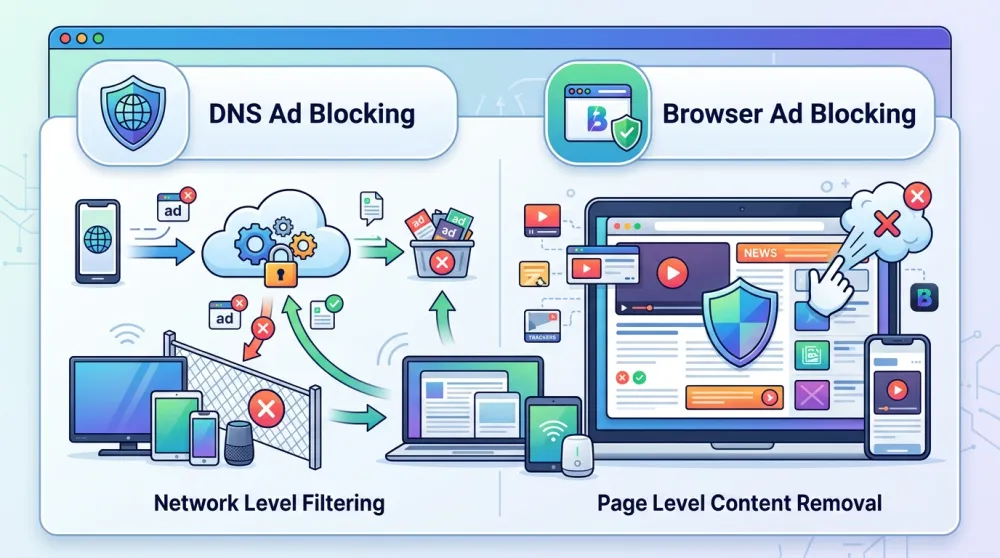
DNS ad blocking works at the network level and stops requests to known ad and tracker domains before they load.
Browser ad blocking works inside the browser, where it can inspect page code, remove empty ad spaces, and block many dynamic ads. DNS covers more devices, while browser blockers usually create cleaner pages.
Examples of DNS setups include NextDNS, Pi-hole, AdGuard DNS, and Control D. Browser-based options include extensions such as Blockify, uBlock Origin Lite, and Ghostery, plus privacy browsers like Brave with built-in blocking. Many users combine both layers for stronger results.
Here is the bottom line: Browser ad blockers surgically clean up the specific web pages you view. DNS ad blockers provide a blanket layer of protection across your entire home network. They do entirely different jobs, and many users combine both for an airtight defense.
DNS vs Browser Ad Blocking: Quick Setup Guide
- Use a browser blocker (like Blockify, AdGuard, or uBlock Origin) if you browse heavily on a laptop or desktop and want flawlessly clean web pages without streaming video ads.
- Use a DNS blocker (like Pi-hole or NextDNS) if you want to stop background trackers across smart TVs, mobile apps, and IoT devices on your home network.
- Use both if you want maximum privacy and zero cosmetic page breaks.
What Is the Difference Between DNS Ad Blocking and Browser Ad Blocking?
When comparing DNS ad blocking vs browser ad blocking, the primary difference is where the filtering happens.
DNS ad blocking acts as a network gatekeeper. It checks outbound traffic and drops connection requests to known tracker domains before they load.
Browser ad blocking operates locally as a page editor. It inspects the website's code, prevents specific scripts from running, and physically hides leftover ad placeholders to keep the layout clean.
DNS gives you scope (protecting smart TVs and mobile apps). Browser blockers give you precision (blocking YouTube ads and fixing broken page elements).
DNS vs Browser Ad Blocking at a Glance
Feature |
DNS Ad Blocking |
Browser Ad Blocking |
Operating Layer |
Network / Domain level |
Inside the local web browser |
Best Used For |
Whole-home networks, smart TVs, IoT |
Laptops, desktops, text and video sites |
Primary Targets |
Third-party trackers, known ad domains |
Page scripts, dynamic elements, hidden trackers |
Blind Spots |
Same-domain ads (YouTube), cosmetic layout |
Any traffic outside the specific browser |
Cosmetic Cleanup |
No (leaves awkward blank spaces) |
Yes (hides empty ad placeholders) |
Setup Effort |
Moderate (router or OS settings) |
Very low (one-click extension install) |
Breakage Risk |
Higher (harder to quickly troubleshoot) |
Lower (easy to pause or whitelist) |
Key Takeaway: If your problem is what you physically see on a webpage, install a browser blocker. If your problem spans dozens of smart devices, set up DNS filtering.
How Effective Are DNS Ad Blocking and Browser Ad Blocking?
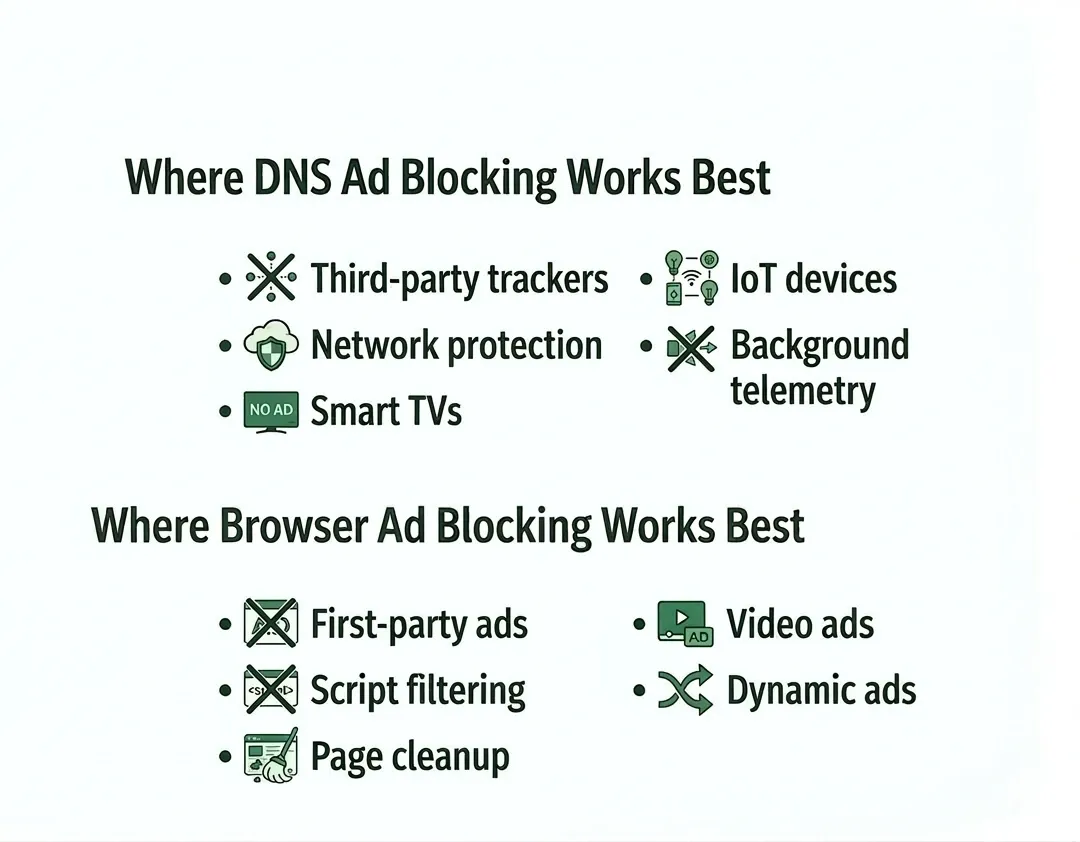
DNS ad blocking is highly effective for neutralizing third-party background trackers across apps and connected devices. Browser ad blocking is vastly superior for the web pages you actively look at because it handles first-party ads, dynamic media injections, and cosmetic page cleanup.
Recent data validates this performance gap. According to a December 2025 Web Performance Report by AdGuard, browser-based filtering outperformed DNS filtering on core web metrics. Testing across 119 top websites revealed that DNS filtering saved 198.52 MB of data, while browser-level filtering saved 267.42 MB.
A separate peer-reviewed analysis found that selective script blocking can achieve a better trade-off between tracking prevention and site functionality than blocking everything indiscriminately.
Where DNS Ad Blocking Works Best
DNS blocking instantly neutralizes requests to known third-party tracking domains. It provides immediate value for smart TVs, gaming consoles, and IoT devices where you cannot easily install third-party software. It dramatically reduces background telemetry noise across an entire household.
Where DNS Ad Blocking Falls Short
DNS cannot process context. It struggles massively with first-party ads served from the exact same domain as the main content. If you use a DNS blocker on YouTube, it either allows both the video and the ad, or it breaks the platform entirely. DNS also cannot perform cosmetic filtering. When a DNS sinkhole blocks an ad domain, the website still loads the visual container, leaving massive, odd blank spaces scattered across your screen.
Where Browser Ad Blockers Perform Better
Browser blockers inspect the Document Object Model (DOM). They strip out malicious scripts, collapse empty ad placeholders, and intercept dynamically inserted audio or video ads. They are the ultimate tool for users who spend their time reading articles or watching streams.
If intrusive streaming ads are your main pain point, you need a browser blocker. Blockify exists specifically for this use case. Engineered to handle complex server-side ad insertions (SSAI) on modern streaming platforms, it uses a dual-layer interception mechanism to stop stubborn video ads. It currently maintains a 4.8 rating from over 5,200 reviews, offering a strict set-and-forget experience for content-heavy web surfing.
Why You Still See Ads Even with DNS or Browser Ad Blocking
Even with top-tier tools, ads occasionally slip through. The most common culprit today is Secure DNS (DNS-over-HTTPS or DoH). Modern browsers like Chrome often default to their own DoH settings, bypassing your carefully configured local router DNS entirely.
Furthermore, hardcoded DNS in smart devices routinely ignores network-level filtering rules.
Key Takeaway: Browser tools catch dynamic and first-party content. DNS tools catch wider network-level telemetry. Neither is flawless in isolation.
Best DNS and Browser Ad Blocking Tools
Selecting the right tool depends on your technical comfort level and primary device ecosystem.
Top DNS Ad Blocking Providers
- NextDNS: A cloud-based managed service offering immense customization, DoH support, and strict privacy controls.
- Control D: Highly granular routing and filtering options tailored for advanced users.
- AdGuard DNS: A reliable, zero-configuration public DNS that handles basic ad domains effortlessly.
- Pi-hole: The definitive self-hosted gold standard. It requires a Raspberry Pi or local server but gives you absolute sovereignty over your network traffic.
Top Browser Ad Blocking Providers
- Blockify: Best for users heavily consuming streaming platforms, offering a strict, zero-configuration engine that aggressively targets dynamic media ads.
- uBlock Origin Lite: The premier MV3-compliant extension for Chrome users demanding low memory usage.
- Ghostery: An excellent tool focused heavily on visualizing hidden trackers and neutralizing analytics scripts.
- Brave Browser: An alternative approach featuring powerful, native ad blocking baked directly into the browser core.
Router-Level vs Browser Ad Blocking: Pros and Cons
Choosing where to deploy your filtering creates distinct technical trade-offs.
Router-Level (DNS) Blocking Pros & Cons
Pros:
- Protects every connected device on your Wi-Fi instantly.
- Highly effective for securing smart TVs, kids' tablets, and smart home appliances.
- Reduces background bandwidth consumption before data reaches your device.
Cons:
- A blunt instrument that routinely breaks complex websites.
- Easily bypassed if a device or app uses hardcoded DNS.
- Leaves broken layouts, empty frames, and unformatted text blocks on web pages.
- Diagnosing a broken site requires digging through network query logs.
Browser-Level Blocking Pros & Cons
Pros:
- Delivers flawless cosmetic filtering and page cleanup.
- Granular user controls (easy to whitelist a single domain).
- Catches complex first-party video and audio ads.
- Fastest possible setup for a single user.
Cons:
- Only protects the specific browser where the extension is active.
- Offers zero protection for standalone mobile apps or smart TVs.
- Consumes local CPU and RAM to parse filter lists in real-time.
Does Manifest V3 Kill Browser Ad Blockers?
Search results remain cluttered with outdated panic regarding Google's browser extension overhaul.
Chrome deprecated Manifest V2 (MV2), fundamentally altering how extensions intercept network requests by shifting from the WebRequest API to the DeclarativeNetRequest API. Early warnings suggested this would destroy browser ad blocking.
Those warnings were wrong.
A peer-reviewed PoPETs 2026 study evaluated the MV3 update and found no statistically significant reduction in ad-blocking or anti-tracking effectiveness for default setups compared to MV2 counterparts. Everyday users still receive excellent protection against intrusive ads.
Best Browser Ad Blocking Options After Manifest V3
- Chrome users: Upgrade to modern, MV3-compliant blockers built specifically for the new architecture.
- Firefox users: Mozilla maintains deeper MV2-style extension capabilities, offering maximum advanced flexibility.
- Safari users: Apple’s content blocker API remains rigid but highly efficient for macOS and iOS.
- Brave users: Built-in, Rust-based network filtering changes the baseline entirely, negating the need for most third-party extensions.
Can You Use DNS Ad Blocking and Browser Ad Blocking Together?
Yes. Many power users deploy a hybrid setup. Combining DNS filtering with a browser blocker covers the inherent weaknesses of each individual method.
The DNS layer acts as the broad shield. It provides baseline filtering for apps, stops smart TV tracking, and drops malicious requests before they hit your device. The browser layer acts as the precision scalpel. It handles cosmetic cleanup, intercepts dynamic streaming ads, and gives you a quick toggle switch when a strict network blocklist breaks a login portal.
How to Combine DNS and Browser Ad Blocking for Maximum Protection
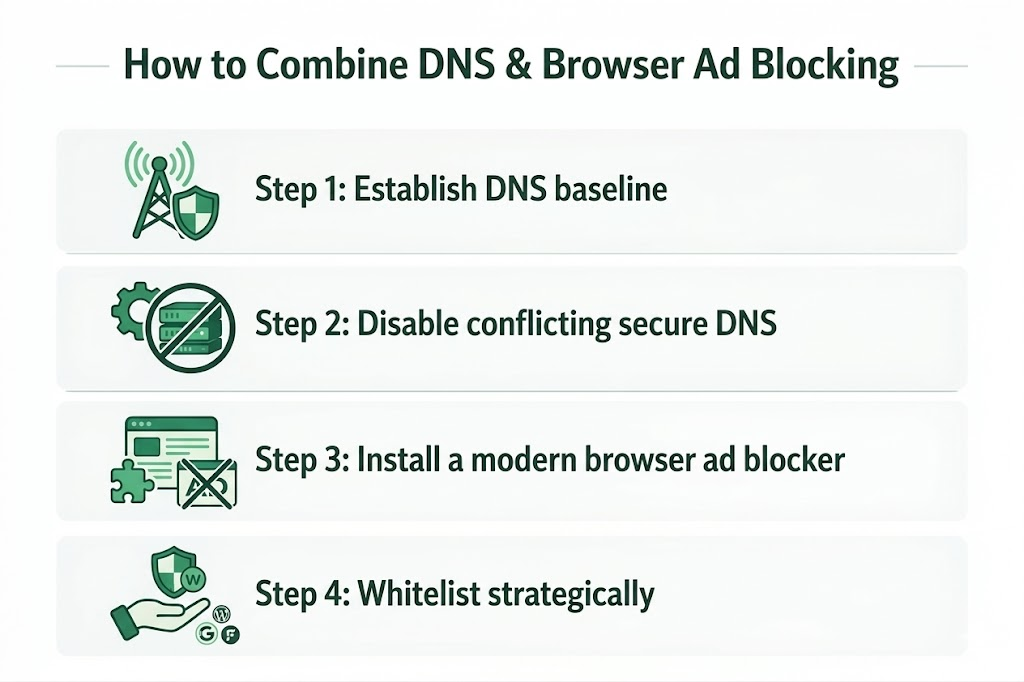
- Establish Your DNS BaselineConfigure a managed cloud DNS on your home router. Alternatively, apply a Private DNS profile directly in your smartphone's OS settings.
- Disable Conflicting Secure DNSOpen your web browser settings and verify it uses your system's default DNS. If your browser defaults to its own DoH (like Google Public DNS or Cloudflare), it will completely ignore your router's blocklists.
- Install a Precision Browser BlockerAdd a modern, MV3-compliant extension. If you spend significant time on media-heavy sites, running Blockify handles the dynamic ad injections that your DNS layer cannot see.
- Whitelist StrategicallyIf a website breaks, pause your browser extension first. If the page loads, the extension causes the conflict. If it remains broken, check your DNS sinkhole query logs and unblock the specific required domain.
Which DNS Ad Blocking Services Protect Your Privacy Best?
Your privacy hinges entirely on the provider's logging policy and operational jurisdiction.
Managed services like NextDNS and Control D can offer strong off-the-shelf privacy protection.
They support modern encrypted protocols (DoH, DoT, DoQ) to hide your traffic from your ISP, and privacy-focused providers increasingly let you tune logging behavior carefully.
However, for absolute privacy, self-hosted solutions like Pi-hole or AdGuard Home are unbeatable. Because you host the software locally, your domain lookup telemetry never leaves your physical network architecture.
Warning: Do not confuse privacy DNS with ad-blocking DNS. Some privacy-focused resolvers prioritize security and speed but do not use ad-blocking filter lists. Always verify your provider explicitly filters ad domains.
DNS vs Browser Ad Blocking: Which Should You Use?
The debate between DNS ad blocking vs browser ad blocking is a false dichotomy. They solve different problems at different layers of your internet connection.
- Need an immediate fix for broken web pages and YouTube ads? Install a browser blocker like Blockify right now. It is the fastest way to clean up your visual experience.
- Need to protect smart TVs, game consoles, and mobile apps? Configure a DNS filter on your router.
- Want flawless protection? Deploy both.
If you need a reliable browser-level tool to anchor your setup, evaluate Blockify. Engineered specifically to tackle dynamic streaming ads, it serves as an excellent precision layer alongside any network-wide DNS filter. Pick your primary tool today, monitor your browsing experience, and layer your defenses as your needs evolve.
FAQs
What Are the Main Differences Between DNS Ad Blocking and Browser Ad Blocking?
DNS ad blocking works before content loads by stopping requests to ad and tracking domains. Browser ad blocking works inside the browser, where it can read page code, block scripts, and hide leftover ad boxes. DNS is broader across devices, while browser blockers are usually more precise on the pages you actually see.
How Effective is DNS Ad Blocking?
DNS ad blocking is very effective for third-party trackers, app telemetry, and many ads served from separate domains. It is weaker against same-site ads, YouTube video ads, and dynamic streaming ads because it cannot inspect the page itself or clean up empty ad spaces.
Can I Use DNS Ad Blocking and Browser Ad Blocking Together Effectively?
Yes. A DNS layer such as NextDNS, Pi-hole, AdGuard DNS, or Control D can cover phones, TVs, and smart devices, while a browser tool like Blockify, uBlock Origin Lite, Ghostery, or a privacy browser like Brave handles page cleanup and harder in-browser ads. Together they close more gaps.
What Are the Top DNS Ad Blocking and Browser Ad Blocking Providers?
Popular DNS options include NextDNS, Pi-hole, AdGuard DNS, and Control D. Popular browser-based options include Blockify, uBlock Origin Lite, Ghostery, and privacy browsers like Brave with built-in blocking. The best choice depends on whether you want network-wide protection, cleaner pages, stronger streaming protection, or the simplest setup.
Which DNS ad blocking services offer the best privacy protection?
Self-hosted tools like Pi-hole or AdGuard Home keep more control inside your own network. Managed services like NextDNS and Control D offer encrypted DNS and configurable logging settings for easier setup. The best privacy option depends on whether you want maximum local control or simpler cloud management.
Which Option is Better for Smart TVs, Apps, and Connected Devices?
DNS blocking is usually better if you want one setting that helps smart TVs, apps, gaming consoles, tablets, phones, and other connected devices. Browser blocking is better for desktop or laptop browsing, where you want precise control, cosmetic cleanup, and stronger protection against many page-level and streaming ads.
Why Do I Still See Ads When Ad Blocking is Enabled?
Ads can still appear when a site serves ads from the same domain as its content, when a browser uses its own secure DNS instead of your router settings, or when an app hardcodes its own DNS. Some ads are also inserted dynamically and need browser-level blocking.