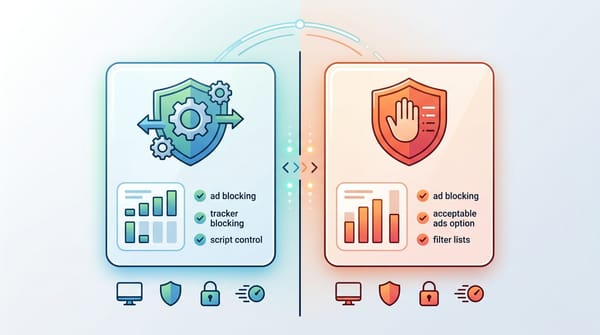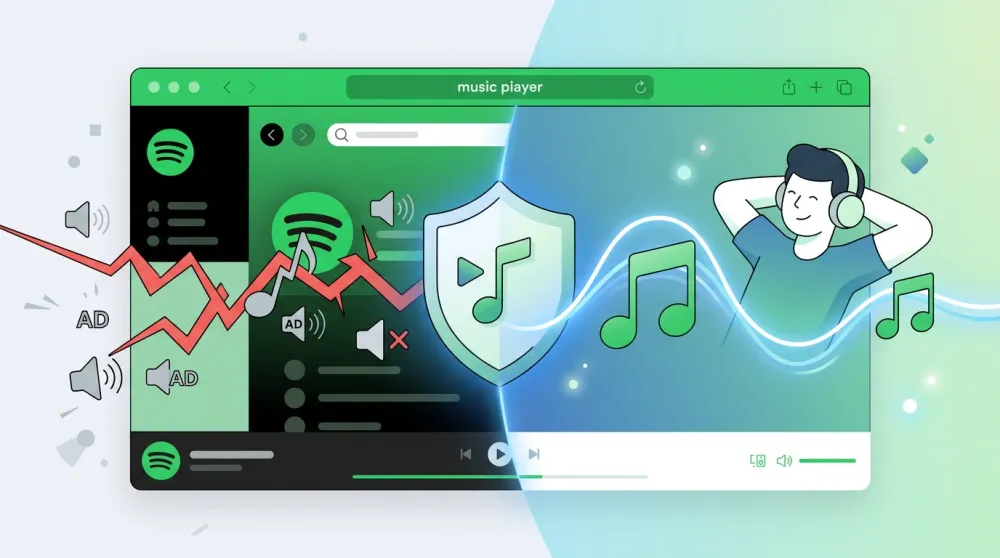
In 2026, standard network-based blockers often trigger Spotify’s anti-adblock detection, which leads to stalled playback instead of uninterrupted music.
I tested the leading setups across Chrome, Edge, Brave, and Firefox specifically to eliminate two problems: audio ads and player freeze loops. The objective is simple; no audio interruptions and no broken playback state.
If you want the fastest, low-maintenance solution on Chrome, Edge, or Brave, install Blockify. It relies on safe audio muting rather than aggressive network blocking, which helps prevent Playback Paused errors.
If you’re using Firefox, the most stable approach there is pairing the full version of uBlock Origin or using a lightweight userscript (via a manager like Violentmonkey) to handle ad skipping without breaking the Web Player.
Choose the Best Spotify Ad Blocker for Your Browser
Stop testing random extensions. Choose your setup based on your browser and your preference for ease of use versus ultimate control.
3 Questions to narrow your choice:
- Are you using a Chromium browser (Chrome, Edge, Brave) or Firefox?
- Do you prefer a fast automatic installation, or are you comfortable loading custom scripts?
- Do you prioritize zero audio ads immediately, or do you demand open-source code?
| Browser | Best Pick | Why It Works in 2026 | Setup Time |
| Chrome, Edge, Brave | Blockify | Uses intelligent safe muting instead of hard network blocking, preventing “Playback Paused” freeze loops on Chromium browsers. | 2 mins |
| Firefox | uBlock Origin (Full Version) | Firefox still supports advanced filtering capabilities, allowing stable visual cleanup while avoiding aggressive network blocking that breaks playback. | 3–5 mins |
| All Browsers | Userscript Skip/Mute (Free) | Injects page-level logic to skip or mute ad tracks without blocking Spotify domains, reducing freeze risk. | 5 mins |
Warning: Avoid network-level DNS tools like Pi-hole for the Spotify Web Player. Blocking Spotify domains at the network level guarantees immediate "Playback Paused" errors.
What to Look For When Choosing a Spotify Ad Blocker?
Most guides list theoretical blockers that fail in the real world. I rank tools based on strict uninterrupted playback criteria. A tool only makes this list if it passes my 60-minute continuous listening test on an ad-heavy free account.
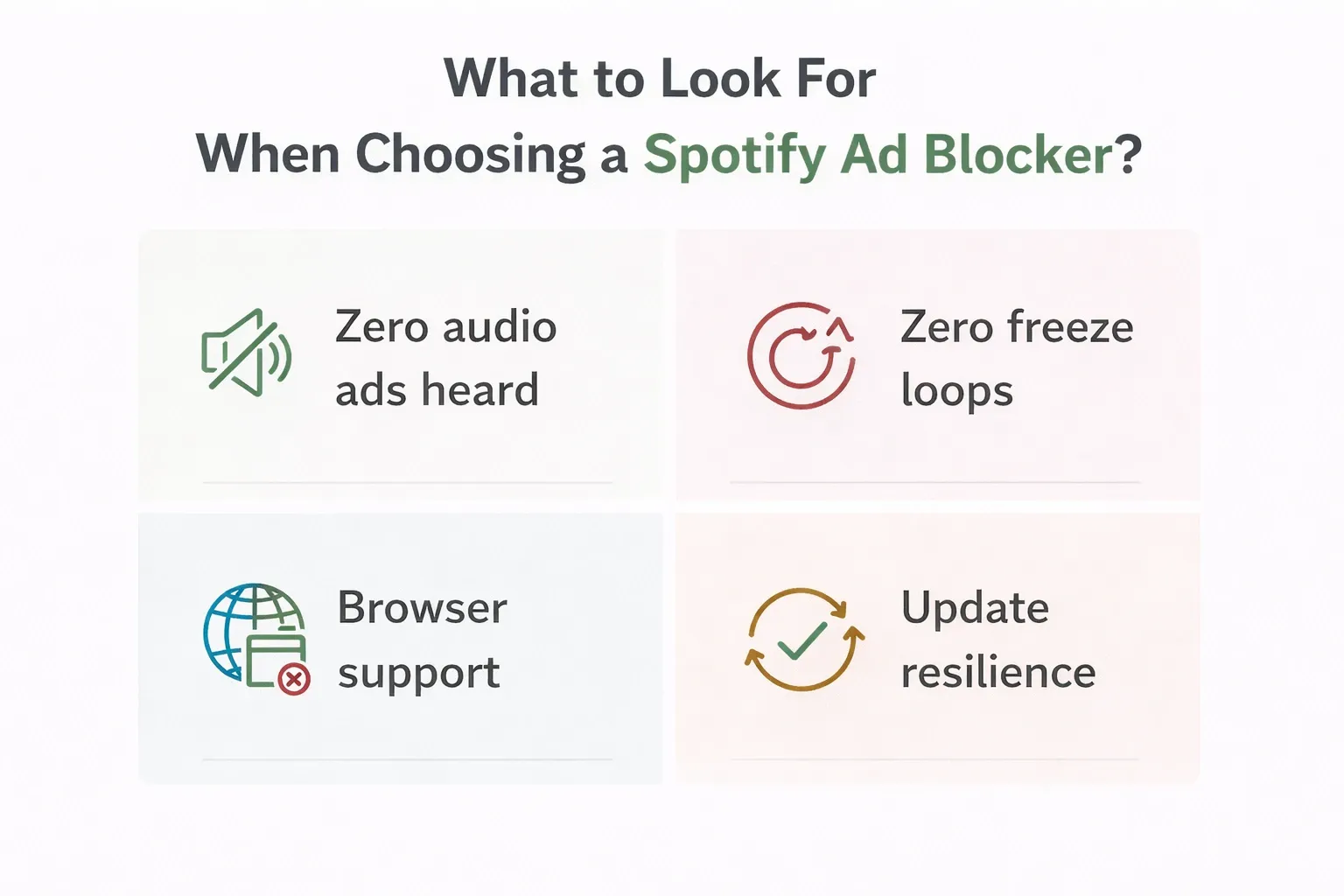
My pass or fail protocol requires the following:
- Zero audio ads heard: The tool must silence or skip the ad break completely.
- Zero freeze loops: The Web Player must transition perfectly back to your music queue.
- Universal browser support: It must function properly on Chrome, Edge, Brave, and Firefox.
- Update resilience: The underlying mechanism must survive routine platform updates.
Why Spotify Ad Blocking Breaks in 2026
The technology landscape changed drastically. You are fighting two massive platform shifts. Google rolled out Manifest V3 for Chrome extensions. Spotify also upgraded its anti-circumvention technology and expanded Server-Side Ad Insertion (SSAI). Spotify’s own notes on Streaming Ad Insertion (SAI) show region-by-region availability that can shift over time (for example, the U.S., Canada, Germany, and the U.K.) in Spotify’s Streaming Ad Insertion (SAI) announcement.
The two failure modes you need to avoid
- Playback Paused loop: Spotify detects a blocked connection, stops playback entirely, and demands user interaction to resume.
- Freeze loop at ad breaks: The player enters a broken state. The UI freezes because your browser blocked a tracking script that Spotify requires to transition back to the music queue.
Why standard blockers fail on Chromium
Manifest V3 limits how browser extensions handle dynamic network requests. Older Manifest V2 extensions intercepted and rewrote ad requests perfectly. The new framework enforces strict static rule limits. This makes hard-block approaches brittle on Chrome, Edge, and Brave. Firefox still supports the stronger Manifest V2 style framework. Therefore, your blocking strategy must adapt to your browser choice.
Key Insight: For the Spotify Web Player, skipping or muting ads beats network blocking. Letting the ad handshake complete prevents the catastrophic failures that trigger player freezes.
What is the Best Ad Blocker for Web, Chrome, and Firefox in 2026?
Chromium browsers (Chrome, Brave, Edge) require careful configuration. You cannot use aggressive network blockers here.
Option A: Blockify (Recommended)
Blockify is built specifically for modern streaming environments where traditional ad blockers struggle. It blocks ads across platforms like Spotify, YouTube, and Twitch. With over 300,000 users and highly rated reviews, it operates as a highly reliable choice.
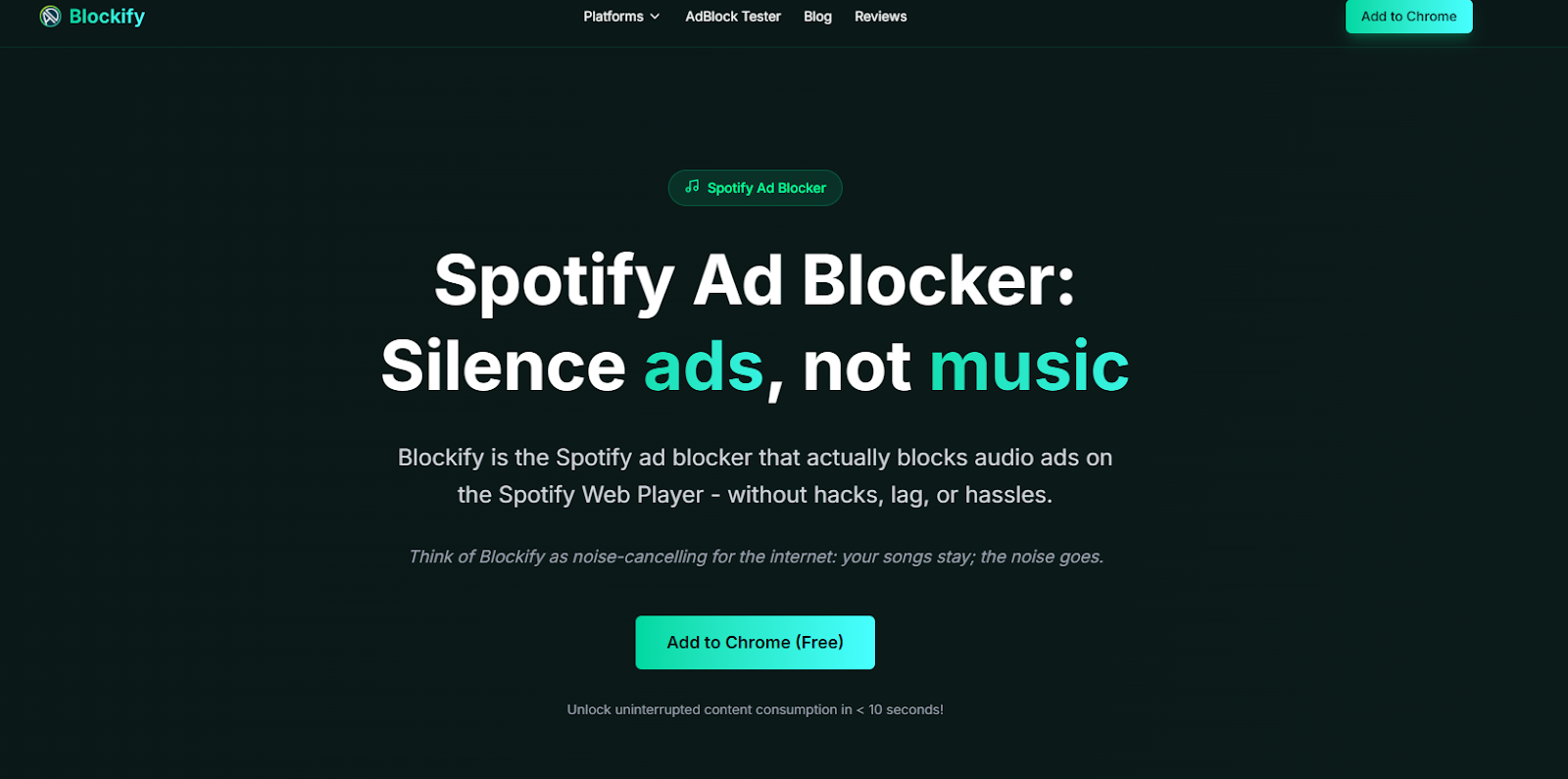
How to set up Blockify:
- Go to the official site and click Install Blockify
- Add the extension to your Chrome, Edge, or Brave browser.
- Pin the extension to your toolbar.
- Verify the toggle is enabled when you visit the Spotify Web Player.
Configuration: Ensure you do not whitelist the Spotify tab. Open the extension settings to verify that the audio ad blocking or safe muting features are active. Refresh the Spotify tab once.
If you run multiple ad blockers, disable hard-blocking for Spotify in your secondary extension. Running two blockers simultaneously causes conflicts.
Option B: Userscript Ad Skip (Free and Transparent)
This setup avoids breakage by skipping ads through custom code. You do not rely on brittle domain blocks.
Installation steps:
- Install a trusted userscript manager like Violentmonkey or Tampermonkey.
- Find a vetted Spotify ad-skip script on GitHub. Always inspect the source code first.
- Confirm the script is set to run explicitly on the open.spotify.com domain.
Spotify updates its web player frequently. If ads slip through, you simply update the script rather than changing your entire browser setup. Bookmark the script creator's repository to track updates easily.
Action Step: Choose Blockify for an automatic, maintenance-free experience. Choose the Userscript method if you want open-source transparency and do not mind manual updates.
Option C: uBlock Origin on Firefox
Mozilla continues supporting MV2 extensions alongside MV3, including the blockingWebRequest API. To set up:
- Install Firefox.
- Install uBlock Origin from Mozilla Add-ons.
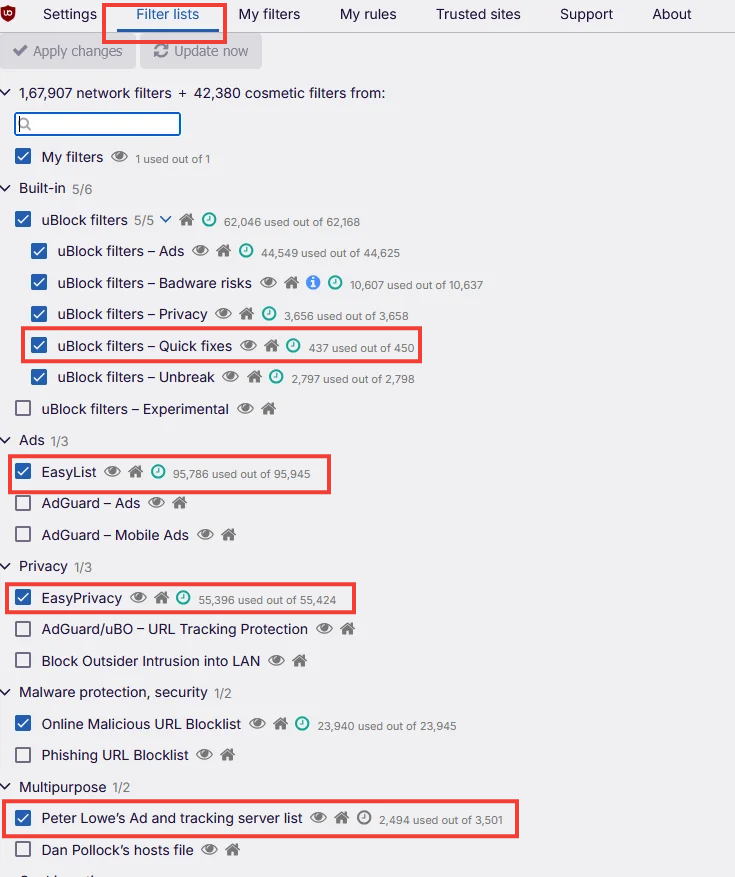
- Open uBO Dashboard → Filter lists tab.
- Confirm enabled: all default lists (EasyList, EasyPrivacy), Peter Lowe's Ad and tracking server list, and "uBlock filters – Quick fixes" (critical for recent changes).
- Click "Update now" at the top.
- Open open.spotify.com in Firefox, log in, start playback.
Option D: uBlock Origin and Userscript (Power User)
This combination provides full control over the user interface with a skip layer for audio.
Installation steps:
- Install the full version of uBlock Origin from the Mozilla Add-ons Store to access Firefox’s complete filtering capabilities.
- Import a Spotify Web Player cosmetic filter snippet into your uBlock Origin dashboard. Keep custom rules limited to element hiding (cosmetic filters) rather than hard network-blocking rules to reduce the risk of playback issues.
- Install Violentmonkey on Firefox.
- Add a maintained Spotify skip userscript, just as you would on Chromium-based browsers.
- Use uBlock Origin to manage visible ad elements and the userscript to handle automatic skipping where possible.
Be aware that Spotify frequently updates its web player and uses server-side ad delivery, so filters and scripts may require periodic updates and long-term effectiveness is not guaranteed.
Key Insight: Firefox users can safely use uBlock Origin for visual cleanup, provided they leave audio ad handling to a dedicated userscript or safe muting tool like Blockify.
Troubleshooting: Fix the "Playback Paused" Error
If Spotify freezes, pauses, or ads slip through, follow this checklist to fix the problem fast.
- Symptom: "Playback Paused" screen.
- Likely cause: A network domain is blocked.
- Fix: Remove DNS blackhole rules. Switch your strategy to a mute or skip method.
- Symptom: Freeze at ad break.
- Likely cause: An extension conflicts with the ad handshake.
- Fix: Disable generic hard blockers. Use Blockify safe muting instead.
- Symptom: Queue wiped out after a page refresh.
- Likely cause: You refreshed on the Home tab instead of a playlist tab.
- Fix: Keep playback anchored strictly to a specific album or playlist page.
Remove any DNS rules targeting Spotify ad domains. Clear your site data only if the pause persists after adjusting your extensions.
FAQ
Which Software Effectively Blocks Ads on Spotify Web?
Tools that avoid aggressive network-level blocking tend to work more reliably on the Spotify Web Player. Approaches that rely on safe muting or page-level scripting are less likely to trigger playback interruptions than tools that block Spotify ad domains outright. Hard domain blocking often leads to “Playback Paused” errors or frozen playback states.
Can I Use a Browser Extension to Block Spotify Ads?
Yes, but it must be compatible with modern browser extension frameworks. On Chromium browsers (Chrome, Edge, Brave), extensions that rely on heavy network filtering may cause playback issues due to Manifest V3 limitations. On Firefox, more advanced filtering is still supported, but aggressive blocking can still disrupt playback if critical requests are intercepted.
Can Spotify Detect Ad Blockers?
Yes. If an extension blocks a required network request, Spotify detects the failure immediately and pauses playback. Safe muting bypasses this detection by allowing the request but hiding the audio output.
Is It Legal to Block Spotify Ads?
Using content-blocking tools in your own browser is generally legal in most jurisdictions. However, bypassing ads may violate Spotify’s Terms of Service. Spotify reserves the right to restrict or suspend accounts that engage in circumvention. Enforcement practices can vary and are not publicly documented in detail.
Can DNS Block Spotify Ads?
DNS-level blockers (such as Pi-hole) are typically ineffective for the Spotify Web Player. Blocking Spotify-related domains at the DNS level often disrupts required playback requests, which can trigger pause loops or prevent the queue from advancing correctly.